

At its core, WordPress maintenance & support is just the ongoing work of keeping your website updated, secure, backed up, and running like a well-oiled machine. It’s all about a proactive strategy to prevent issues—think security breaches, lost data, and sluggish performance—instead of scrambling to fix them after the damage is done.
Why WordPress Maintenance Is Your Website’s Insurance Policy

It’s tempting to think of your website as a static brochure, but that’s not quite right. It's a complex, living piece of software, a lot like a high-performance car. The day you launch, everything is shiny, clean, and works perfectly. But just like a car, small issues start to creep in over time if you don't keep up with the check-ups.
This is where WordPress maintenance & support becomes absolutely essential. It’s less of a boring chore and more of a non-negotiable insurance policy for your digital storefront. You wouldn't drive a car for years without an oil change or tire rotation, right? Your website needs that same consistent care to head off catastrophic failures that could paralyze your business.
Putting off maintenance is like driving without insurance. Sure, you might save a few bucks in the short term, but a single "accident" can be completely devastating.
The Real Cost of Neglect
When a site is left to fend for itself, the risks are much bigger than a simple error message. The consequences are real, and they hit your bottom line directly. Without a solid maintenance plan, you’re leaving your business wide open to a whole host of problems you could have easily avoided.
Here’s what you’re risking:
- Costly Downtime: Every single minute your site is offline, you're losing customers, sales, and leads. A well-maintained site simply stays online more.
- Damaged Brand Reputation: A slow, buggy, or insecure website screams to visitors that you don't care about their experience or their data. That erodes trust in an instant and sends them right over to your competitors.
- Complete Data Loss: Can you imagine waking up to find all your blog posts, customer orders, and user data just… gone? Without reliable backups, getting that back is often impossible.
- Security Breaches: Outdated plugins and themes are the front door for hackers. A breach can mean stolen data, getting blacklisted by Google, and even legal trouble.
A proactive maintenance strategy shifts your focus from damage control to prevention. It’s the difference between calling a firefighter during a blaze and having an inspector regularly ensure your building is up to code.
From Expense to Investment
Ultimately, it's about shifting your perspective. WordPress maintenance isn't just another bill to pay; it's a strategic investment in the health and future of your business.
By setting aside resources for regular upkeep—whether you do it yourself or use a professional website care plan—you're actively protecting your revenue, preserving your brand's integrity, and making sure your customers have a great experience.
This proactive mindset ensures your website remains a powerful asset that works for you, not against you. It's the foundation that keeps your entire online presence safe and sound.
The Four Pillars of Effective WordPress Maintenance
To really get a handle on WordPress maintenance & support, it helps to think of it as a solid structure built on four crucial pillars. Each one is essential. If even one of them starts to wobble, your entire website is at risk. These core pillars are Backups, Updates, Security, and Performance.
Getting this framework right is the first step to building a maintenance strategy that actually works. It gives you a clear checklist you can follow to check up on your own site or figure out if a support provider knows what they're doing. Drop the ball on just one of these, and you're leaving your site open to anything from small annoying glitches to a full-blown digital meltdown.
This visual helps show how a proper WordPress maintenance plan is built around these pillars.
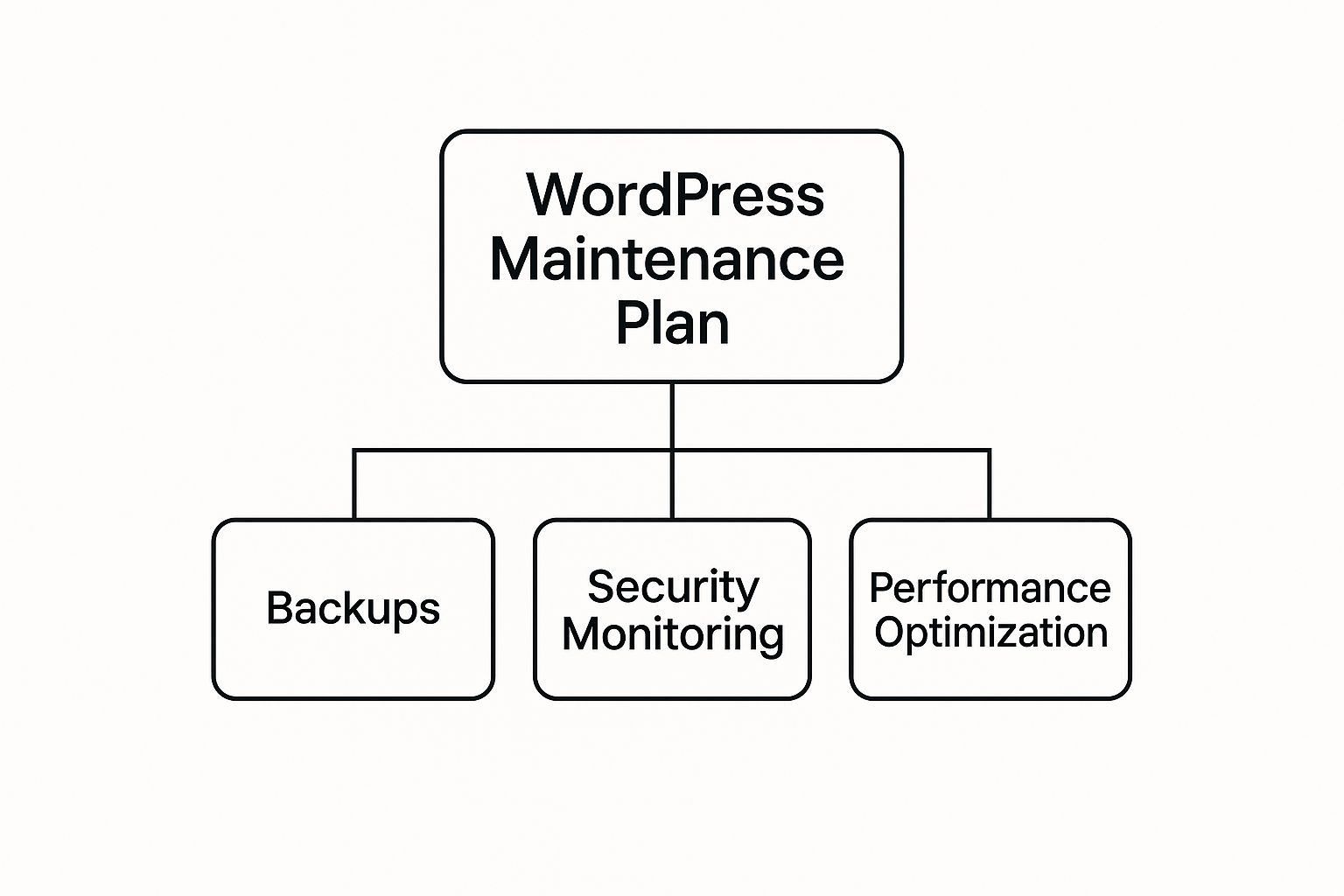
As you can see, a good plan has a lot of moving parts, but they all serve the same goals: keeping your site intact, protected, and running smoothly.
So, let's break down what each of these pillars really means.
Pillar 1: Reliable Backups
Picture your website as a perfectly organized library. Every book, shelf, and catalog card is exactly where it should be. A backup is a flawless copy of that entire library, stored in a completely separate, safe building. If the main library ever had a fire, you could rebuild it from scratch using that copy. Without it? Everything is gone for good.
That’s why automated, off-site backups are your ultimate safety net. "Automated" means you don't have to remember to do it, and "off-site" means the backup isn't sitting on the same server as your website. Storing your backup on the same server is like hiding the spare key to your house under the doormat—it completely defeats the purpose.
A solid backup strategy looks like this:
- Daily Backups: Your database and files should be backed up at least once every 24 hours.
- Off-Site Storage: Backups need to be saved to a third-party cloud service like Amazon S3 or Google Drive.
- Easy Restoration: When things go wrong, you need to be able to restore a backup with a single click. There’s no time to waste in an emergency.
Pillar 2: Timely Updates
The WordPress world is always changing. Developers are constantly releasing updates for the core software, themes, and plugins. These updates add features, fix bugs, and—most importantly—patch security holes. Putting off these updates is like hearing a locksmith tell you your front door lock is broken and deciding to "get to it later."
That's where the real danger is. An incredible 95% of WordPress vulnerabilities come from outdated plugins alone. This isn't a small problem; WordPress websites are attacked, on average, every 32 minutes. Hackers love WordPress because it’s everywhere, making it a huge target. You can find more detailed WordPress statistics that paint the full picture of these threats.
An effective update process is your first and most powerful line of defense. It’s the proactive measure that stops most attacks before they can even begin.
Pillar 3: Proactive Security
While keeping everything updated is a massive part of your defense, a complete security plan needs more. This pillar is all about actively hunting down and blocking threats before they can cause any damage. It's the difference between passive defense and active, hands-on protection.
Think of it this way: updates are like reinforcing the walls of your fort. Proactive security is having guards on patrol and setting up an alarm system.
Key security tasks include:
- Malware Scanning: Regularly checking your site’s files for any malicious code.
- Firewall Management: Using a Web Application Firewall (WAF) to block bad traffic before it even gets to your site.
- Hardening Measures: Making technical tweaks to your site's setup to make it a much less appealing target for attackers in the first place.
Pillar 4: Performance Optimization
The last pillar, performance, is all about the user. A slow, clunky website is frustrating for visitors and sends all the wrong signals to search engines. On the flip side, a fast, snappy site keeps people engaged and tells Google that you're running a quality operation.
Optimizing performance isn't a one-and-done task; it's something you have to keep working on. It involves cleaning up your site's backend to make sure it runs as lean and efficiently as possible.
Common performance tasks include:
- Database Optimization: Regularly cleaning out old, unnecessary data from your database so it can run faster.
- Uptime Monitoring: Making sure your site is actually online and available to visitors 24/7.
- Speed Audits: Analyzing how long your pages take to load and figuring out what's slowing things down.
By consistently taking care of these four pillars—Backups, Updates, Security, and Performance—you build a website that is resilient, secure, and a pleasure to use. This framework is the absolute foundation of any worthwhile WordPress maintenance & support service.
To help you stay on top of everything, here is a simple checklist breaking down tasks by how often you should do them.
Essential WordPress Maintenance Checklist
This simple checklist organizes crucial maintenance tasks by frequency. Following it will help keep your site healthy, secure, and running at its best.
| Task | Daily | Weekly | Monthly | Quarterly |
|---|---|---|---|---|
| Site & Database Backups | ✓ | |||
| Uptime Monitoring | ✓ | |||
| Plugin, Theme & Core Updates | ✓ | |||
| Visual Regression Testing | ✓ | |||
| Malware & Security Scans | ✓ | |||
| Comment Spam Check | ✓ | |||
| Broken Link Scans | ✓ | |||
| Database Optimization | ✓ | |||
| User Access Review | ✓ | |||
| Full Site Audit & Speed Test | ✓ |
Sticking to a schedule like this turns maintenance from a stressful, reactive chore into a simple, proactive routine.
Fortifying Your Website Against Digital Threats
Keeping your plugins and themes updated is the foundation of good WordPress security, but real protection demands a multi-layered defense. Just installing a security plugin and calling it a day is like locking your front door but leaving all the ground-floor windows wide open. A solid WordPress maintenance & support plan treats your website like a digital fortress, and that fortress needs defending on every front.
Think of it this way: your updates are the high, strong walls. But what about the main gate? You need guards to check who's coming and going. You also need reinforced doors, barred windows, and a very strict policy on who gets a key.
Each security layer builds on the others, making your site a much tougher target for attackers. It's about shifting from a passive defense to actively fortifying your position.
Guards at the Gate: A Web Application Firewall
Your first and most powerful layer of defense after regular updates is a Web Application Firewall (WAF). The WAF acts as the vigilant guards stationed at your fortress gate. Its entire job is to inspect all incoming traffic before it even gets a chance to knock on your website's door.
A WAF is smart. It analyzes traffic for sketchy patterns and automatically blocks known malicious requests—things like spam bots, SQL injection attempts, and other common hacking methods. By stopping these threats at the perimeter, a WAF prevents them from ever reaching your site's code to look for an exploit. It's an absolutely critical piece of any serious security setup.
Reinforcing the Doors and Windows
With guards posted at the gate, it's time to secure the fortress itself. This is where WordPress hardening comes into play. Hardening involves a series of technical tweaks designed to close common security loopholes that exist in a fresh WordPress installation.
These steps make it significantly harder for an attacker to get a foothold, even if they somehow slip past your outer defenses.
Here are a few essential hardening techniques:
- Disable File Editing: WordPress lets admins edit theme and plugin files right from the dashboard by default. If an attacker gains admin access, this is a gift. Disabling it shuts down an easy path for them to inject malicious code.
- Change Default Login URL: The standard
wp-adminlogin page is a magnet for brute-force bots. Changing this URL to something unique means the bots can't even find your front door to start banging on it. - Use Unique Security Keys: WordPress uses security keys to encrypt information stored in browser cookies. Generating your own unique, complex keys adds another layer of protection to every user session.
- Limit Login Attempts: A simple but effective tactic. This locks out automated bots that try to guess passwords by hammering your login page with thousands of attempts.
Effective security isn't about finding one magic bullet. It's about building layers of defense. If one layer fails, another is right there to stop the threat. Hardening measures are some of the most powerful—and most overlooked—layers you can add.
For a deeper dive into these techniques and more, our complete guide on security for WordPress sites offers actionable steps you can implement today.
A Secure Key and Access Policy
Finally, even the most secure fortress is vulnerable if the keys fall into the wrong hands. Your user access policies are the last critical layer of your defense, making sure only the right people can get inside. This starts with enforcing strong, unique passwords for every single user.
But these days, passwords alone aren't enough. Implementing Two-Factor Authentication (2FA) is non-negotiable, especially for any site that handles sensitive information. 2FA requires users to provide a second form of verification—usually a code from their phone—in addition to their password.
This means that even if an attacker manages to steal a password, they still can't get in without also having physical access to that user's phone.
By combining strong walls (updates), vigilant guards (WAF), reinforced doors (hardening), and a secure key policy (strong passwords and 2FA), you create a truly formidable defense. This layered approach is the hallmark of professional WordPress maintenance & support, transforming your site from an easy target into a secure digital asset.
Boosting Site Speed for Better SEO and Conversions
In the online world, speed isn’t just a nice-to-have; it's a critical asset. A slow website is more than just annoying for visitors—it's a direct blow to your bottom line. Good WordPress maintenance & support isn't just about preventing things from breaking; it’s about proactively tuning your site's performance to get real business results, like higher search rankings and more sales.
Think of your website like a brick-and-mortar shop. If the front door is jammed, the checkout line is a mile long, and the aisles are a mess, people will turn around and leave. A fast website is the digital equivalent of a clean, well-organized store where customers can find what they need in seconds.
Every moment matters. A delay of even a few seconds can be the difference between making a sale and losing a customer for good. That’s why performance optimization is a core part of any solid maintenance plan—it turns technical upkeep into a powerful tool for growth.
Turning Technical Tweaks into Business Wins
Performance optimization might sound like something only a developer can handle, but the basic idea is simple: make your website lighter and more efficient. Many of the key tasks are surprisingly straightforward but have a huge impact on how quickly your pages appear for visitors. These aren’t just technical chores; they're strategic moves that directly improve user experience and revenue.
Here are a few of the most important optimization tasks:
- Image Compression: Huge, unoptimized images are one of the biggest reasons for slow load times. Compressing them shrinks the file size without killing the quality, making your pages load much, much faster.
- Browser Caching: This clever trick stores static files from your website (like your logo and CSS files) on a visitor's own computer. When they come back, their browser doesn't have to download everything all over again, so the site feels almost instant.
- Code Minification: Your site’s code (HTML, CSS, JavaScript) is full of extra spaces, comments, and line breaks that developers use. Minification strips all that fluff out, making the files smaller and quicker for browsers to read.
Performance optimization is the art of removing friction. By making your site faster, you create a seamless path for users to find what they need, sign up for your list, or make a purchase.
The Impact of a Lean, Optimized Database
Beyond the things visitors see, your website's database is working hard behind the scenes. It’s where WordPress stores all your content—posts, pages, comments, settings, everything. Over time, it gets cluttered with old post revisions, spam comments, and other junk, like a filing cabinet stuffed with years of old mail.
A bloated database makes your server work harder to find the right information, slowing everything down. Regular database optimization is a key part of any WordPress maintenance & support routine because it cleans out all that clutter. This reduces the strain on your server and makes data retrieval faster, resulting in a quicker, more responsive website for everyone.
Connecting Speed to SEO and Sales
The business case for a fast website is crystal clear. Search engines like Google openly state that site speed is a ranking factor. A faster site doesn't just feel better to users; it also gets a direct boost in search results, making it easier for new customers to discover you.
The numbers back this up. With mobile traffic making up about half of all visits to WordPress sites, a snappy experience on a small screen is non-negotiable. While average load times are often around 2.5 to 3 seconds, every little improvement helps. This is especially true for e-commerce, where WooCommerce sites can see a direct link between speed and sales. For a fast and efficient online presence, implementing top website performance optimization tips is crucial for making sure your WordPress site runs smoothly.
Ultimately, better performance leads to lower bounce rates, visitors who stick around longer, and—most importantly—more conversions. If you want to dive deeper into practical strategies, our guide to WordPress site speed optimization covers the specific tools and techniques you can use to make your site fly.
Choosing Your WordPress Support Strategy
Knowing what needs to be done to keep your website healthy is half the battle. The other half is deciding who is going to do it. This is where you have to get real about your resources, your technical skills, and just how much your business depends on your website staying online.
Think of it like car ownership. You could learn to change the oil yourself (DIY), call up a trusted local mechanic when you need a repair (freelancer), or get a full-service plan from the dealership (managed service). Each path has its own balance of cost, convenience, and peace of mind.
Getting this choice right is a big deal. The path you pick will directly shape your site's performance, security, and uptime, so let's break down what each one really entails.
The DIY Approach
Going the Do-It-Yourself route is the cheapest option in terms of money, but your main investment here is time. Lots of it. If you genuinely enjoy digging into technical details and your website is fairly simple—like a personal blog or a basic portfolio—managing it yourself can be a pretty satisfying gig.
But make no mistake, the buck stops with you. You're the one responsible for running every backup, checking every update, and dealing with any security alerts that pop up.
Key Takeaway: The DIY approach gives you total control for almost no financial outlay, but you shoulder all the responsibility. This path works best if you have the time to learn and the confidence to troubleshoot problems without calling for backup.
Hiring a Freelancer
Bringing on a freelance WordPress developer is a solid middle ground. You get access to an expert's brain without the high costs of a big agency, and you often build a personal relationship with someone who really gets to know your site and your business.
A freelancer can be perfect for one-off projects or for ongoing support through a monthly retainer.
The biggest risk? You're relying entirely on one person. If your freelancer gets sick, goes on holiday, or is just swamped with other work, you could be left high and dry when you need help most. That's why it's so important to properly vet their skills and check their references before you hand over the keys.
Partnering with a Managed Service
A managed WordPress maintenance service is the "set it and forget it" option. Services like our own at WP Foundry act as your dedicated tech team, proactively handling all the essential jobs: backups, security monitoring, updates, performance tweaks, you name it.
This model is all about reliability. With a full team of experts on hand, there's always someone available to jump on an issue. It’s the perfect fit for business-critical websites, e-commerce stores, and anyone who’d rather spend their time growing their business instead of wrestling with their website.
Of course, this level of support comes with a recurring monthly fee, but it buys you an enormous amount of security and peace of mind.
With WordPress powering an incredible 43% of all websites, a massive support ecosystem has grown around it. This popularity is great news for you, as it means you can find a strategy that fits your needs perfectly. You can read more about this impressive market share and what it means for the platform's future.
To help you figure out which path is right for you, let's look at a direct comparison.
Comparing WordPress Maintenance Options
Choosing the right maintenance strategy is a balancing act between your budget, your available time, and your technical comfort level. This table breaks down the three main approaches to help you see which one aligns best with your needs.
| Factor | DIY Approach | Hiring a Freelancer | Managed Maintenance Service |
|---|---|---|---|
| Cost | Lowest (mostly your time) | Moderate (hourly or retainer) | Highest (fixed monthly fee) |
| Time Investment | Very High | Low to Medium | Very Low |
| Expertise Required | High | Low (you're hiring it) | None (it's all handled for you) |
| Accountability | You are 100% responsible | Rests on one individual | Rests on an entire team |
| Reliability | Depends on your schedule | Can be a single point of failure | High, with team-based support |
| Best For | Hobbyists, simple sites, tech-savvy owners | Specific projects, personalized support | Business-critical sites, e-commerce, busy owners |
Ultimately, the best choice is the one that lets you sleep at night, knowing your website is secure, fast, and in good hands—whether those hands are your own, a freelancer's, or a dedicated service team's.
Common Questions About WordPress Maintenance Answered
Even after you've got a good handle on what’s involved, a few practical questions always pop up. It's totally normal to wonder about the nitty-gritty details—how often to do things, how much it costs, and whether you can really handle it yourself. Let's clear up some of that confusion.
This section tackles the most common questions we hear. The goal is to give you straightforward answers so you can manage your site with confidence.
How Often Should I Perform Maintenance Tasks?
There’s no single answer here; the right frequency really depends on the task. You don't need to do everything at once, but you do need to be consistent. Having a regular schedule is what stops tiny, fixable glitches from turning into major site-wide emergencies.
It's a bit like keeping your house in order. You probably wipe the kitchen counters every day, vacuum once a week, and maybe deep clean the carpets a few times a year. Your website needs that same kind of layered approach to stay healthy.
Here’s a simple schedule you can follow:
- Daily Tasks: These are the critical things you can't afford to miss. Run a complete site backup (both files and the database) and do a quick security scan to catch any obvious threats right away. Automation is your best friend here.
- Weekly Tasks: This is prime time for updates. Check for new versions of the WordPress core, your theme, and all your plugins. Just remember the golden rule: always test updates on a staging site before you push them to your live site.
- Monthly Tasks: Time for a deeper dive. Once a month, run a performance check to see how fast your site is loading, optimize your database to get rid of old junk, and run a scan for broken links.
- Quarterly Tasks: Some things don't need constant attention but are still important. Every few months, it's a good idea to review all user accounts (and delete any old ones) and change your important passwords to keep things locked down.
Can I Handle WordPress Maintenance Without Being a Developer?
Yes, absolutely. You don't need to be a coder to manage the basics of WordPress maintenance. The ecosystem is full of user-friendly plugins that make complex jobs like backups, security scans, and performance caching pretty straightforward.
The catch? You have to be committed. This means taking the time to learn how the tools work and being disciplined enough to stick to your schedule. Maintenance isn't something you can just "get to later."
For any website that's critical to your business, professional support is almost always the right call. While you can handle the day-to-day, a pro has the experience to diagnose weird, complex problems, recover a hacked site without losing data, or fix a major performance bottleneck. That kind of expertise prevents costly mistakes and downtime that can hit your revenue hard.
What Does Professional WordPress Maintenance & Support Cost?
The price for professional maintenance and support can vary quite a bit, depending on what you need and how complex your site is. Essentially, you're paying for expertise, professional-grade tools, and the peace of mind that comes with having someone watch over your digital asset.
Generally, you'll see plans fall into a couple of tiers:
- Basic Plans ($50 – $150/month): These plans cover the absolute essentials. Think daily backups, security monitoring, and someone managing all the core, theme, and plugin updates for you.
- Comprehensive Plans ($150 – $500+/month): For sites that are the core of a business, these plans offer more. They usually include everything from the basic plans plus proactive performance optimization, special support for e-commerce, and often a bit of developer time for small fixes or content changes.
The right choice just depends on what your site does. A simple personal blog has very different needs than a busy online store processing hundreds of sales a day.
What Is a Staging Site and Why Is It So Important?
A staging site is just a private, non-public copy of your live website. Think of it as a secure sandbox where you can mess around and test things—like a plugin update, a new theme, or a major WordPress core upgrade—without any risk to the actual site your visitors see.
Using a staging site is one of the most important best practices in WordPress management, period. It lets you spot compatibility problems, bugs, or weird visual glitches in a safe place. If an update breaks something on the staging site, no big deal. You can figure out what went wrong without your users ever knowing there was a problem. Once you've confirmed everything is working as it should, you can push the changes to your live site with confidence.
Whatever you do, never update a live website without testing on a staging environment first. It is the single best way to make sure you don't accidentally break things for your users.
Ready to take the guesswork out of WordPress management? WP Foundry provides a powerful desktop application that lets you control all your sites from a single, intuitive interface. Handle updates, backups, security scans, and user management with ease, saving you time and giving you complete peace of mind. Learn more and streamline your workflow today at https://wpfoundry.app.