

At its core, a wordpress website backup is a complete copy of your site—every file, every database entry, every bit of hard work. Think of it as your ultimate safety net. It's the one thing that lets you hit "undo" when a disaster strikes, ensuring you can get back online without losing your content, customers, or sanity.
Why a WordPress Backup Is Your Digital Lifeline

Let's skip the generic advice. A website crash feels like a punch to the gut, but with a solid backup strategy, it's just a temporary hiccup, not a catastrophe.
Imagine this: you update a popular plugin, and suddenly your site greets visitors with the dreaded "white screen of death." Or worse, you get an email alert that malware has been found on your server. These aren't just hypothetical horror stories; they happen to website owners every single day.
The Real Risks of Neglecting Backups
The threats are very real and come from all angles. A simple slip-up, like accidentally deleting a critical file, can knock your entire site offline. Failed updates, server hardware failures, or a targeted attack can corrupt your database, wiping out years of blog posts, customer orders, and user data in an instant.
The fallout goes way beyond just lost data:
- Lost Revenue: Every minute your site is down, you're bleeding potential sales and leads.
- Damaged Reputation: A broken or compromised website tells visitors you're unreliable, which can seriously harm your brand's credibility.
- SEO Penalties: Google doesn't like downtime or security holes. A major issue can tank the search rankings you've worked so hard to build.
To put it in perspective, WordPress powers an incredible 43.3% of all websites, which makes it a massive target. In fact, over 90% of all attacks on CMS-based websites are aimed squarely at WordPress. Hackers compromise an estimated 30,000 sites daily, and a shocking 77% of those sites are vulnerable because of outdated plugins. In that kind of environment, a reliable backup is your first and best line of defense.
To help visualize just how critical a backup can be, here are some common scenarios where having a recent restore point saves the day.
Common Scenarios Requiring a Website Restore
| Disaster Scenario | Potential Impact | How a Backup Solves It |
|---|---|---|
| Failed Plugin/Theme Update | The "white screen of death," broken features, or complete site inaccessibility. | Instantly roll back your site to the state it was in right before the faulty update. |
| Malware or Hack Attack | Defaced content, stolen customer data, malicious redirects, and blacklisting by Google. | Restore a clean, uninfected version of your files and database from before the breach. |
| Human Error | Accidental deletion of important pages, posts, or even core WordPress files. | Quickly recover the exact content or files that were mistakenly removed. No manual rebuild needed. |
| Server Crash or Host Issue | Your entire website disappears due to hardware failure or a major hosting provider outage. | Migrate to a new host and redeploy your entire site from your off-site backup file in hours, not weeks. |
These situations highlight why a backup isn't a "nice-to-have"—it's an essential part of running a professional website.
Introducing the 3-2-1 Backup Rule
For a truly bulletproof backup strategy, the gold standard in the industry is the 3-2-1 backup rule. It's a simple framework that provides incredible resilience against almost any kind of data loss.
The 3-2-1 rule is straightforward: Always maintain at least three copies of your data. Store these copies on two different types of media. And, most importantly, keep one of those copies off-site.
This layered approach ensures that a single point of failure—like a failed hard drive or a server-wide disaster—can't wipe out everything.
Of course, backups are just one piece of the puzzle. Combining a solid backup plan with proactive WordPress security optimization creates a powerful defense that protects your digital investment from all sides.
The Hands-On Approach to Manual Backups
If you're the kind of person who likes to be in complete control, a manual WordPress website backup is for you. This approach puts you squarely in the driver's seat, letting you see and touch your files without plugins or third-party services getting in the way. It takes a bit more technical confidence, but it’s a great skill to have in your back pocket.
Just remember, a manual backup is a two-step dance: you need your website files, and you need your database. Miss one, and you’ve got an incomplete backup that won't do you any good. Think of it this way: your files are the car's body and frame, but the database is the engine. You absolutely need both.
Securing Your WordPress Files with FTP
First things first, let's grab your website files. The most direct way to do this is with a File Transfer Protocol (FTP) client. This is just a piece of software that connects your computer to your web server so you can move files back and forth.
One of the most popular (and free) tools for the job is FileZilla. Once you get it connected to your server, you'll see a two-panel view: your computer on the left, your website on the right. Your job is to find your site’s root directory—usually called public_html or something similar to your domain name.
This screenshot shows the classic FileZilla layout. Your local files are on the left, and the remote server is on the right.
From there, it's a simple drag-and-drop. Select everything in that directory and download it all to a new, clearly-labeled folder on your computer.
While you need everything for a proper restore, pay special attention to the wp-content folder. This is the heart of your site. It holds all your themes, plugins, and media uploads—everything that makes your site look and feel like your site.
A common mistake is grabbing only the
wp-contentfolder. It’s the most important part, sure, but you also need core files likewp-config.phpand.htaccessto make a restoration go smoothly. To be safe, always download the entire root directory.
Exporting Your WordPress Database
With your files tucked away safely, it's time to handle the database. Nearly every web host gives you access to a tool called phpMyAdmin (usually through a control panel like cPanel). This is your direct line to the WordPress database.
Once you're inside phpMyAdmin, the process is pretty straightforward:
- Find your WordPress database in the list on the left and click on it.
- Look for the Export tab along the top menu and click it.
- The "Quick" export method is usually all you need. Just make sure the format is set to "SQL".
- Hit the "Go" button. This will download a
.sqlfile to your computer.
This single file contains every post, page, comment, user, and setting on your site. I always recommend storing this .sql file in the very same folder as the website files you just downloaded. That way, your entire backup is in one place, ready to go.
This kind of diligence isn't just for peace of mind. WordPress vulnerabilities shot up by 34% in 2024 alone, with April seeing a record number of flaws disclosed. You can find more on these WordPress security trends on mycodelesswebsite.com. Having a recent, complete backup is your best defense for getting back online quickly if the worst happens.
Automating Your Backups with WordPress Plugins
For a lot of people, the thought of manually downloading files and tinkering with databases is a non-starter. If you’re looking for a reliable ‘set it and forget it’ solution for your WordPress website backup, then plugins are your new best friend.
A good backup plugin takes a complex, multi-step job and turns it into a simple, automated task that just runs in the background. You set it up once, and it handles everything from scheduling the backup to securely sending the files to off-site storage like Google Drive or Dropbox. This kind of automation is a total game-changer for your site's security.
This infographic really drives home the difference between an automated, plugin-based approach and doing it all by hand.
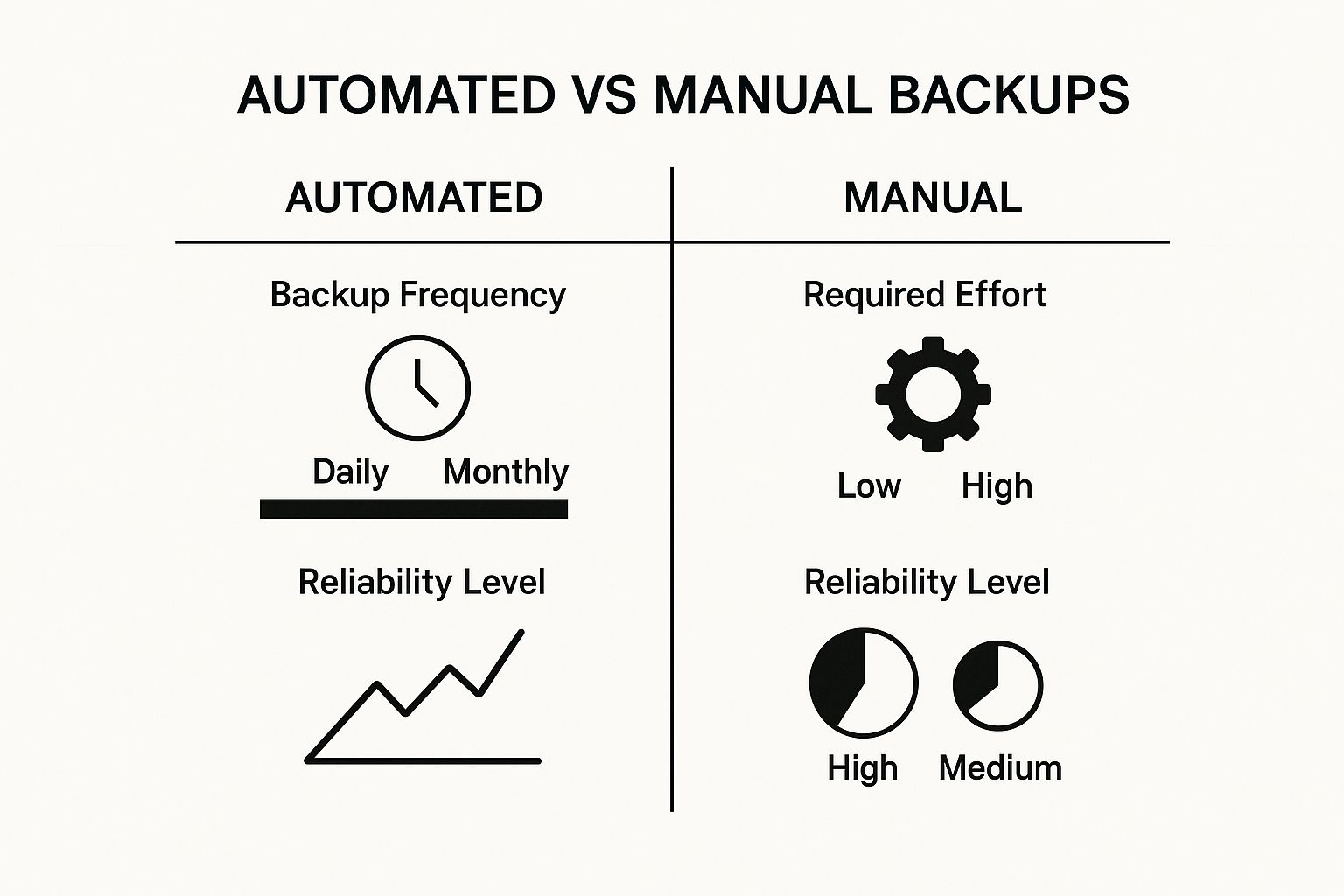
As you can see, automation drastically cuts down the effort needed while boosting both the frequency and reliability of your backups. For most website owners, it's easily the smarter strategy.
Choosing Your Ideal Backup Plugin
The WordPress world is packed with backup plugins, but a few have earned a solid reputation over the years. When you're picking one, think about what your site actually needs. A busy e-commerce store has very different requirements than a personal blog that's only updated once a month.
Here are three of the most trusted names out there:
- UpdraftPlus: This one is a massive crowd favorite, mostly because its free version is incredibly powerful and reliable. You can schedule your backups and send them to tons of different cloud storage locations, which makes it super versatile.
- Jetpack VaultPress Backup: This is a premium, real-time backup solution. Instead of just daily or weekly snapshots, it saves changes as they happen. It’s perfect for highly dynamic sites like online stores or membership platforms where losing even an hour of data could be a disaster.
- All-in-One WP Migration: While its main job is migrating sites, its powerful export function is also a fantastic backup tool. Its real strength is simplicity. It gives you a dead-simple way to package your entire site into a single file for easy storage and restoration.
When you're setting up a plugin, always base your backup schedule on how often your content changes. A news site publishing multiple articles a day should probably back up daily. A portfolio site that only gets updated monthly can easily get by with a weekly backup.
To help you decide, here’s a quick rundown of how these popular plugins stack up against each other.
Comparing Top WordPress Backup Plugins
| Plugin Name | Key Features | Best For | Pricing Model |
|---|---|---|---|
| UpdraftPlus | Scheduled backups, extensive cloud integrations, cloning/migration tools, incremental backups (premium). | All-around use, from personal blogs to small business sites. Great for users who want robust features without a high cost. | Freemium (Free version is very capable; Premium plans add more features and storage). |
| Jetpack VaultPress Backup | Real-time backups, 1-click restores, activity log, security scanning. | E-commerce stores, membership sites, and high-traffic blogs where data changes constantly. | Subscription-based (Included in premium Jetpack plans). |
| All-in-One WP Migration | Simple one-click export, drag-and-drop import, no technical knowledge required. | Site migrations and simple, manual backups. Excellent for developers or anyone moving sites frequently. | Free (with a file size limit); Paid extensions for unlimited size and cloud storage. |
Each of these tools offers a solid path to securing your site's data, so the "best" one really comes down to your specific budget and needs.
Setting Up Your First Automated Backup
Getting started is usually pretty straightforward. After you install and activate your chosen plugin, you'll find its settings page in your WordPress dashboard. This is where you'll make two key decisions: how often to back up, and where to store the files.
Connecting to a remote storage service is non-negotiable.
Seriously, storing your backups on the same server as your website is a massive risk. If the server crashes, you lose everything—your site and your backups. By sending them to an off-site location, you guarantee your data is safe no matter what happens to your web host.
Once you’ve done that one-time setup, the plugin takes over. You'll have a secure and automated WordPress website backup system running on autopilot. If you want to dig deeper into choosing the right tool, check out this guide on finding the best WordPress backup plugin for your site.
Using Your Hosting Provider for Easy Backups
While plugins and manual methods give you ultimate control, sometimes the simplest solution is right under your nose. Many quality hosting providers include automated backups as part of their package, which can be a fantastic first line of defense for your WordPress website backup.
This is a huge selling point for managed WordPress hosts like Kinsta, SiteGround, and WP Engine. You'll usually find these backups right inside your hosting dashboard, often with a dead-simple one-click restore feature. For most people, this is by far the easiest way to make sure a recent copy of your site is always ready to go.
Finding and Using Host-Level Backups
Getting to these tools is typically a breeze. Just log into your hosting account and look for a menu item like "Backups," "Site Tools," or something similar. SiteGround, for instance, tucks this option into their "Security" tab, while Kinsta gives each site its own dedicated "Backups" area.
The process is usually pretty straightforward:
- You navigate to the backup management section in your hosting panel.
- You'll see a list of daily restore points that were created automatically.
- Pick the date and time you want to roll back to.
- Hit confirm, and the host takes care of the rest.
This hands-off approach is a real lifesaver when you need a quick fix for common problems, like a plugin update that went sideways.
But a word of caution: relying only on your host's backups is a risky game. It's like keeping the only spare key to your house inside the house itself. If you get locked out of your hosting account or the entire server goes down, you could lose your live site and your only backups in one fell swoop.
Questions to Ask Your Hosting Provider
Not all hosting backups are created equal. Before you put all your trust in this service, you need to know exactly what you're getting. A cheap shared hosting plan might advertise "backups," but they could be infrequent, incomplete, or come with a nasty surprise fee when you actually need to restore one.
Do some digging and ask your provider these essential questions:
- How often are backups taken? Daily is the gold standard. Anything less frequent might not be good enough.
- What is the retention period? Most hosts will only hang on to backups for 14 to 30 days.
- Is there a cost to restore a backup? You'd be surprised. Some budget hosts will charge a hefty fee for a restore.
- Are the backups stored on a separate system? This is crucial. Off-server storage is a must for any real disaster recovery plan. You can learn more about why storing copies on different systems is so important in our guide to remote server backups.
Think of your host's service as a convenient safety net. It's great to have, but you should always pair it with an independent backup solution that gives you full control and secure, off-site storage.
Building a Smart Backup Schedule and Storage Plan

Having a reliable method to create a WordPress website backup is a great start, but it's only half the battle. To be truly protected, you need a smart strategy for how often you save copies and where you keep them. Without that, you’re just collecting files without a real plan for when things go wrong.
The right schedule isn't one-size-fits-all. It's tied directly to how frequently your site's content changes. A busy e-commerce store with orders pouring in daily needs a much more aggressive schedule than a static portfolio site that gets updated maybe twice a year.
Determining Your Backup Frequency
Think about your "Recovery Point Objective" (RPO). It's a technical term, but it boils down to a simple question: how much data can you afford to lose?
- Daily Backups: This is non-negotiable for highly dynamic sites. If you run an online store, a busy forum, or a membership platform, a daily backup ensures you never lose more than 24 hours of transactions or user activity.
- Weekly Backups: This is the sweet spot for most small business sites, blogs, and corporate websites. If you're adding new content a few times a week, a weekly snapshot gives you a solid safety net without cluttering your storage.
- Monthly Backups: If your site is mostly static—think a simple brochure site or an online portfolio that rarely changes—a monthly backup is likely enough to protect against major server issues or hacks.
The goal is to align your backup frequency with your content velocity. This small adjustment turns a generic task into a tailored safety net for your specific site.
The Gold Standard: The 3-2-1 Backup Rule
To build a truly resilient system, the industry has a gold standard: the 3-2-1 backup rule. It's a simple framework, but it's your best defense against almost any kind of failure, from a single corrupted file to a complete server meltdown.
The 3-2-1 strategy is brilliantly simple: maintain three total copies of your data, store them on two different types of media, and keep one of those copies completely off-site.
For a practical example, this could mean keeping one backup on your web server (copy 1, media 1), another on your local computer's hard drive (copy 2, media 2), and a third in a cloud storage service like Google Drive or Dropbox (copy 3, off-site). This creates redundancy, so a single point of failure can’t take down your entire operation. You can dig deeper into this proven backup strategy on boostedhost.com.
The Non-Negotiable Step: Testing Your Backups
Finally, a backup is only useful if you know for a fact that it works. It's a painful lesson to learn that your backup files are corrupted or incomplete right at the moment you desperately need them.
Periodically—at least once every few months—you should actually test your restore process. You don't have to risk your live site. Just set up a local development environment or a staging site to practice a full restoration. This "fire drill" not only confirms your backups are complete but also gives you the confidence to act quickly and calmly when a real disaster strikes.
How to Confidently Restore Your WordPress Site
When something goes wrong with your site, just having a WordPress website backup isn't enough. Knowing how to actually use that backup is what turns a potential catastrophe into a minor hiccup. A successful restore isn't about blindly clicking a button; it’s about knowing the steps, expecting a few bumps in the road, and keeping a cool head.
The way you restore your site almost always mirrors how you backed it up in the first place.
If you used a plugin like UpdraftPlus or Duplicator, you'll typically handle the restore right from your WordPress dashboard. Most of these have a simple one-click restore feature that guides you through it.
For manual backups, you just reverse the process. That means uploading your site files with an FTP client or cPanel's File Manager and then importing your .sql database file using a tool like phpMyAdmin.
Host-level restores are usually the easiest. You’ll just log into your hosting dashboard, find the backups section, pick a date to roll back to, and hit confirm. From there, your host’s system takes care of everything automatically.
Navigating Common Restoration Hurdles
Even if you have a perfect backup, things can go sideways during a restore. Don't panic. Most problems are common and have straightforward fixes. The trick is to be prepared for them.
You might run into a few classic issues:
- Database Connection Errors: Seeing an "Error establishing a database connection" message is a common post-restore headache. It usually just means the database details in your
wp-config.phpfile don't match the new or restored database. - File Permission Issues: If your site isn't loading right or you can't get into the admin area, incorrect file permissions could be the culprit. As a rule of thumb, folders should be set to
755and files to644. - White Screen of Death: The dreaded blank screen. This often pops up after a restore because of a conflict between a plugin or your theme.
The most critical part of any restoration is what you do right after it finishes. Before you breathe a sigh of relief, test everything. Check the homepage, click through your main pages, submit a contact form, and try logging in. A quick audit like this is the only way to be sure the restore was 100% successful.
Your Go-To Troubleshooting Checklist
If you do hit a snag, just work through it methodically. Start by double-checking your wp-config.php file to make sure the database name, user, and password are all correct. If that doesn't fix it, use your host's file manager or an FTP client to verify your file and folder permissions are set correctly.
For more complex situations, a detailed guide can be a lifesaver. We've put together step-by-step instructions for all kinds of situations in our complete guide on how to restore WordPress from a backup. It covers everything from plugin-based restores to a full manual recovery.
Just remember, a calm, systematic approach will solve almost any restoration problem you encounter.
Frequently Asked Questions About WordPress Backups
Even after mapping out a solid backup strategy, a few questions usually pop up. Let's tackle some of the most common ones I hear from WordPress users. Getting these details straight will help you move forward and know your site is truly protected.
Think of this as a quick-reference guide to fine-tune your approach and sidestep any common mistakes.
How Often Should I Back Up My Site?
There’s no magic number here—the right backup frequency comes down to how often your site’s content changes.
If you’re running a busy e-commerce store with orders coming in all day or a blog that publishes daily, you absolutely need daily backups. For a typical business site or a portfolio that you update a couple of times a week, a weekly backup is a safe bet. And if your site is mostly static, maybe a simple brochure site that rarely gets touched, then a monthly backup should do the trick.
What Is the Difference Between a Full and a Database Backup?
It's really important to know the distinction between the two main types of backups. They handle different parts of your site, and you'll need both for a complete recovery.
A full backup is exactly what it sounds like. It's a complete snapshot of everything:
- Your WordPress core files
- All your themes and plugins
- The entire media library (all your images and uploads)
- Your complete site database
A database backup, on the other hand, just grabs your content and settings. This is the heart of your site: all your posts, pages, user comments, and various plugin settings. While you need a full backup for a total disaster recovery, a database-only backup is super handy for quickly rolling back content changes without touching the site's structure.
Here’s a simple way to think about it: your files are the house—the foundation, walls, and roof. The database is all the furniture, photos, and personal items inside. You need both to feel at home.
Are My Host Backups Enough to Protect My Site?
Relying solely on your hosting provider's backups is a risky move. While it's fantastic to have them as a safety net, they should never be your only line of defense.
For one, host backups often have short retention windows, sometimes just 14-30 days. More importantly, if something goes wrong with your hosting account itself, you could lose access to those backups when you need them most. The best practice is to treat your host’s backups as just one piece of the puzzle. Always combine them with your own independent, automated backups that you store somewhere safe and off-site.
Ready to manage your WordPress maintenance and backups from one clean, central dashboard? WP Foundry provides the tools to oversee unlimited sites, schedule database backups, and keep an eye on security issues, all from a single desktop app that works across platforms. Protect your hard work and streamline your process by checking out WP Foundry today.