

Getting rid of a WordPress theme is about more than just a few clicks. It's a key part of keeping your site secure, fast, and easy to manage. While the "how" is pretty straightforward—you can do it from your dashboard, via FTP, or with a tool like WP Foundry—it's the "why" that really matters.
Why You Must Remove Unused WordPress Themes
Before we get into the step-by-step, let's talk about why this is so important. Most of us are guilty of collecting themes over the years. We try one out, move on to the next, and leave the old one sitting there. It feels harmless, but leaving those inactive themes installed is more than just messy—it's a genuine risk to your site.
Think of it as essential digital spring cleaning. Every inactive theme is a potential backdoor for trouble. Even though it's not active, its files are still sitting on your server. If a security hole is found in that theme and you're not updating it (because, why would you?), you’ve just left the door wide open for hackers.
Boost Your Website Security
Security is, without a doubt, the number one reason to keep a lean theme library. We hear a lot about plugin vulnerabilities, but themes are a huge attack vector that often gets overlooked.
In fact, security reports from 2024 show that themes accounted for about 6% of WordPress vulnerabilities. That might not sound like a lot, but it's more than the 4% that came from the WordPress core itself. Deleting themes you aren't using is one of the simplest and most effective ways to shrink your site's attack surface. It's a proactive step that makes your entire security setup stronger.
Improve Performance and Maintenance
Beyond security, all those unused themes are just dead weight. This digital clutter slows things down and makes your regular maintenance tasks a lot more painful than they need to be.
Here's a quick look at the pros and cons of theme management.
Reasons to Delete Unused Themes
| Area of Impact | Risk of Keeping Unused Themes | Benefit of Removing Themes |
|---|---|---|
| Security | Inactive themes with vulnerabilities create backdoors for hackers. | A smaller attack surface makes your site harder to compromise. |
| Performance | Bloated backups that include megabytes of unnecessary files. | Faster, smaller backups that save server resources and time. |
| Maintenance | A cluttered dashboard with endless update notifications. | A clean, simple update process focused only on what you use. |
| Server Health | Wasted disk space and potential for unnecessary database queries. | Less server load and more efficient use of your hosting resources. |
Ultimately, a tidy theme folder makes for a healthier website all around.
Let's break down the practical benefits:
- Faster Backups: Every single file on your server gets bundled into your backups, whether it's active or not. By deleting a few unused themes, you could easily shed dozens of megabytes from your backup files, making them much faster to create and restore. We cover more on this in our guide on backing up your WordPress site.
- Reduced Server Load: While an inactive theme won't slow down the front-end of your site for visitors, it still takes up disk space. It can also add extra processing load during admin tasks or when security plugins are scanning your files.
- Simplified Updates: Seeing a long list of themes that need updates is just noise. When you only keep the themes you actually need, you reduce that mental clutter and can focus on maintaining what's truly important for your site.
Keeping your theme library clean isn't just about being organized—it's a fundamental best practice for running a faster, safer, and easier-to-manage WordPress site. Deleting what you don't need directly improves your site's overall health.
Removing a Theme Through the WordPress Dashboard
When you need to get rid of an old WordPress theme, the easiest and safest route for most people is right through the admin dashboard. This is the built-in method, so it's the intended way to handle routine cleanups. If you prefer to stay out of server files, this is your best bet.
It’s a pretty straightforward process. Just head over to Appearance > Themes in your admin area.
You'll land on a page showing all the themes you have installed. The one that's currently live on your site is clearly marked as "Active." To get rid of any of the others, just click on the theme's thumbnail to bring up its details. Look for the red "Delete" link in the bottom right corner, and you're almost done.
Key Pre-Deletion Checks
Hold on a second before you click that delete button, though. A couple of quick checks can save you from a major headache. These are simple but absolutely vital for keeping your site running smoothly.
- Is it a Parent Theme? If your live theme is a child theme, it needs a "parent" theme to work correctly. Deleting that parent theme will instantly break your site's design. WordPress is usually pretty good about noting this relationship in the theme details, so always double-check before you remove a theme you're not familiar with.
- Keep a Default Fallback: It’s smart to always keep at least one of the default WordPress themes installed, like "Twenty Twenty-Four." Think of it as a safety net. If your active theme ever breaks or gets corrupted, WordPress will automatically switch to this default, which keeps your site online instead of showing visitors a blank white screen.
Getting rid of unused themes is just good website housekeeping. It can help speed things up and close potential security holes. The dashboard method is considered best practice because WordPress handles the file removal for you, making sure everything is done cleanly. This simple task is a direct contributor to better site performance and security, a point often discussed on resources like Themeisle.com.
Before you touch anything, though, the single most important step is to back up your site.
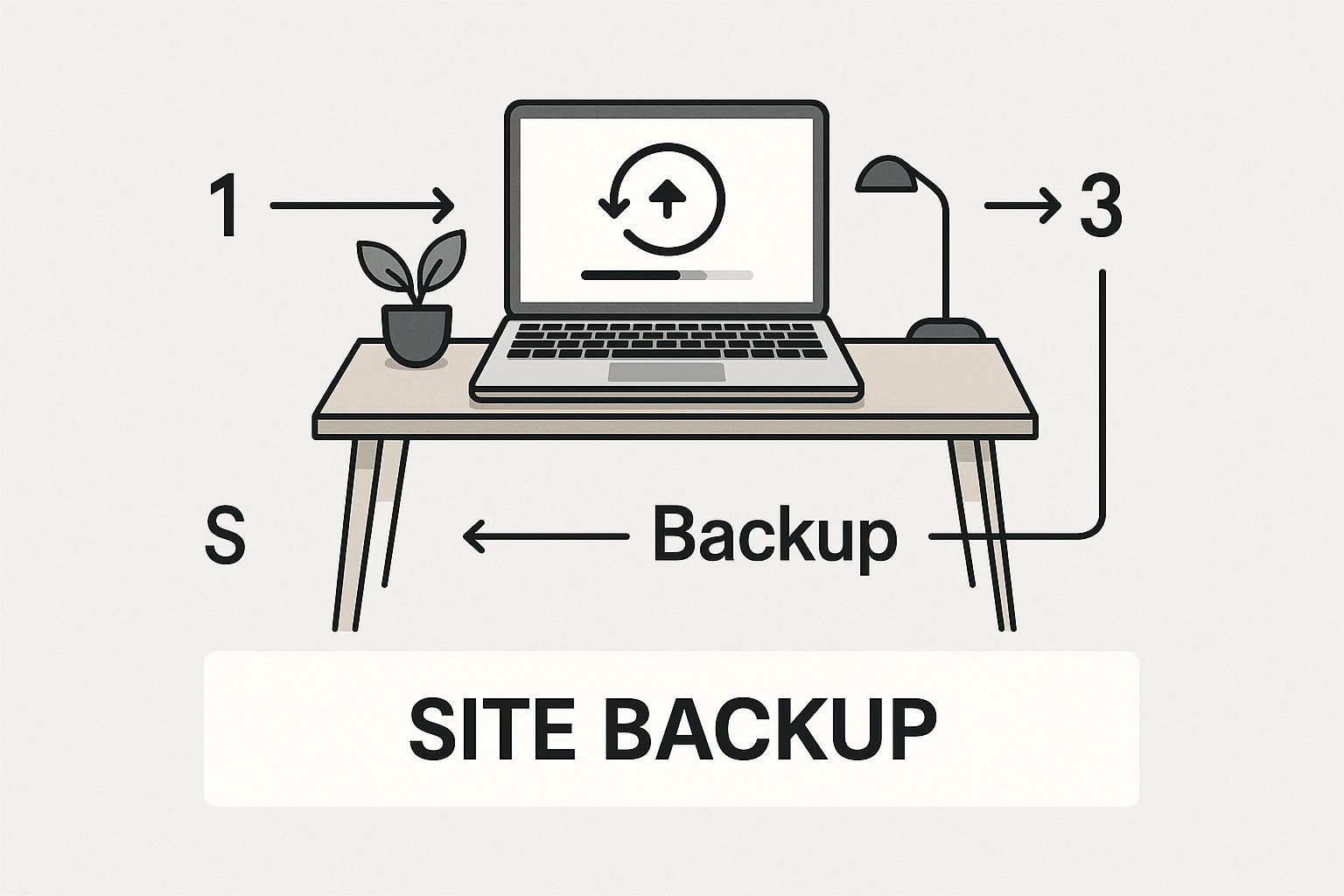
Seriously, a backup is your ultimate undo button. If something goes sideways during the deletion process, you can restore your site in minutes. With a recent backup saved, you can proceed with confidence, knowing your data is safe.
Deleting a WordPress Theme with FTP or cPanel
Sometimes, the good ol' dashboard method just isn't going to cut it. Maybe a buggy theme has locked you out of your admin area completely, or perhaps you just prefer getting your hands dirty and managing files directly.
When that happens, your best bet is to delete the theme using a File Transfer Protocol (FTP) client or your hosting provider's cPanel File Manager. This approach lets you bypass the WordPress interface entirely and work directly with your site's file structure. It's a lifesaver for troubleshooting or cleanup when you can't log in.
Connecting and Finding the Right Folder
First things first, you need to connect to your server. You can use a dedicated FTP client like FileZilla, which is a popular choice, or simply log into your web hosting account and launch the File Manager. Both will get you where you need to go.
Once connected, you'll need to navigate to your WordPress installation's root directory. This folder is usually called public_html, but sometimes it's named after your domain. From there, the path is always the same:
- Drill down into the
/wp-content/directory. - Inside that, open the
/themes/folder.
This is where all your installed themes live, each in its own folder. The folder names typically match the theme names, so it's easy to spot the one you're looking for.
Be extremely careful in this directory. Unlike the WordPress dashboard, there are no safety nets here. If you delete the wrong folder—especially your active theme—you will take your site offline instantly. Always double-check you've got the right one before proceeding.
Performing a Safe Deletion
Before you touch a single file, make sure you have a full, recent backup of your site. This is non-negotiable. It's your safety net if things go sideways.
With your backup secured, carefully find the folder for the theme you want to remove. Right-click on it and hit "Delete." The system will probably ask you for confirmation before it permanently removes everything.
This kind of direct deletion is final, so precision is everything. If you run into any errors trying to delete the files, it could be a permissions issue on your server. For a deeper dive, you can learn more about how to manage file and folder permissions on WordPress websites to make sure you have the right access. Ultimately, using FTP is a rock-solid way to remove themes when the dashboard is off-limits.
Troubleshooting Common Theme Removal Problems
Even with the best intentions, things can go sideways. You're trying to figure out how to remove a WordPress theme, and suddenly you hit a wall. It's frustrating, but don't worry—most of these snags have surprisingly simple fixes once you know what's happening behind the scenes.

One of the most common head-scratchers is the disappearing "Delete" button. You head over to Appearance > Themes, click on an old, inactive theme you want to get rid of, but the delete link is nowhere to be found. This almost always means the theme you're trying to nuke is still your active one. WordPress won't let you delete a live theme, so you'll have to activate another one first.
Fixing Common Errors
Sometimes the problem is a bit more cryptic than a missing button. You might get slapped with an error message that stops you dead in your tracks.
- "Deletion failed, the theme is not a valid theme." This usually points to a corrupted theme folder or an installation that never quite finished. The easiest way past this is to bypass the WordPress dashboard and delete the theme's folder directly using FTP or your host's File Manager.
- "You do not have sufficient permissions." This one's a server-level problem. Your WordPress files have specific permissions that control who can read, write, or delete them. If these are set incorrectly, WordPress can't follow your command. You'll need to jump into an FTP client and correct the permissions for your
/wp-content/themes/directory.
Key Takeaway: A word of caution: if you accidentally delete your active theme via FTP, your site will immediately break. The quickest recovery is to log back into your server, go to
/wp-content/themes/, and rename a default theme's folder (liketwentytwentyfour) to the exact folder name of the theme you just deleted. This little trick forces WordPress to fall back to the default theme, bringing your site back online.
Knowing how to properly remove themes is a critical skill for any site owner, whether you're running a personal blog or a massive e-commerce store. A sloppy removal can lead to accidentally deleting a parent theme that another theme depends on, or losing custom code. Keeping your theme directory clean is a simple but essential step for maintaining a secure and high-performing site. To stay ahead of potential issues, it's always a good idea to read up on the latest WordPress security trends.
Best Practices for WordPress Theme Management
Knowing how to delete a theme is one thing, but building smart, consistent habits around theme management is what really keeps your site safe and running smoothly over the long haul. A little proactive effort here goes a long way in preventing clutter and potential security holes.
The first rule of thumb? Always test a new theme before it goes live. Spin up a staging environment—a private clone of your website—and install it there first. This gives you a safe space to check for plugin conflicts or weird layout issues without any of your visitors seeing the mess. It's a critical step that, frankly, too many people skip.
Creating a Safety Net
Another non-negotiable practice is using a child theme for any and all customizations. If you edit a theme's files directly, you can kiss those changes goodbye the next time an update rolls out. A child theme piggybacks on the parent's functionality but isolates your modifications, keeping them safe from updates.
Finally, always keep at least one default WordPress theme installed, like Twenty Twenty-Four.
Think of the default theme as your site's emergency fallback. If your active theme ever breaks after an update or because of a plugin conflict, WordPress automatically switches to the default. This keeps your content online instead of greeting visitors with a dreaded white screen of death.
It's a simple habit that adds a crucial layer of stability. For a deeper dive, you can explore more detailed WordPress theme best practices that cover everything from security and performance to smart customization.
To round out your strategy, it's also smart to brush up on general website updates and maintenance practices. Combining solid theme management with good overall site hygiene is the key to a professional, secure, and healthy WordPress site.
Frequently Asked Questions About Removing Themes
When it comes to removing WordPress themes, a few questions always come up. It makes sense to be a little cautious before you start deleting files. Let's walk through the most common ones.
Can I Remove the Active WordPress Theme
No, you can't. WordPress has a built-in safety net that prevents you from deleting your active theme straight from the dashboard.
If you go to Appearance > Themes and click on your live theme, you'll see there's no "Delete" button. This is intentional. To get rid of it, you first need to activate another theme. This is exactly why it's a good idea to keep a default WordPress theme (like 'Twenty Twenty-Four') installed. Just activate the default theme, and the delete option will pop up for your old one.
Deactivating vs Deleting a Theme
This is an important one. When you deactivate a theme, you're just taking it offline. The files are all still sitting on your server. They take up space, and worse, they can become a security hole if you don't keep them updated. Hackers love finding old, inactive themes to exploit.
Deleting a theme, however, removes all of its files from your server for good.
If you're not planning on using a theme again, deleting it is always the right move. It cleans up your site, makes your backups smaller, and tightens up your security. Think of deactivating as temporary, while deleting is permanent.
Will Deleting a Theme Remove My Content
Don't worry, deleting a theme will not touch your core content. Your posts, pages, and images are all stored safely in two places:
- The WordPress database holds your text, user info, and site settings.
- The
/wp-content/uploads/folder has all your media files.
Deleting a theme doesn't affect either of these. What you will lose are theme-specific settings. This means any custom layouts you built with that theme's page builder, special widget setups, or any custom CSS you added in the theme options panel will be gone. That's why running a full site backup before you do anything major is always a smart play.
What Happens If I Delete a Parent Theme
Deleting a parent theme when a child theme is active will break your site's design immediately. A child theme depends entirely on its parent for its core files and styling. Without the parent, it can't function.
If this happens, WordPress will try to fall back to a default theme. If there isn't one, your visitors could see a critical error or a completely broken page. Before you delete any theme, always double-check under Appearance > Themes to see if your active theme is a child theme. If it is, make sure you don't delete the parent it relies on.
Dealing with themes across lots of WordPress sites can become a real chore. With WP Foundry, you can install, update, and delete themes and plugins for all your sites from one desktop app. It helps you automate your backups, keep everything secure, and manage your workflow from a single dashboard. You can learn more about taking control of your WordPress management at https://wpfoundry.app.