

When you backup your WordPress site, you need to grab a complete copy of two things: all your website's files and its database. Getting both ensures you can fully restore your site if something goes wrong, like a server crash, a security breach, or a simple update error. It’s really the best insurance policy for all your hard work.
Why a WordPress Backup Is Your Ultimate Safety Net
Before we get into the "how," it’s really important to understand the "why." A reliable backup isn't just another item to check off a technical to-do list; it is the single most important safety measure you can have for your entire online presence.
Frankly, neglecting to backup your WordPress site regularly is a huge gamble.
Imagine losing years of content overnight. It’s a nightmare scenario, but it happens more often than you’d think. A single faulty plugin update can bring your entire site down, a malicious hack could wipe out all your data, or a simple server hardware failure could erase everything in an instant.
The Real-World Risks of No Backup
Without a recent backup, you're left wide open to some pretty common digital disasters. These aren't just hypothetical threats; they're everyday realities for people running websites.
- Human Error: It happens to the best of us. Accidentally deleting a critical file, a key page, or even the entire
wp-contentfolder can happen with one wrong click. - Failed Updates: A plugin, theme, or even a WordPress core update could have a compatibility issue, leading to the infamous "white screen of death." A backup lets you roll back to the last working version in minutes.
- Security Breaches: Hackers can inject malware, deface your site, or steal sensitive user data. A clean backup is often the fastest and most reliable way to recover from an attack.
- Hosting Provider Issues: Servers can and do fail. While any decent host will have their own backups, having your own independent copy gives you the ultimate control and peace of mind.
A backup is your undo button for the internet. It transforms a potential catastrophe that could take days or weeks to fix into a minor inconvenience that’s resolved in a few clicks.
WordPress Popularity: A Double-Edged Sword
The incredible popularity of WordPress also makes it a prime target. The platform powers a massive chunk of the web—we're talking over 564 million websites, which is 43.4% of the entire internet. You can dig into more of these WordPress statistics over at wpzoom.com.
This massive user base makes it a very attractive target for automated attacks that are constantly scanning for vulnerabilities. At the end of the day, having a solid plan to backup your WordPress site is completely non-negotiable for anyone who's serious about their website.
Comparing Your WordPress Backup Options
Figuring out how to backup your WordPress site isn't a simple, one-size-fits-all kind of deal. The right method really boils down to your own technical skill, your budget, and how often your site changes. A small personal blog has completely different needs from a bustling e-commerce store that's taking orders every few minutes.
Let’s dig into the three main ways people tackle this: doing it by hand, using a dedicated plugin, or relying on the service your hosting provider offers. Each one has its own balance of control, convenience, and cost.
Manual Backups via cPanel or FTP
Going the manual route gives you absolute control over everything. You’re not depending on a third-party tool to manage your most important data. This usually means using tools like an FTP client (think FileZilla) to download all your site files and phpMyAdmin to export your database.
This hands-on approach is fantastic for developers or anyone who really wants to get under the hood and understand how their site is put together. The flip side is that it’s easily the most time-consuming option and leaves the door wide open for human error. You have to remember to do it, and if you miss a step, you could end up with a backup that’s incomplete or totally useless.
Using a WordPress Backup Plugin
For the vast majority of WordPress site owners, a good backup plugin is the perfect middle ground. These tools put the entire process on autopilot, running on a schedule you set (daily, weekly, whatever you need) and sending your backup files to a safe, off-site spot like Google Drive or Dropbox.
The real magic of a plugin isn't just making the backup—it's how simple the restoration is. A quality plugin can bring your entire site back from the brink with just a few clicks, turning a potential catastrophe into a minor speed bump.
This method strikes a great balance between automation and control, all without needing you to be a tech wizard. While there are plenty of solid free plugins out there, the premium ones often come with heavier-duty features like real-time backups for busy sites and one-click staging environments.
Relying on Your Hosting Provider
A lot of hosting companies throw backups in as part of their packages. This is definitely the most convenient route since it requires zero effort from you—it just hums along in the background. The biggest draw is its simplicity and the fact that it’s often baked into your hosting fee.
The trade-off, however, is a lack of control. You might be stuck with their schedule for how often backups are taken or how long they're kept. Restoring your site can sometimes be a bit clunky, and you're ultimately trusting your only safety net to the same company that's hosting your live site. It's a decent first line of defense, but I always recommend having your own, independent backup solution in place as well.
Comparing WordPress Backup Methods
To make the choice a bit clearer, here's a quick rundown of how these methods stack up against each other.
| Backup Method | Best For | Pros | Cons |
|---|---|---|---|
| Manual (FTP/cPanel) | Developers & tech-savvy users | Complete control; no extra cost; deepens site knowledge. | Time-consuming; high risk of human error; no automation. |
| WordPress Plugins | Most users, from bloggers to small businesses | Automated & scheduled; easy restoration; off-site storage. | Can be resource-intensive; premium features cost money. |
| Hosting Provider | Beginners & users wanting a hands-off solution | Zero setup required; often included with hosting plan. | Less control over frequency & storage; tied to your host. |
Each path has its place, but your specific needs will point you toward the best fit.
The decision tree below can help you see which path makes the most sense for you based on your budget, where you want to store backups, and how often you need them.
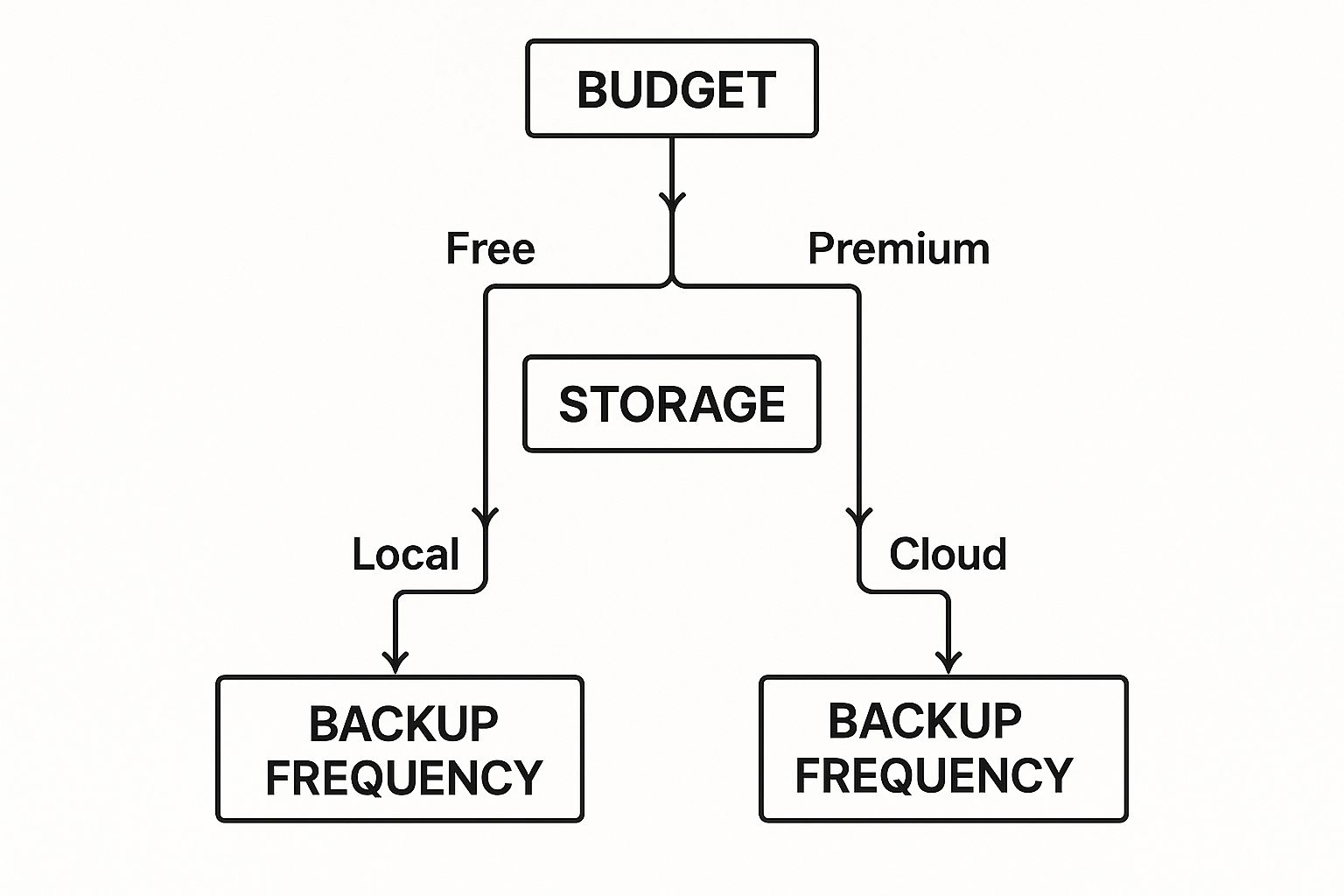
Ultimately, what this shows is that your requirements for frequency and storage will quickly steer you toward either a free plugin for basic needs or a more powerful premium solution for anything more demanding.
The Manual Backup: A Hands-On Approach
Sometimes you just want full control. For those moments, or for a quick one-off copy without installing yet another plugin, the manual method is a core skill every WordPress user should have.
It might seem a bit more involved, but going through the process demystifies what a "full backup" really is. It’s just two things: a copy of your files and a copy of your database.
Once you know how to do this yourself, you're never truly stuck relying on a plugin or your hosting provider. Let's break down the two parts you need to tackle.
Securing Your WordPress Files with FTP
First up are your site's files. This is everything that makes your site look and function the way it does—your themes, plugins, images, and important configuration files. The most direct way to grab these is with an FTP (File Transfer Protocol) client.
Think of an FTP client as a window between your computer and your website's server. I use FileZilla, which is a popular and solid choice. It lets you see your site's remote file directory and simply download what you need.
The classic two-pane view shows your local computer on the left and your server on the right. This makes it really easy to just drag and drop your entire WordPress folder from the server over to your computer.
After connecting to your server, you'll need to find your site’s root directory. This is usually a folder called public_html or something similar to your domain name. From there, you can start the download.
Here’s a quick tip I’ve learned: check if your host’s control panel (like cPanel) lets you compress the whole directory into a single .zip file first. Downloading one big file is much, much faster than pulling down thousands of tiny individual ones.
Whatever you do, don't forget the
wp-config.phpfile. It's in your root directory and holds all the connection details for your database. It is absolutely essential for getting your site back online.
Exporting Your Database via phpMyAdmin
The second piece of the puzzle is your database. This is the heart of your site's content—all your posts, pages, user comments, and settings are stored here. Your hosting control panel will almost certainly have a tool for this called phpMyAdmin.
Getting into phpMyAdmin gives you direct access to your WordPress database tables. The export process is pretty simple:
- Find Your Database: Once you’re in phpMyAdmin, you'll see a list of databases on the left. Just click the one for your WordPress site.
- Go to the Export Tab: With the database selected, find and click the "Export" tab in the main menu.
- Pick an Export Method: You’ll usually see "Quick" or "Custom." For a full backup, Quick is all you need. It grabs everything.
- Check the Format: Make sure the format is set to SQL. This is the standard for database files.
- Run the Export: Click the "Export" button. Your browser will download a
.sqlfile, which is the complete backup of your database.
If you want a more detailed walkthrough, our guide on how to backup a WordPress database covers these steps with extra tips.
Once you have your downloaded site files and this .sql database export, you've got a complete, independent backup of your WordPress site. Just be sure to store both parts together somewhere safe, and you'll have a reliable recovery point that you made yourself.
Choosing the Right WordPress Backup Plugin
For most of us, a good plugin is the sweet spot for handling WordPress backups. It gives you control and convenience without needing to mess with server files manually. But instead of just giving you a list of names, let's talk about what actually makes a backup plugin reliable—the kind of tool that won't let you down when you need it most.
Picking the right one is a big deal. You're basically handing over the keys to your entire digital presence. With a solid plugin, a site-destroying catastrophe becomes a minor hiccup you can fix in minutes.
Core Features of a Dependable Backup Plugin
When you're looking at different plugins, there are a few features that are absolutely non-negotiable. These are the fundamentals of any good backup strategy.
Make sure any plugin you consider has these:
- Automated, Scheduled Backups: The whole point is to set it and forget it. A great plugin will let you decide how often backups should run—daily, weekly, or even hourly for a busy site—and then just handle it for you.
- Off-Site Cloud Storage: Keeping your backups on the same server as your website is just asking for trouble. Look for easy integrations with services like Google Drive, Dropbox, or Amazon S3. This keeps your backup files safe even if your entire server goes down.
- One-Click Restore Functionality: Making a backup is only half the job. The most important feature is a dead-simple way to restore your site. A "one-click restore" button is your best friend in a crisis and can save you a ton of stress.
A backup is totally worthless if you can't restore it easily. The real value of a plugin isn’t just in saving your data, but in how quickly and flawlessly it can get your site back online.
Vetting a Plugin for Security and Reliability
Beyond the main features, you need to be sure the plugin itself is secure and actively maintained. An old or badly coded plugin can create more security holes than it solves.
This is a serious concern. Over 90% of all CMS-based website attacks target WordPress sites, and it's usually because of outdated plugins or themes. With hackers compromising over 30,000 WordPress sites every single day, having a recent backup is your fastest path to recovery. You can dig into more WordPress security stats over at globaltechstack.com.
Incremental Backups and Performance
Running a full site backup can be a heavy lift for your server, sometimes slowing your site to a crawl while it works. This is where incremental backups make a huge difference.
Instead of copying every single file every time, an incremental backup only saves what's changed since the last one. It's a much smarter way to do things. It uses fewer server resources, creates much smaller backup files, and finishes way faster. If you run an e-commerce store or a site with constant updates, this is an absolute must-have. Our guide to the best WordPress backup plugins gets into which tools offer this functionality. Choosing a plugin that doesn't drag your site's performance down is just smart business.
Building a Professional Backup Strategy

Having a backup file is a great first step, but it’s not a strategy. A real, professional strategy is what truly protects your website when things go sideways. This is about moving beyond just hitting the "backup" button and building a repeatable plan you can actually count on.
At the heart of any serious backup plan is the 3-2-1 rule. It's a long-standing industry standard for a reason: it dramatically increases your resilience against data loss.
Implementing the 3-2-1 Backup Rule
The rule is simple but incredibly effective. For any WordPress site you manage, you should always have:
- Three total copies of your data (your live site plus two backups).
- Your backups stored on two different types of media (like your server and a separate cloud service).
- At least one of those copies stored completely off-site.
This approach saves you from a single point of failure. Imagine your web host's server goes down and their own internal backups fail. It happens. That separate copy on your Dropbox or Google Drive suddenly becomes your lifeline.
A single backup is a starting point, but a true strategy anticipates different types of failures. The 3-2-1 rule isn't just a best practice; it's a disaster-proofing framework for your digital assets.
Setting a Sensible Backup Schedule
How often should you run backups? It all comes down to how frequently your site content changes. A one-size-fits-all schedule is a bad idea.
A busy e-commerce site taking orders every hour needs backups just as often, maybe even more. On the other hand, a small business brochure site that gets updated once a month could easily get by with a weekly backup.
The key is to match the backup frequency to the site's activity, balancing your need for a recent recovery point with the server resources it takes to run the backup.
The Most Important Step: Testing Your Backups
This is the part everyone skips, and it's the most critical. A backup you haven't tested is just a hope, not a plan. I’ve seen it happen too many times: someone goes to restore a site in an emergency, only to find their backup file is corrupted or incomplete.
You have to test the restoration process regularly. You don’t need to do it on your live site—a local dev environment or a staging site is perfect for this. The goal is to prove, without a doubt, that you can bring your site back online from the files you have.
This step is non-negotiable. It’s what turns your backup from a theoretical safety net into a proven recovery tool. To make this process more formal, you can use our disaster recovery planning template to map out your testing schedule and procedures.
Common Questions About WordPress Backups
Even with a great backup strategy, some questions always seem to pop up. Let's run through a few of the ones I hear most often so you can feel totally confident you've got all your bases covered when you need to backup a site on WordPress.
How Often Should I Back Up My Site
There's no single right answer here. The best backup schedule really depends on how frequently your site content changes. The real question to ask yourself is: how much data can I afford to lose?
For a busy e-commerce store with orders coming in all day, or a news site pushing out multiple articles daily, daily backups are non-negotiable. Losing even a couple of hours of sales data would be a disaster.
On the other hand, for a portfolio site that gets updated once a month or a personal blog with a new post every week, a weekly backup is probably perfectly fine.
Where Is the Best Place to Store Backup Files
Let me be blunt: storing your backups on the same server as your live website is a terrible idea. If that server goes down, gets hacked, or just plain fails, you lose everything—your site and your only way to recover it. This is why off-site storage isn't just a good idea; it's essential.
I always recommend using a separate, third-party cloud service. These are some of the most solid choices out there:
- Google Drive: Super accessible and easy to use, making it a great fit for personal sites and small businesses.
- Dropbox: Another household name known for being straightforward and reliable.
- Amazon S3: A more heavy-duty, scalable option that's a favorite for larger sites and apps that need rock-solid durability.
The name of the game is redundancy. When you store your backup in a completely different location, you're protecting yourself from a single point of failure. It's the only way to guarantee you always have a clean copy ready to go.
Is My Hosting Provider Backup Enough
Look, the automatic backups your host provides are a fantastic first line of defense. It's convenient and definitely better than nothing. But it should never be your only line of defense.
Relying completely on your host's backups means you have very little control. You can't dictate the schedule, how long they keep the files, or—most importantly—how the restoration process works.
What happens if you have a falling out with your host, or you simply want to move to a new provider? Getting your hands on those backups can suddenly become a huge headache. Keeping your own independent backup gives you complete control and freedom. Think of it as your ultimate insurance policy, an extra layer of protection that you own and manage yourself.
Ready to get a real handle on your WordPress backups and make managing your sites a whole lot easier? With WP Foundry, you can run database backups, manage all your plugins and themes, and even scan for vulnerabilities across every site you own—all from one clean dashboard. Learn more and streamline your WordPress administration today at wpfoundry.app.