
Scanning your WordPress site for malware is the process of digging through your site’s files, database, and code to find any malicious scripts or changes that don't belong there. Think of it as your first line of defense against attacks that can take your site offline, steal customer data, and completely wreck your reputation. It's not just a good idea—it's a core part of being a responsible website owner.
Why You Need to Scan Your WordPress Site Now
Putting off a malware scan is like leaving your front door wide open in a sketchy neighborhood. It’s not a matter of if someone will try to get in, but when. And for a website, the fallout from a break-in is way worse than just a stolen TV; it can poison your business from the inside out.
The threat isn’t some far-off possibility; it's happening all the time. Malware is still the number one security headache for WordPress, affecting a massive 72.72% of all infected websites.
A huge chunk of these hacks involve backdoors, which are found in 69.63% of compromised sites. These give attackers a secret key to get back in whenever they want, long after you think you've cleaned things up. Right behind that is SEO spam, hitting 46.76% of hacked sites, where attackers inject their own garbage links and keywords to hijack your search rankings.
The Real-World Cost of a Malware Infection
A security breach isn't just a technical glitch. It's a business disaster.
Picture a small online store that suddenly sees its traffic from Google vanish. They dig around and find out they’ve been blacklisted. Why? A sneaky script was redirecting their customers to a phishing site designed to steal credit card numbers. The immediate hit is lost sales, but the long-term damage is what really hurts. Customer trust is gone, and clawing your way back into Google's good graces can take months.
This happens all the time. An infection can show up in a bunch of nasty ways:
- SEO Spam: Your site starts ranking for weird or illegal keywords, trashing your brand's credibility.
- Phishing Scripts: Hidden pages pop up on your site to trick people into giving up personal info, making you an unwilling partner in crime.
- Backdoor Access: Attackers leave themselves a hidden way in so they can come back later to steal more data, send spam from your server, or use your site as part of a larger attack network.
Waiting until you see obvious signs of a hack is almost always too late. Proactive scanning is all about finding and killing threats before they do real damage to your bottom line and your reputation.
Before we dive into how to scan, it’s helpful to know what you’re looking for. Malware comes in many forms, each with its own destructive goal.
Common WordPress Malware Threats and Their Impact
Here’s a quick look at the most common types of malware that target WordPress sites and the kind of trouble they can cause for your business.
| Malware Type | Primary Goal | Potential Business Impact |
|---|---|---|
| Backdoors | Gain persistent, hidden access to the server. | Ongoing data theft, server resource abuse, reinfection after cleanup. |
| SEO Spam | Inject spammy links and keywords to manipulate search rankings. | Blacklisting by search engines, loss of organic traffic, severe brand damage. |
| Phishing Kits | Create fake login pages to steal user credentials or financial info. | Legal liability, loss of customer trust, financial penalties, account takeovers. |
| Redirects | Forcibly send visitors to malicious or spammy websites. | High bounce rates, poor user experience, loss of ad revenue, SEO penalties. |
| Ransomware | Encrypt website files and demand payment for their release. | Complete site downtime, data loss, financial cost of ransom or recovery. |
| Adware | Display unwanted pop-up ads or banners on your site. | Ruined user experience, brand looks unprofessional, potential for malvertising. |
Understanding these threats underscores why regular scanning is non-negotiable for anyone serious about their website's health and security.
Shifting from Reaction to Prevention
The whole point is to stop being the person who only calls the fire department when the house is burning down. You want to be the one who installs smoke detectors and keeps a fire extinguisher handy. Instead of scrambling to fix a hacked site, your focus should be on stopping the breach from ever happening. That’s where malware scanning becomes your best friend.
There are two main ways to approach a WordPress malware scan:
- Internal (Server-Side) Scanning: This uses a tool like a plugin or a desktop app like WP Foundry to go through every single file and database table right on your server. It’s like having a security guard patrolling inside your building, checking every room. To see how this fits into a full security plan, you can check out our guide on the WP Foundry WordPress vulnerabilities scanner.
- External (Remote) Scanning: This approach uses a tool that inspects your site from the outside, the same way a visitor or a search engine sees it. It’s great for spotting malware that’s visible to the public, checking if you’re on any blacklists, and finding known vulnerabilities without needing server access.
Using both methods together gives you a layered defense that can catch a much wider range of threats, keeping your digital home base safe and sound.
Spotting the Hidden Signs of a Hacked Website
Before you even get around to running a WordPress scan for malware, your site might already be telling you something’s off. Hackers are clever; they often prefer to work in the shadows, quietly siphoning your server resources without making a big scene. Learning to spot their subtle tracks is your first line of defense.
Sure, sometimes a hack is obvious—your homepage gets defaced with a political rant or a giant skull and crossbones. But that’s rare. Most attackers want to stay hidden for as long as possible to maximize their exploit. That’s why you have to become a bit of a detective.
Performance and Traffic Anomalies
Often, the first sign of trouble shows up in your site's performance. If your normally zippy website suddenly starts moving at a snail's pace for no good reason, that’s a huge red flag. Malicious scripts eat up server resources, and your legitimate visitors are the ones who pay the price with slow load times.
Your analytics can also tell a story. Seen a sudden, steep drop in organic traffic? It could be Google blacklisting your site for serving up malware. Or, worse, malicious redirects could be hijacking your visitors and sending them to spammy websites before they ever see your content.
Keep an eye out for these warning signs:
- Sudden Performance Drop: Your site becomes sluggish or unresponsive, but you haven't recently changed any plugins or themes.
- Mysterious Traffic Spikes: A massive, out-of-the-blue jump in traffic, especially from weird locations, can mean your site has been roped into a botnet.
- Google Analytics Alerts: Pay attention to any notifications from Google Search Console warning you about malware or other security problems.
Unexplained Changes to Your Website
Hackers almost always leave digital fingerprints. They might be small, but they’re clear signs of a breach.
For example, you might log into your WordPress dashboard and find a new admin user you definitely didn't create. This is a classic move. It gives them a persistent backdoor into your site, even if you reset your own password.
A hacker's first move after getting in is to create a permanent way back. Finding a strange admin account or a suspicious file in your uploads folder is a clear signal that your site's security has been breached.
You might also find weird files or folders when you look at your site via FTP or your host’s file manager, particularly in places like wp-content/uploads. These files often have sketchy, random names like temp.php or cache.tmp.php and are packed with malicious code.
Another common tactic is SEO spam injection. You might notice this when searching for your own brand on Google and seeing bizarre results in Japanese or Russian, or links promoting sketchy pharmaceuticals. The goal here is to leech off your domain's hard-earned authority.
Vigilance is key because WordPress is a massive target. It powers a huge chunk of the internet, which means it faces an onslaught of about 90,000 hacking attempts every single minute. This constant threat means every site owner has to be on alert. You can discover more about WordPress security statistics on howtowp.com.
What to Look for During a Manual Check
While a dedicated scanner is your best bet, a quick manual check can often confirm your fears. Log in to your hosting account and take a look around for these tell-tale signs:
- Modified Core Files: Check the
wp-includesandwp-adminfolders. Thewp-config.phpand.htaccessfiles in your root directory are also hot targets for modification. - Suspicious PHP Files: Be on the lookout for PHP files where they don't belong, like inside your
/uploads/directory. - Oddly Named Files: Watch for files with scrambled names or common words that are slightly misspelled, like
up.phporfile-manager.php. - Recent File Changes: Sort your files by the "last modified" date. If you spot recent changes to files you haven't touched, they need a closer look.
If you find any of these symptoms, it’s time to run a thorough WordPress scan for malware immediately. Acting fast can be the difference between a quick cleanup and a full-blown disaster.
Your Malware Scanning and Detection Playbook
Alright, you know the warning signs. Now it's time to roll up your sleeves and go hunting. A proper WordPress scan for malware isn’t a one-and-done deal. To do it right, you need a multi-layered strategy that probes your site from every angle.
We'll work from the inside out. First, a security plugin will scan your files and database. Then, we'll use an external scanner to see what the rest of the world sees. Finally, we'll do some targeted manual checks. This approach ensures nothing slips through the cracks, from clumsy malware to sophisticated, hidden backdoors.
Your First Line of Defense: A High-Quality Security Plugin
The simplest and most direct way to start is with a dedicated WordPress security plugin. These tools install directly into your WordPress site, giving them privileged access to scan everything—every file, database table, and line of code. It's like having a security analyst on call 24/7.
Most popular plugins like Wordfence or Sucuri follow a similar process:
- Installation and Setup: Grab the plugin from the WordPress repository, install, and activate it. Most have a straightforward setup wizard to get you started.
- Initiating Your First Scan: Head to the plugin's dashboard and find the "Scan" or "Malware Scan" button. Clicking it kicks off a deep-dive process. The plugin will compare your core files against the official WordPress versions, check for known vulnerabilities in your themes and plugins, and hunt for malicious code signatures.
- Making Sense of the Results: Once the scan finishes, you'll get a report. Don't panic if it finds things; that's its job.
You’ll likely see alerts for "File Integrity Issues" or "Known Vulnerabilities." A file integrity issue means a core WordPress file doesn't match the original. While you might have edited it yourself (which is not a good practice), it's more often a sign a hacker has been there. A known vulnerability means you're using software with a known security flaw that attackers are actively targeting.
The most important thing to remember is to address every single alert. Ignoring a "medium" severity warning is a gamble you can't afford to take. Small issues almost always become big ones.
Broadening Your Perspective with External Scanners
An internal scanner is crucial, but it's not foolproof. Since it's running inside the system it's protecting, clever malware can sometimes hide from it. That's where an external, or remote, scanner comes in.
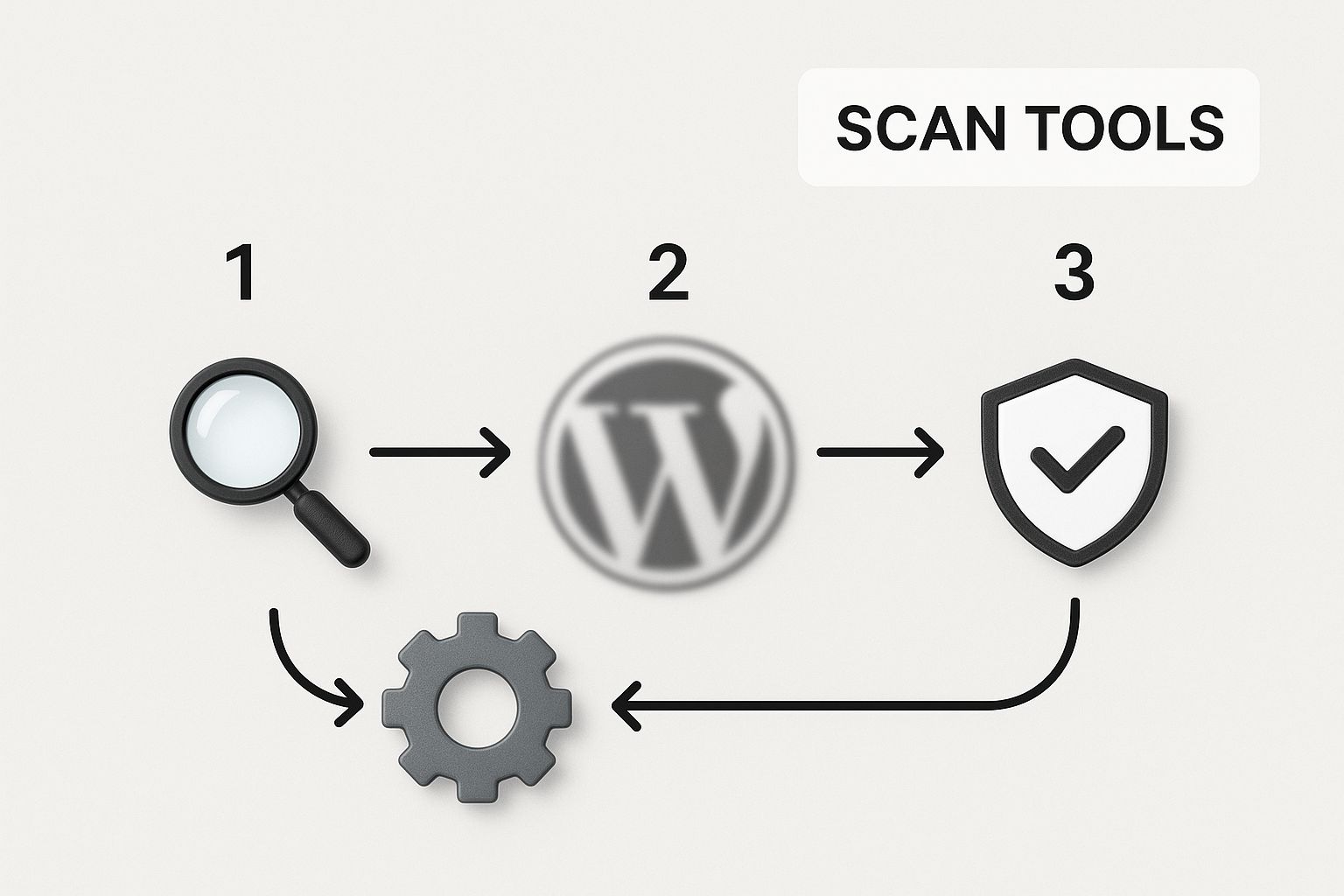
These tools check your site from the outside, the same way a visitor or a search engine would. They can't access your server files directly, but they are incredibly good at spotting problems that are visible to the public. To learn more about these tools, check out our guide on the WP Foundry WordPress vulnerability scanner.
External scanners are great for catching:
- Blacklist Status: They check services like Google Safe Browsing to see if your site has been flagged for malicious activity.
- Visible Malware: They can spot things like malicious redirects, spammy links injected into your pages, and other malware that directly impacts your visitors.
- Outdated Software: They can often tell which versions of software you're running and flag any known vulnerabilities without needing to log in.
Using a free tool like Sucuri's SiteCheck provides this essential "outside-in" perspective. It's the perfect complement to your internal plugin scan.
As promised, here’s a quick rundown of the different scanning methods to help you decide which combination is right for your situation.
Comparison of WordPress Malware Scanning Methods
| Scanning Method | Pros | Cons | Best For |
|---|---|---|---|
| Internal Plugin Scanners | Deep access to all files and database. Can find server-side malware. Often includes repair functions. | Can be resource-intensive. Sophisticated malware can sometimes hide from it. | Everyone. This is the foundational first step for any WordPress site owner. |
| External/Remote Scanners | Sees your site like a visitor. Excellent at finding blacklisting issues and client-side malware. No server load. | Cannot see server-side files or database infections. Limited in scope. | Verifying what the public sees and checking for blacklisting. A crucial second opinion. |
| Manual File Checks | The most thorough method for finding well-hidden code. Helps you understand exactly what was changed. | Requires technical skill (FTP/SSH). Time-consuming and easy to miss things if you're not an expert. | Experienced users or developers confirming a suspected infection or doing a final check after a cleanup. |
Ultimately, a multi-layered approach using a combination of these methods gives you the most complete picture of your site's health.
Targeted Manual Checks: What to Look For
Finally, for the most thorough investigation, you need to do some manual checks. This is where you put on your detective hat and look for clues yourself. You don't need to check every file, but you do need to know the common hiding spots.
Before you start, you'll need FTP/SFTP access to your server or a File Manager in your hosting control panel.
Focus your search on these key areas:
- The
wp-content/uploadsDirectory: This folder should only ever contain media files like images, videos, and PDFs. If you find any.phpfiles here, it's a massive red flag. - Theme and Plugin Folders: Hackers love to drop malicious files into existing theme folders, giving them innocent-looking names like
header-custom.phpto blend in. wp-config.phpand.htaccess: These are two of the most important files in your WordPress installation. Carefully check them for any suspicious code, paying close attention to the very top and very bottom of each file.
Keep an eye out for obfuscated code. Attackers use functions like base64_decode, eval, gzinflate, or str_rot13 to disguise their malware. If you find long, garbled strings of text wrapped in these functions, you've almost certainly found the culprit.
A Practical Guide to Malware Removal and Cleanup
So, your WordPress scan for malware found an infection. That's a good first step, but now the real work begins. Cleaning a site properly isn't just about zapping a few bad files—it's a methodical process to make sure the infection is gone for good. If you rush this part, you'll likely see the malware pop right back up within days.
Before you touch a single file, you absolutely must take a complete backup of the compromised site. I know, it sounds weird. Why back up a hacked site? Simple: this is your safety net. If you accidentally delete a critical file during cleanup, you'll need a way to get back to where you started without losing everything.
Never, ever start a malware cleanup without a full, recent backup of your infected site. If something goes sideways, this backup is the only thing that will save you from catastrophic data loss.
Once you have that backup stored somewhere safe (and offline!), you can dive into the cleanup process.
Replacing Core WordPress Files
A classic hacker move is to hide malicious code inside the core WordPress files—specifically, the ones in your wp-admin and wp-includes folders. Hunting for that bad code line-by-line is a nightmare and incredibly risky. You'll probably miss something.
The safest, quickest, and most effective way to handle this is to replace these folders entirely with fresh copies.
Just head over to WordPress.org and download the latest version of WordPress. Unzip the file, and then use your FTP client or hosting file manager to delete the existing wp-admin and wp-includes folders on your server. Then, upload the new, clean versions. Crucially, do not delete your wp-content folder! That’s where all your themes, plugins, and media uploads live.
Reinstalling Themes and Plugins
Just like the core files, your themes and plugins are prime real estate for malware. The best practice here is the same: replace, don't repair. Delete every single plugin folder from wp-content/plugins and all the themes in wp-content/themes (you can leave your active theme for a moment if you need to).
Next, reinstall fresh copies of each one. Get them directly from the official WordPress repository or from the original developer's website. Don't be tempted to use old versions you have saved locally; they could be outdated or even compromised themselves. For any premium plugins or themes, log into the vendor's site and download a brand-new copy.
This approach guarantees that any backdoors or sneaky scripts hidden in your themes and plugins are completely wiped out.
Carefully Deleting Malicious Files
Your malware scanner should have given you a list of suspicious files it flagged. Now's the time to go through that report, file by file, and delete them from your server. Pay special attention to anything in your wp-content/uploads directory that isn't a media file—hackers love hiding their PHP scripts there.
Be methodical here. Double-check every file path before you hit delete. If you're not 100% sure about a file, don't delete it just yet. A safer bet is to quarantine it by renaming it—for instance, changing suspicious-file.php to suspicious-file.php_QUARANTINED.
This whole process can feel like a lot, especially the first time. If you need a refresher on handling site files safely, you can learn more about restoring WordPress from a backup in our detailed guide. It's a skill that's just as useful for recovery as it is for routine maintenance.
Your Post-Cleanup Security Checklist
Getting rid of the bad files is only half the job. You have to assume the attacker grabbed your credentials on their way in. If you don't lock them out, they'll just walk right back in through the front door.
This final checklist isn't optional:
- Change Every Single Password: This is non-negotiable. Reset the passwords for all WordPress admin users, your hosting control panel (cPanel/Plesk), all FTP/SFTP accounts, and your database user. Use a strong password generator for every single one.
- Audit All User Accounts: Head to the "Users" section in your WordPress dashboard. Delete any administrator accounts you don't recognize on sight. While you're there, double-check the roles of your legitimate users to make sure nobody was secretly promoted to an admin.
- Resubmit to Google: If your site got blacklisted, you'll need to request a review through Google Search Console once you're positive it's clean. This tells Google you've fixed the problem and asks them to lift any security warnings from the search results.
Following these steps methodically won't just clean the current infection—it will harden your site against future attacks.
Hardening Your WordPress Site Against Future Attacks
Once you've finished a malware cleanup, it’s tempting to dust off your hands and call it a day. But hold on—removing the infection is only the first step. Now it’s time to shift from cleanup mode to proactive defense. Your goal is to make your website a much tougher target for attackers to crack.
This isn't about finding one magic fix. It’s about building layers of security. Think of it like securing your home. You don’t just lock the front door; you lock the windows, set the alarm, and maybe even get a dog. Each layer makes a break-in that much harder. The same idea applies directly to your WordPress site.
Deploy a Web Application Firewall
Your first and most critical layer of defense is a Web Application Firewall (WAF). A WAF acts like a security guard standing between your website and the internet, inspecting all incoming traffic and filtering out malicious requests before they even get a chance to reach your server.
It's specifically designed to spot and block common attack methods like SQL injection, cross-site scripting (XSS), and shady file uploads. Instead of relying on a WordPress scan for malware to find something after it’s already broken in, a WAF stops the attack at the gate. Top-tier security plugins like Wordfence and Sucuri both include a WAF as a core part of their service.
A Web Application Firewall is the single most effective tool for preventing attacks. It filters out bad actors and bots automatically, reducing the overall threat level to your site by blocking malicious traffic at the perimeter.
Fortify Your Login Security
The WordPress login page is a massive, glowing target for brute-force attacks. This is where bots hammer your site with thousands of username and password combinations, hoping to get lucky. Locking down your login process is a simple move with a huge security payoff.
Here are a few essential steps you need to take:
- Enable Two-Factor Authentication (2FA). This adds a second layer of verification, usually a temporary code from an app on your phone. Even if an attacker steals your password, it’s useless without that code.
- Limit Login Attempts. Set up your security plugin to temporarily block any IP address after a few failed login attempts. This shuts down automated brute-force attacks instantly.
- Use Strong, Unique Passwords. Make sure every user has a complex password. A password manager is your best friend here—it can generate and store credentials you’ll never have to remember.
Implement a Reliable Backup Strategy
Even with the best defenses in the world, you need a Plan B. A solid, automated backup schedule is your ultimate safety net. It means that if the worst should happen, you can restore a clean version of your site and get back online with minimal fuss.
Your backup strategy should cover these points:
- Automated Daily Backups. Your site is always changing. Daily backups ensure you always have a recent, clean copy to fall back on.
- Off-Site Storage. Storing backups on the same server as your website is like keeping your spare key under the doormat. Use a separate service like Amazon S3, Dropbox, or your backup plugin's cloud storage.
- Regularly Test Your Backups. A backup you haven't tested is just a hope and a prayer. Make a habit of testing your restore process to make sure it actually works when you need it.
Disable File Editing from the Dashboard
By default, WordPress lets administrators edit theme and plugin files directly from the dashboard. While it seems convenient, this feature is a gaping security hole. If an attacker gets access to an admin account, they can use this editor to inject malware right into your site's core files.
You can shut this down by adding one line of code to your wp-config.php file:define( 'DISALLOW_FILE_EDIT', true );
This one simple tweak removes a powerful weapon from an attacker's hands.
For comprehensive protection, especially when dealing with persistent or advanced threats, you might consider engaging professional cybersecurity services. Combining these hardening techniques with an expert eye creates a formidable defense, keeping your digital assets secure and your business running smoothly.
Frequently Asked Questions About WordPress Malware
Even after you've cleaned up a mess, it's totally normal to have some lingering questions. Let's tackle some of the most common ones that come up after performing a WordPress scan for malware.
Think of this as a quick-reference guide. Getting these fundamentals down helps you shift from a reactive, panicked mindset to a proactive, confident one, keeping your site secure for the long haul.
How Often Should I Scan My WordPress Site for Malware?
For most websites, a full scan once a week is a solid baseline. It's a good middle ground that catches most common threats before they can cause any real damage, without putting too much strain on your server.
That said, your situation might call for a more frequent schedule.
- High-Traffic Sites: If you're running a busy e-commerce store, a popular blog, or a community forum, daily scans are a must. More traffic simply means more opportunities for attackers.
- Sensitive Data: Any website that handles personal user data, payment details, or private membership information should be scanned daily. No exceptions.
The most practical way to stay on top of this is with automated scans, either through a good security plugin or a tool like WP Foundry.
Can I Remove Malware Myself or Should I Hire a Professional?
Honestly, you often can remove malware yourself, but only if you're comfortable with the technical side of things. If you've used FTP/SFTP before and have a decent grasp of the WordPress file structure, you can absolutely follow a detailed guide and get the job done.
The decision to DIY or call in an expert really boils down to the complexity of the hack and your own confidence level. A simple infection might be manageable, but if it's deeply embedded or keeps coming back, you'll need a pro to find and patch the original vulnerability.
If the infection looks complex, you have no idea how it happened, or you're just not confident editing core site files, hiring a professional security service is the safest route. They'll ensure a complete cleanup and help you lock things down to prevent it from happening again.
Will a Malware Scanner Slow Down My Website?
Any well-designed security plugin is built to be as lightweight as possible. Most scanners that run on your server are optimized to work efficiently in the background. Many even let you schedule the heavy-lifting scans for off-peak hours when you have the least amount of traffic.
While a deep scan will temporarily use more server resources, the security you gain is well worth the minor, short-term performance dip. It's a small trade-off for major peace of mind. It's also worth noting that remote scanners have zero impact on your site's speed since they run completely externally.
Ready to get a real handle on your WordPress security and day-to-day management? WP Foundry gives you a powerful, unified desktop app to scan for vulnerabilities, manage all your plugins, and run backups across every site you own. It's time to simplify your workflow and step up your security game.