

Putting off a WordPress plugin update might seem harmless, but it's one of the biggest risks you can take with your website. These updates aren't just about cool new features; they're essential for security, performance, and compatibility. Think of it as the basic maintenance that keeps your site running smoothly and looking professional.
Why You Cannot Ignore Plugin Updates
Your website is a complex machine with a lot of moving parts. Every plugin is a critical component, and when one is out of date, it can throw the whole system out of whack. Skipping updates leaves your site with well-known vulnerabilities that hackers specifically look for. It's really not a matter of if an outdated plugin will be exploited, but when.
The Real Cost of Neglect
Ignoring that little update notification can lead to some serious headaches. The consequences go way beyond a minor glitch and can seriously damage your site's health and your business's reputation.
- Glaring Security Holes: This is the big one. Most updates are released to patch security flaws. A single unpatched plugin can be an open invitation for malware, data breaches, or a complete site takeover.
- Degraded Performance: Developers are always making their code more efficient. Updates often include performance improvements that speed up your site, which is great for user experience and your SEO rankings.
- Compatibility Breakdowns: WordPress itself is constantly evolving. An old plugin might not play nice with the latest WordPress core or even other plugins, leading to broken features or the dreaded "white screen of death."
- Missed Features and Fixes: You're also missing out on new tools, bug fixes, and general improvements that could make your life a whole lot easier.
The sheer scale of the WordPress ecosystem makes this a massive issue. As of 2025, WordPress powers around 43.4% of all websites, with a staggering 70,000+ plugins available. With that many sites in the wild, outdated plugins become low-hanging fruit for automated attacks searching for easy targets.
A proactive approach to updates isn't just a best practice; it's a foundational element of responsible website management. Every notification is a developer’s way of saying, "We found a problem or a way to make this better—here’s the fix."
Staying Current is Non-Negotiable
At the end of the day, keeping your plugins up to date is just part of the job. It’s like changing the oil in your car—a simple, routine task that prevents a complete breakdown later on.
By making the WordPress plugin update process a regular habit, you're protecting your investment, your data, and your users. Our guide on maximizing security through regular updates has even more strategies to keep your site in top shape. Neglecting updates is a gamble where the stakes are just too high.
Your Pre-Update Safety and Backup Plan
Before you hit that tempting "update now" link on a plugin, let's pause. A smooth WordPress plugin update has very little to do with that final click and everything to do with what you do beforehand. A few minutes of prep work can save you from hours of headaches later.
The first, non-negotiable step is a full backup of your website. This is your safety net. If an update goes sideways and breaks something, a fresh backup means you can restore your site to its working state in minutes, not hours.
Choosing Your Backup Method
You've got a few solid options for backing up your WordPress site. The right one for you usually comes down to your technical comfort and what your hosting provider offers. Each has its own pros and cons.
- Backup Plugins: Tools like UpdraftPlus or WPvivid are incredibly popular for a reason—they just work. You can schedule automatic backups to cloud storage like Google Drive or Dropbox right from your WordPress dashboard. It's simple and effective.
- Hosting Provider Tools: Most good hosts include backup features with their plans. These are often server-level snapshots, which is great because they're managed outside of WordPress. If your site goes completely offline, you can still access these backups.
- Manual Backups: If you're comfortable with FTP and phpMyAdmin, a manual backup gives you total control. It involves downloading your site files and exporting the database. It’s more technical, but you have a local copy that’s entirely yours.
To help you decide, here's a quick rundown of how these methods stack up.
Comparing Backup Methods Before You Update
Before you update, picking the right backup method is key. This table offers a quick comparison of the most common approaches to help you choose the best fit for your situation.
| Method | Ease of Use | Reliability | Best For |
|---|---|---|---|
| Backup Plugins | Very Easy | High | Beginners and users who want automated, set-and-forget backups. |
| Hosting Backups | Easy | Very High | Users whose hosts provide reliable, one-click backup and restore tools. |
| Manual Backups | Difficult | High | Tech-savvy users who want complete control and a local offline copy. |
Ultimately, the best backup is one you actually perform. Whichever method you choose, make sure it's done before you proceed.
For a deeper dive into the process, check out our complete guide on creating a solid https://wpfoundry.app/wordpress-site-backup/.
The Power of a Staging Environment
Once your backup is safely stored, the next best practice is to test the update in a safe space. This is where a staging environment comes in. A staging site is simply a private clone of your live website, hidden from the public. It's your personal sandbox for testing.
On your staging site, you can run the plugin update and check for any problems. Does that critical contact form still submit? Is your page layout intact? Does your e-commerce checkout still work smoothly? This lets you catch and fix conflicts before they ever impact your visitors.
Think of it this way: You wouldn't repaint your living room without testing the color on a small patch of wall first. A staging site applies that same common-sense caution to your digital storefront.
Many managed WordPress hosts now offer one-click staging environments, which makes this whole process painless. If yours doesn't, a plugin like WP Staging can get the job done. Taking the time to test on a staging site is the single best thing you can do to guarantee every plugin update goes off without a hitch.
How to Update WordPress Plugins
Alright, with your backups sorted and a staging site ready to go, it's time for the main event: updating your WordPress plugins. The process itself is pretty straightforward, but how you tackle it depends on the plugin's role on your site and your personal workflow. For most people, this all happens right inside the WordPress dashboard.
The usual place to start is the Plugins > Installed Plugins screen. WordPress makes it obvious, flagging any plugin that has an update available with a clear "update now" link. This method is ideal for updating plugins one by one. I highly recommend this approach because it lets you check your site's functionality after each update, making it dead simple to figure out which plugin caused a problem if something breaks.
This flow chart nails down the safest way to handle updates every single time.
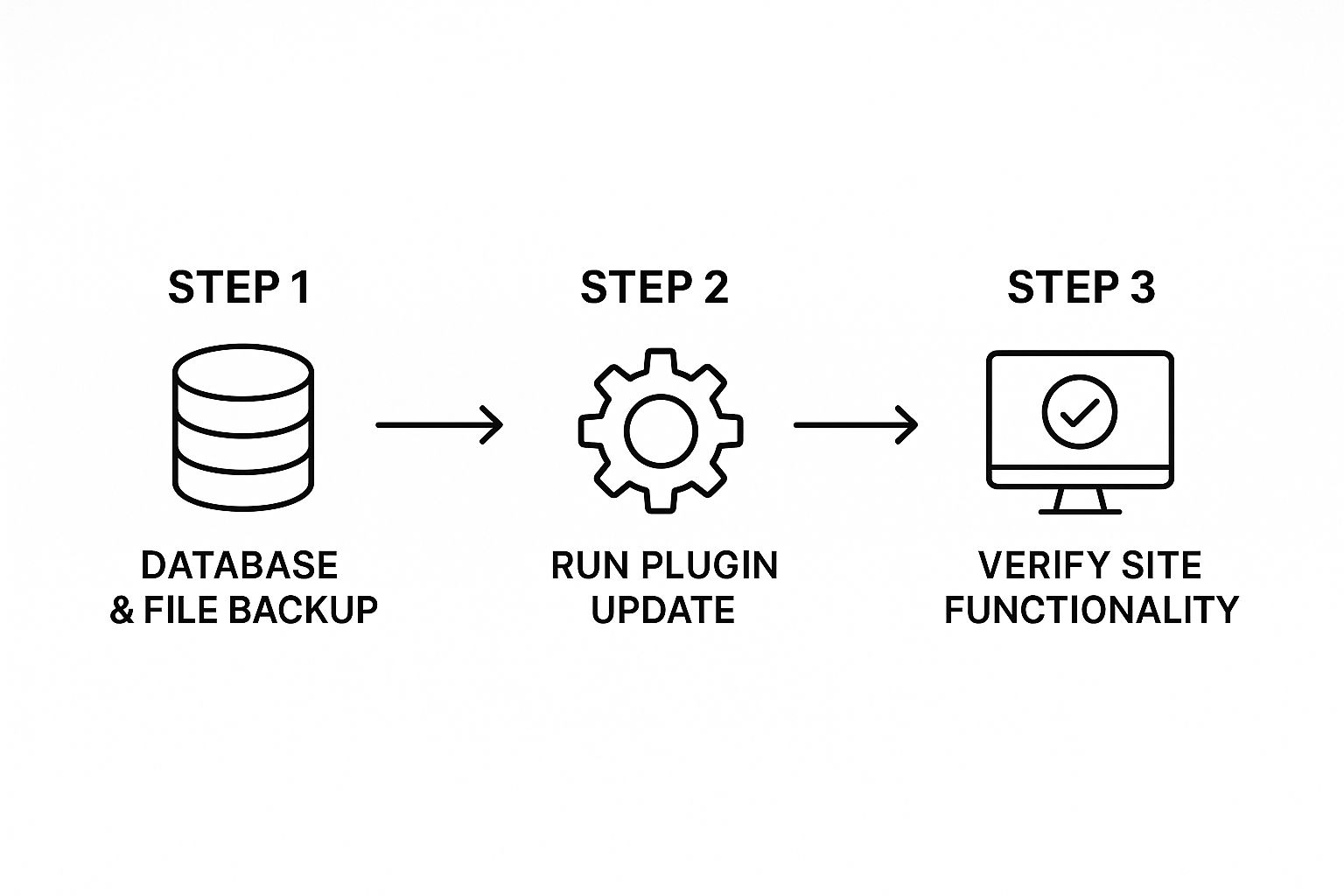
Stick to this simple sequence—backup, update, and then verify—and you’ll turn a potentially stressful task into a safe, routine part of your site maintenance.
One-by-One vs. Bulk Updates
WordPress also gives you the option to bulk update, letting you select a bunch of plugins and update them all in one go. This can be a huge time-saver, especially when you have a long list of minor updates for plugins that aren't critical—like a simple social sharing button or an analytics connector.
But for the big, complex plugins? Think WooCommerce, your page builder, or a membership plugin. For these, a one-at-a-time update is always the smarter move. These plugins are deeply woven into your site, and an update gone wrong can cause major headaches. Handling them individually gives you total control and makes troubleshooting much, much easier.
My personal rule is pretty simple: if a plugin is essential for making money or for the core user experience, it gets an individual update and a thorough check. For everything else, a bulk update is usually fine.
Advanced Updates with WP-CLI
If you're a developer or you manage a portfolio of websites, the WordPress Command Line Interface (WP-CLI) is an absolute game-changer. It lets you manage your entire site from a terminal, which is worlds faster than clicking around the admin dashboard.
With WP-CLI, you can update a single plugin with a quick command:wp plugin update elementor
Or you can update every single plugin at once:wp plugin update --all
This method is incredibly efficient for handling routine maintenance across multiple client sites. You don't have to log in to each dashboard individually, which is why it's a favorite tool for professionals who need speed and automation in their workflow.
To Automate or Not to Automate
Finally, let's talk about the native automatic update feature in WordPress. You can flick a switch to enable it for individual plugins, and WordPress will handle installing new versions as soon as they're released.
So, when should you use it?
- Good for Automation: Minor plugins and security tools (like a basic firewall) are perfect candidates for auto-updates. These updates are often small, critical security patches that you want applied immediately.
- Bad for Automation: Never, ever enable automatic updates for complex, mission-critical plugins on a live site. An untested WooCommerce update could silently break your checkout process overnight, costing you real money.
For those essential plugins, manual control is non-negotiable. The risk of an automated update creating a conflict without you knowing is just too high. A balanced approach works best: automate the small stuff and manually manage the plugins that truly matter.
Troubleshooting When a Plugin Update Goes Wrong
Even with the best preparation, a WordPress plugin update can sometimes go sideways and take your site down. We’ve all been there—that sinking feeling when your site suddenly goes blank. But don't panic. Most of these common update hiccups are entirely fixable.
The key is to know how to react calmly and systematically to get your site back online fast.
The most common issue you'll run into is the dreaded "white screen of death" (WSOD). This is exactly what it sounds like: your site shows nothing but a stark white page. This is usually caused by a PHP error or a database conflict kicked off by the new plugin code. Another frequent error is the 500 internal server error, which also points to a plugin conflict messing things up on your server.
First Steps to Diagnose the Problem
When your site is down, the first job is to figure out which plugin is causing the trouble. If you can still get into your WordPress admin dashboard, you're in luck—this makes things a lot easier. The simplest way to find the culprit is to deactivate all your plugins. Then, reactivate them one by one, reloading your site each time. As soon as the site breaks again, you've found your problem plugin.
But what if you're locked out of the admin area completely? You'll need to get your hands dirty by accessing your site's files directly.
- Use FTP or File Manager: Log into your site with an FTP client like FileZilla or use the File Manager tool inside your hosting control panel.
- Find the Plugins Folder: Once you're in, navigate to the
wp-contentdirectory and locate thepluginsfolder. - Rename the Folder: The quickest way to disable every plugin at once is to just rename this folder. Change it to something like
plugins_old.
This simple action will deactivate all plugins and should immediately restore your access to the WordPress admin. Once you're back in, go back to your File Manager and rename the folder back to plugins. Now you can log in and start activating each one individually until the error reappears.
Resolving Common Update Failures
Once you've pinpointed the problematic plugin, you're halfway there. Now you just need to fix the issue to get your site running smoothly again.
Another common headache is getting "stuck in maintenance mode." This happens if an update gets interrupted, leaving a file named .maintenance in your site's main directory. The fix is simple: connect via FTP or File Manager, find that file, and delete it. Your site should pop right back up.
The most important rule in a crisis is not to panic. Almost every broken site can be recovered, especially if you have a recent backup. Work through these steps methodically, and you’ll find the solution.
If a plugin you rely on is the one causing the issue, you might need to roll it back to a previous, working version. A tool like WP Rollback makes this incredibly simple, letting you revert to an older version right from your dashboard. This gives you some breathing room to either contact the plugin's developer for support or just wait for them to release a patch.
Plugin complexity is only going to increase, especially with the rise of AI. The top 40 AI-powered WordPress plugins pulled in a combined 315 million visits in just one year, showing how essential these more advanced tools are becoming. As plugins evolve, having a solid troubleshooting plan becomes more critical than ever. You can read more about the growing role of AI in WordPress on WP Mayor.
Developing a Long-Term Plugin Management Strategy
Constantly putting out fires with plugin issues is just plain exhausting. The best way to handle WordPress plugin updates is to get ahead of them. When you switch from a reactive to a proactive mindset, plugin maintenance stops being a stressful, unpredictable chore and becomes a simple, routine part of your workflow.
This approach is about more than just convenience; it’s about keeping your site secure, fast, and stable for the long haul. You're building professional habits that protect your website from security threats and performance rot, treating it like the valuable business asset it truly is.
Perform a Regular Plugin Audit
The first habit to get into is the plugin audit. Set aside some time at least once a quarter to go through every single plugin installed on your site. For each one, ask a straightforward question: "Do I absolutely need this for my site to work or meet its goals?"
It's amazing how often you’ll find plugins you installed for a one-off task or that have since been replaced by a better tool. These unused plugins aren't just digital clutter—they are potential backdoors for attackers. Even inactive plugins can have vulnerabilities that hackers can exploit.
A lean plugin list is a secure plugin list. Every plugin you remove is one less potential point of failure and one less update you have to worry about in the future.
Create a Simple Update Schedule
Consistency is your best friend here. Don't just update plugins randomly whenever you happen to see a notification pop up. Instead, set aside a specific time each week to handle all of them at once. For most sites, a quick check-in once a week or every two weeks is more than enough.
This simple routine accomplishes two critical things:
- It cuts down on overwhelm. You won't have a massive, daunting list of updates piling up.
- It builds muscle memory. A once-dreaded task becomes a quick habit that only takes a few minutes of your time.
When you pair this schedule with a tool like WP Foundry, the whole process becomes even more efficient, especially if you're managing multiple sites. A solid, structured approach to WordPress plugin management is really the secret to maintaining a healthy, professional site without the constant stress.
One last piece of advice: always vet new plugins before you install them. Take a minute to look at their update history in the WordPress repository. Are they updated regularly? Check out their support forums and user reviews to see if people are running into problems. A few minutes of research up front can save you hours of headaches later on.
Frequently Asked Questions About Plugin Updates
Even with a solid process, a few common questions always seem to pop up around plugin updates. Let's tackle them head-on so you can handle your site maintenance with confidence.
How Often Should I Update Plugins?
Checking for updates once a week is a great rhythm to get into. It’s frequent enough to stay on top of things without feeling like a constant chore.
The major exception here is security updates. If you see a notice about a critical security patch, drop everything and apply it immediately. These updates fix vulnerabilities that hackers are often actively looking to exploit.
For regular feature updates, it's actually smart to wait a day or two before hitting the update button. This gives you a small window to see if other users are reporting major bugs on social media or in the plugin's support forum. Just don't put it off for too long—falling behind is how small problems turn into big ones.
Is It Safe to Use Automatic Updates?
Automatic updates can be a huge time-saver, but you have to be strategic about them. They’re generally a safe bet for smaller, simpler plugins or for tools where security is paramount, like a basic firewall. This way, you’re always patched against the latest threats without having to lift a finger.
However, for your heavy hitters—think WooCommerce, your page builder, or any other plugin that’s critical to your site's main function—manual updates are always the safer route. A major update to one of these could easily cause a conflict that takes your entire site offline.
The risk of an automated update for a critical plugin failing silently overnight is just too high for most business websites. Always test major updates on a staging site first.
What If an Update Breaks My Site?
First off, don't panic. If you made a backup like we discussed earlier, the fix is straightforward: just restore your site from that backup. You'll be back online in minutes, and you can figure out what went wrong without the pressure.
If you don't have a recent backup, the next step is to find the plugin that caused the problem. If the update has locked you out of your WordPress admin area, you'll need to use FTP or your host’s File Manager.
Once you have access to your site's files, navigate to the wp-content directory and find the plugins folder. Rename it to something like plugins_old. This deactivates every plugin at once, which should allow you to log back in. From there, you can roll back the specific plugin that broke your site or get in touch with the developer for support.
Juggling updates across a bunch of different sites can quickly become a full-time job. WP Foundry brings that entire workflow into one clean desktop app. You can update plugins, run backups, and check for security issues across all of your WordPress sites from a single dashboard. Streamline your WordPress management with WP Foundry today.