

Ignoring your monthly WordPress maintenance is a bit like driving your car with the check engine light on. Sure, you might get away with it for a while, but eventually, something is going to break. It’s this simple routine of updating, backing up, and securing your site that prevents slowdowns, hacks, and those dreaded crashes.
Frankly, it's the single best investment you can make in your website's health.
Why Monthly Maintenance Is Your Website's Lifeline
It helps to think of your WordPress site as a complex piece of software, not just a static brochure. It's built from a collection of different components—core files, themes, and plugins—often developed by completely different teams. When everything plays nicely together, your site runs like a dream. But when you neglect it, you introduce friction that can lead to some serious business risks.
Without regular updates, your website is basically a sitting duck. Hackers are constantly on the lookout for sites running outdated software with known security holes. A single vulnerability is all it takes for them to steal data, inject malware, or completely deface your site, destroying the trust you've built with your users in a heartbeat.
It's Not Just About Security
Performance is another big victim of neglect. When your database gets bloated with old post revisions and a mountain of spam comments, it forces your server to work overtime just to load a page. We all know that even a one-second delay in page load time can tank conversions, which directly hits your bottom line.
Regular cleanups aren't just digital housekeeping; they're a fundamental part of effective WordPress website management. Small, fixable issues have a way of compounding over time, turning into expensive emergencies. This is that costly "break-fix" cycle so many site owners find themselves trapped in.
Shifting to a proactive maintenance mindset means you stop reacting to disasters and start preventing them. It’s all about ensuring stability, protecting your digital asset, and giving your users a consistently great experience.
A Quick Look at the Bigger Picture
WordPress powers over 40% of all websites, which really puts the importance of consistent updates into perspective. This isn't just a best practice for a handful of sites; it's a global necessity. When millions of sites are vulnerable, everyone is at greater risk.
The table below breaks down the key monthly tasks and what's really at stake if you let them slide.
Key Monthly Tasks and the Risks of Neglect
| Maintenance Area | Essential Monthly Action | Consequence of Neglect |
|---|---|---|
| Security | Run security scans and patch vulnerabilities. | Increased risk of hacks, data breaches, and malware. |
| Performance | Optimize the database and check page speed. | Slow load times, poor user experience, lower SEO rankings. |
| Updates | Update WordPress core, themes, and plugins. | Exposure to known security flaws and compatibility issues. |
| Backups | Create and verify full site backups. | Total data loss in case of a crash, hack, or server failure. |
Sticking to a routine for these tasks is the foundation for a healthy, secure, and reliable website. It's what keeps your site running smoothly month after month.
Your Essential Monthly Maintenance Checklist
This is where a proactive approach to monthly wordpress maintenance really pays off. Sticking to a consistent routine is the best way to stop small glitches from turning into site-wide disasters. I'm going to walk you through the four most important tasks that create the foundation for a healthy, secure, and fast WordPress website.
Updating Core, Plugins, and Themes
First things first: updates. WordPress itself, plus all of your themes and plugins, get regular updates that often contain critical security patches. Ignoring these is like leaving your front door wide open. It’s an invitation for trouble, as hackers actively hunt for sites running old software with known weak spots.
But hold on. Never just hit "update all" and hope for the best. A conflict between a plugin and the newest WordPress core version can easily trigger the infamous white screen of death.
Pro Tip: Always, always test updates on a staging site first. If you don't have access to one, at the very least, make sure you have a fresh, verified backup ready to restore in a flash. That one simple step can be the difference between a five-minute fix and hours of panicked troubleshooting.
You can spot available updates right from your dashboard, as this image shows.
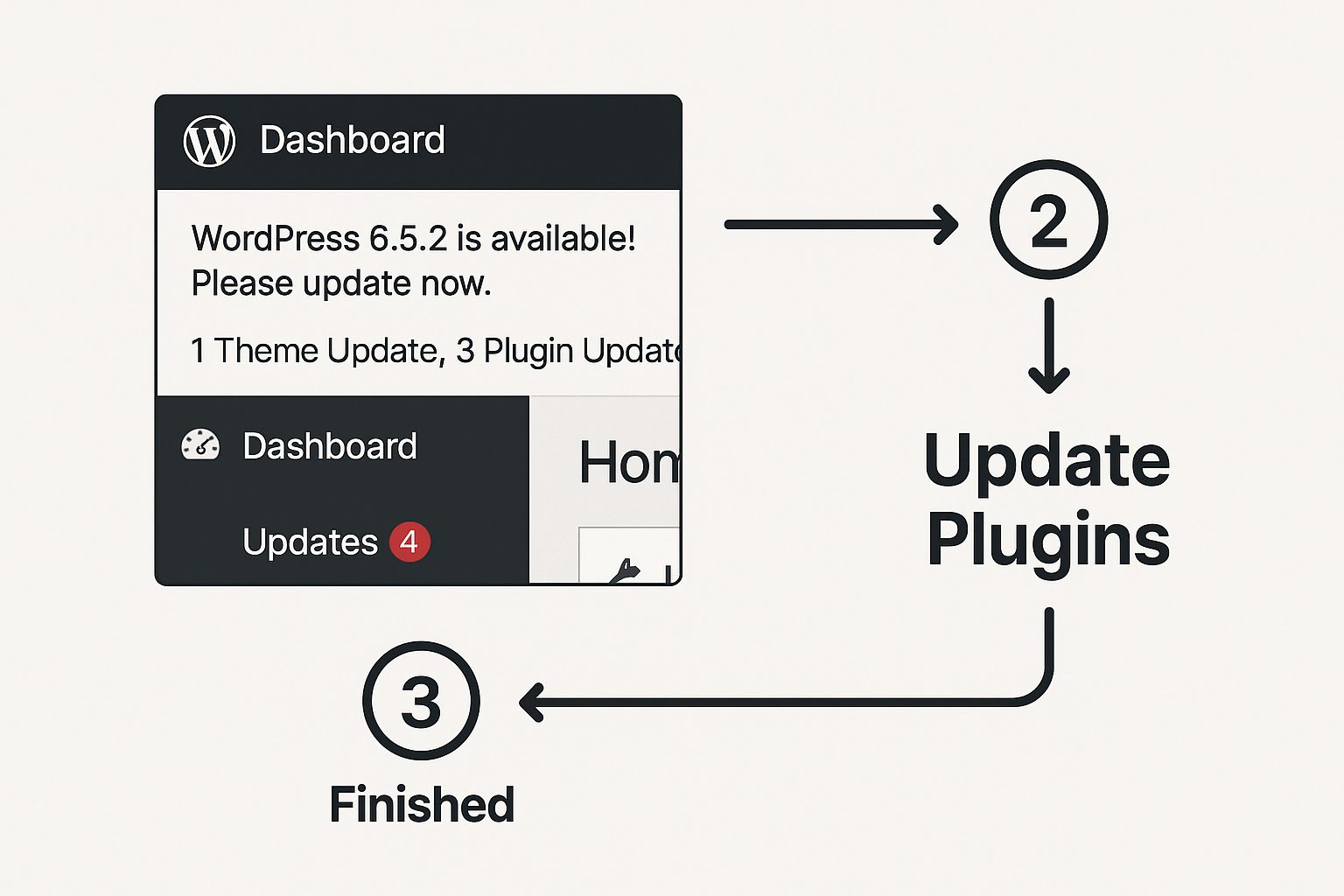
WordPress's built-in notification system is a constant reminder that keeping everything current is your first line of defense.
Running and Verifying Backups
Think of your website's backup as its ultimate safety net. It's what lets you bounce back from a hack, a server crash, or a bad update with as little downtime as possible. A tool like WP Foundry can automate these backups for you, running them on a set schedule.
The one step people almost always forget is verification. An untested backup is just a file taking up server space; you have no idea if it will actually work when you need it. Once a month, take a moment to download your latest backup. Open it up and make sure all your essential files and database tables are actually there and not corrupted. It’s a small time investment that pays off big time when disaster strikes.
Security and Vulnerability Scanning
Next up, you need to actively look for threats. A good security plugin or a management tool can scan your entire site for malware, sketchy code, and known vulnerabilities. These scans work by comparing your core files against the official WordPress repository and flagging anything that looks out of place.
A solid monthly scan should cover a few key areas:
- File Integrity: Have any core WordPress files been changed without you knowing?
- Known Vulnerabilities: Are any of your plugins or themes on a public list of software with security holes?
- Malware Signatures: Does your site contain code that matches known malicious scripts?
If you want to dig deeper into security checks and other crucial maintenance steps, take a look at our complete WordPress maintenance checklist for a more detailed guide.
Performance and Database Optimization
Finally, remember that a clean website is a fast website. Over time, your WordPress database collects a ton of digital junk—old post revisions, thousands of spam comments, and leftover data from plugins you uninstalled ages ago. All this bloat can seriously slow down your site's loading speed.
By using a database optimization tool, you can safely clear out all that clutter. This one action can often give your site a noticeable speed boost, which improves the user experience and can even help your SEO rankings. Think of it as a digital spring cleaning for your website’s engine.
Going Beyond the Basics for a Healthier Site

Once you've got your updates and backups down to a science, it’s time to level up your monthly WordPress maintenance. This is where we move from just keeping the lights on to actively improving site performance and security. These are the details that really make a difference.
A great place to start is with simple visual checks. It’s a common mistake to assume everything looks fine on all devices after running updates. The reality is that different browsers and screens can render your site in surprisingly different ways.
Just take five minutes. Pull up your key pages—the homepage, a few product pages, your contact form—on Chrome, Firefox, and Safari. Then do it again on your phone. This quick check can save you from the embarrassment of a customer pointing out a glaring layout bug you missed.
Refining User Experience and Security
Next up, let's hunt down broken links. A 404 error isn't just a minor glitch; it’s a roadblock for your visitors and for search engine crawlers. You can use a free online tool or a WordPress plugin to quickly scan your entire site for any dead ends, both internal and external. Fixing these preserves your SEO juice and keeps users happy.
Another crucial—and often forgotten—task is a user audit. In your WordPress dashboard, head over to the "Users" section and take a hard look at the list. Do you recognize every single admin account? Are there old accounts for former employees or contractors who shouldn't have access anymore? Cleaning this up is a simple but powerful security move that shuts down potential entry points for attackers.
This is how you shift from being reactive to proactive. You start anticipating problems before they happen and fine-tuning the experience for your visitors, which is really what great website management is all about.
Don't underestimate the importance of these extra steps. A 2022 survey revealed that while 60% of website owners do some form of monthly maintenance, a shocking 45% skip essential security checks. That’s a huge vulnerability. You can see the full breakdown of common maintenance gaps on ManageWP.
Adding these deeper checks to your routine ensures you're not part of that statistic. And if you want to learn more about testing changes safely, our guide on how to use a staging WordPress website is the perfect next step.
Figuring Out a Budget for Your Maintenance Needs
When it comes to monthly WordPress maintenance, it really just boils down to a classic trade-off: your time versus your money. Figuring out where you stand is the first step to making a smart investment in your website's health.
The most hands-on approach is, of course, the Do-It-Yourself (DIY) route. You get total control and it costs you nothing upfront, but the real price tag is your time. If you're comfortable with the tech and actually enjoy tinkering, this can work out great. The key is to be honest with yourself—do you really have the hours and the know-how to stay on top of everything without letting it slide?
Bringing in a Pro
For most people, focusing on their actual business is a much better use of their time. If that's you, then hiring a professional is the way to go. You’ve pretty much got two options here: a freelancer or a dedicated maintenance agency.
-
Freelancers: A good freelancer can give you a really personalized service, and they often charge less than an agency. This can be a fantastic middle-ground, but finding a truly reliable expert who will be around for the long haul means you'll need to do your homework and vet them carefully.
-
Agencies: A maintenance service or agency gives you a whole team of experts and a structured plan. They're usually more expensive, but what you’re paying for is dependability, a full range of services, and the peace of mind that comes from knowing a dedicated crew is watching over your site's security and performance.
The real question isn't just about the monthly fee. It's about what your time is worth and what it would cost you if your site went down. A small monthly investment can easily save you from a hugely expensive emergency repair later on.
The costs for monthly WordPress maintenance are all over the map. You can find plans for as little as $5 per month for a simple blog, while massive e-commerce platforms might pay up to $5,000 per month. E-commerce sites are almost always on the higher end because their needs are so much more complex, from updating payment gateways to maintaining rock-solid security. For a deeper dive into what to expect, check out the detailed breakdown of WordPress maintenance costs on Siteaim.com.
Common Maintenance Mistakes to Avoid
Even a solid monthly WordPress maintenance routine can get thrown off course by a few common, yet surprisingly damaging, slip-ups. Trust me, learning from someone else's mistakes is a whole lot less painful than learning them firsthand.
One of the biggest blunders I see is blindly updating plugins. It’s so easy to just hit "update all" and call it a day, but that’s a risky game. A single unhappy plugin can clash with the new WordPress core and take your entire site down. The smart move is to always test significant updates on a staging site first.
Another classic mistake is setting up automatic backups and then forgetting they exist. An untested backup is nothing more than a digital paperweight—it gives you a false sense of security without any actual protection.
Picture this: your site gets hacked. You go to restore from your backup, feeling relieved, only to find the files are corrupted and totally useless. It's a nightmare scenario that happens far more often than you'd think.
Forgetting the Human Element
Beyond the technical checklist, people often forget the human side of security. Leaving old admin accounts active for former employees or contractors is like handing out spare keys to your house. Make it a habit to regularly audit your user list and revoke access for anyone who doesn't absolutely need it. It's a simple step with a huge security payoff.
Finally, don't sweat the small stuff—fix the small stuff. Things like broken links or a few 404 errors might not seem like an emergency, but they add up. Over time, they chip away at your user experience and can ding your SEO. Regular checks stop these little annoyances from growing into major headaches.
Your Top WordPress Maintenance Questions, Answered
Jumping into a monthly WordPress maintenance routine always brings up a few questions. That's perfectly normal. Let's walk through some of the most common ones I hear from people just getting started.
A big one is, "Do I need to be a developer to do this?" The short answer is no, not for the basics.
WordPress is designed to be pretty user-friendly. Simple tasks like updating your plugins, kicking off a backup with a tool like WP Foundry, or clearing out the cache are all just a few clicks. The real technical know-how comes into play when something goes wrong—like a plugin conflict that crashes your site or, worse, a security breach. It's smart to handle the fundamentals yourself and have a pro on standby for those trickier situations.
How Much Time Does This Really Take?
Another question that comes up a lot is about the time commitment. For a standard small business site or a blog, you can expect to spend about one to three hours on a thorough monthly check-in. That number can shift depending on how many updates are waiting or if a security scan flags something that needs a closer look.
When you're staring at your checklist, one task stands above all else: creating and verifying your backups. Think of a recent, working backup as your ultimate undo button. It’s your safety net when an update goes sideways, a hacker gets through, or your server just gives up. It’s what lets you restore your site and get back online fast.
If you're ever pressed for time, zero in on these three items:
- Backups: Don't just run them. Make sure you can actually restore from them.
- Updates: Apply those security patches for core, themes, and plugins without delay.
- Security Scans: Be proactive. Look for malware or vulnerabilities before they become a real problem.
Nailing these three tasks covers your most critical bases. They deliver the biggest bang for your buck, protecting your website from the most common threats out there.
Ready to manage your WordPress sites without the usual headaches? WP Foundry gives you a single dashboard to handle unlimited sites, automate your backups, run vulnerability scans, and breeze through updates. Get started with WP Foundry today