

To get a proper backup of your WP site, you need two things: your website files (themes, plugins, all your uploads) and the MySQL database (that’s where your posts, pages, and user data live). The most common ways to do this are with an automated plugin, using your hosting provider's built-in tools, or going the manual route with FTP and phpMyAdmin for total control.
Why Backups Are Your Website's Ultimate Safety Net
Let's be real: doing a website backup feels like a chore until it suddenly becomes the most important file you have. It's easy to push it to the bottom of the to-do list until a crisis hits.
Maybe a plugin update throws you the white screen of death, a malware attack messes up your homepage, or you just accidentally delete a week’s worth of work. These aren't just hypotheticals—they happen to people every single day.
Not backing up your WordPress site is like driving without insurance. You might get away with it for a while, but one wrong turn can lead to a total loss. Your website is a serious asset, and it represents a ton of your time and money.
The Real Threats Facing Your WordPress Site
WordPress powers a huge chunk of the internet, which is great, but it also paints a giant target on its back. The threats aren't just hackers, either. Sometimes the call is coming from inside the house.
Here are a few common scenarios where a backup is an absolute lifesaver:
- Failed Updates: You update a theme or plugin, and it creates a conflict that completely breaks your site's layout or functionality.
- Malware Infections: A hacker gets in, injects some nasty code, and suddenly Google is blacklisting your site.
- User Error: You or someone on your team accidentally deletes a critical page, a blog post, or even a customer's account.
- Hosting Server Failures: Sometimes the hardware just gives out. Data centers can have issues that corrupt or completely wipe your site's data.
The ecosystem is always facing new issues. Security vulnerabilities are on the rise, with 2024 seeing a 34% increase in reported problems over last year. Digging into the numbers, 52% of all vulnerabilities come from plugins and 44% of hacks are aimed at outdated WordPress installs, which shows just how constant the risk is.
If you want to read more on this, check out these WordPress security statistics on mycodelesswebsite.com.
A backup isn’t just a file; it’s a recovery plan. It’s the ultimate undo button, making sure a technical glitch doesn't turn into a business-ending disaster.
At the end of the day, keeping regular backups is all about peace of mind. It turns a potential catastrophe into a minor hiccup. Instead of panicking and trying to rebuild everything from scratch, you just restore your site to its last working state and get on with your day. It's the cornerstone of managing a website responsibly.
What a Complete WordPress Backup Actually Includes
Before you can confidently backup your WP site, you have to know what you’re actually saving. A real WordPress backup isn't just a single file; it's made up of two totally different, but equally vital, parts.
If you miss one of them, it’s like having a car with an engine but no wheels. It looks the part, but it’s not going to get you anywhere.
The two core components you need are your website files and your database.
Your Website Files: The Structure
Think of your website files as the blueprint of your site. They control the look, feel, and all the special functions you've added. Without them, your content would just be a jumble of text without any style or structure.
This collection of files includes a few key folders you'll recognize:
- Themes: This is your site's design framework. It dictates the layout, colors, and the overall vibe.
- Plugins: These add all the cool features, from your contact forms and SEO tools right through to your e-commerce shop.
- Uploads: Every single image, video, PDF, or document you’ve ever added to your media library lives here.
- WordPress Core Files: These are the engine files that make WordPress run. Many backup tools skip these because you can always just download a fresh copy from WordPress.org.
Basically, these files build the house that all your content lives in.
Your Database: The Content
If the files are the house, the database is everything inside it—the furniture, the people, the memories. It’s a highly organized set of tables that stores all the dynamic information your site creates and needs to function.
Your database holds all the stuff you add and manage from the WordPress dashboard:
- Every post and page you’ve written, including drafts.
- All the user comments and whether they've been approved.
- Your site's settings, menus, categories, and tags.
- Every user account, from the admin down to subscribers.
Without the database, you’d have a beautifully designed but completely empty website. It would be like walking into an empty storefront—it looks right from the outside, but there’s absolutely nothing inside.
A complete backup must contain both your files and your database. One without the other leads to a failed restoration, forcing you to rebuild huge chunks of your site from memory.
How Often Should You Backup Your WP Site?
Figuring out your backup schedule is just as critical as knowing what to back up. The answer really depends on one thing: how often does your site change?
As of 2025, WordPress powers roughly 43.5% of all websites, which means millions of site owners are grappling with this question. If you run a busy e-commerce store with orders coming in every hour, a daily backup isn't just a good idea—it's essential.
On the other hand, if you have a personal blog that you update once a week, then a weekly backup is probably fine.
Take a hard look at your site's activity and pick a frequency that minimizes any potential data loss without clogging up your storage. For a deeper dive into backup strategies, you can find some great insights over at BoostedHost.com.
Choosing Your Backup Method: Three Proven Approaches
Deciding how to backup your WP site isn't a one-size-fits-all situation. The best method really comes down to a trade-off between convenience, cost, and how much control you want to have. Your technical comfort level and the time you can spare are big factors.
To make the choice easier, we can break down the most common strategies into three buckets. Each has its own pros and cons, suiting everyone from hands-off business owners to developers who like to get under the hood.
Automated Plugins: The "Set It and Forget It" Approach
For most people running a WordPress site, a good backup plugin is the way to go. It’s the perfect blend of powerful features and ease of use, automating the whole process so you can focus on other things.
Think about it: you set a schedule once, and the plugin handles the rest. Tools like UpdraftPlus or Duplicator will regularly package up your site files and database, then ship them off to a secure, off-site location like Google Drive, Dropbox, or Amazon S3. It completely removes the "oops, I forgot" factor from your backup plan.
This is what it looks like in practice—a simple, integrated part of your daily WordPress workflow.
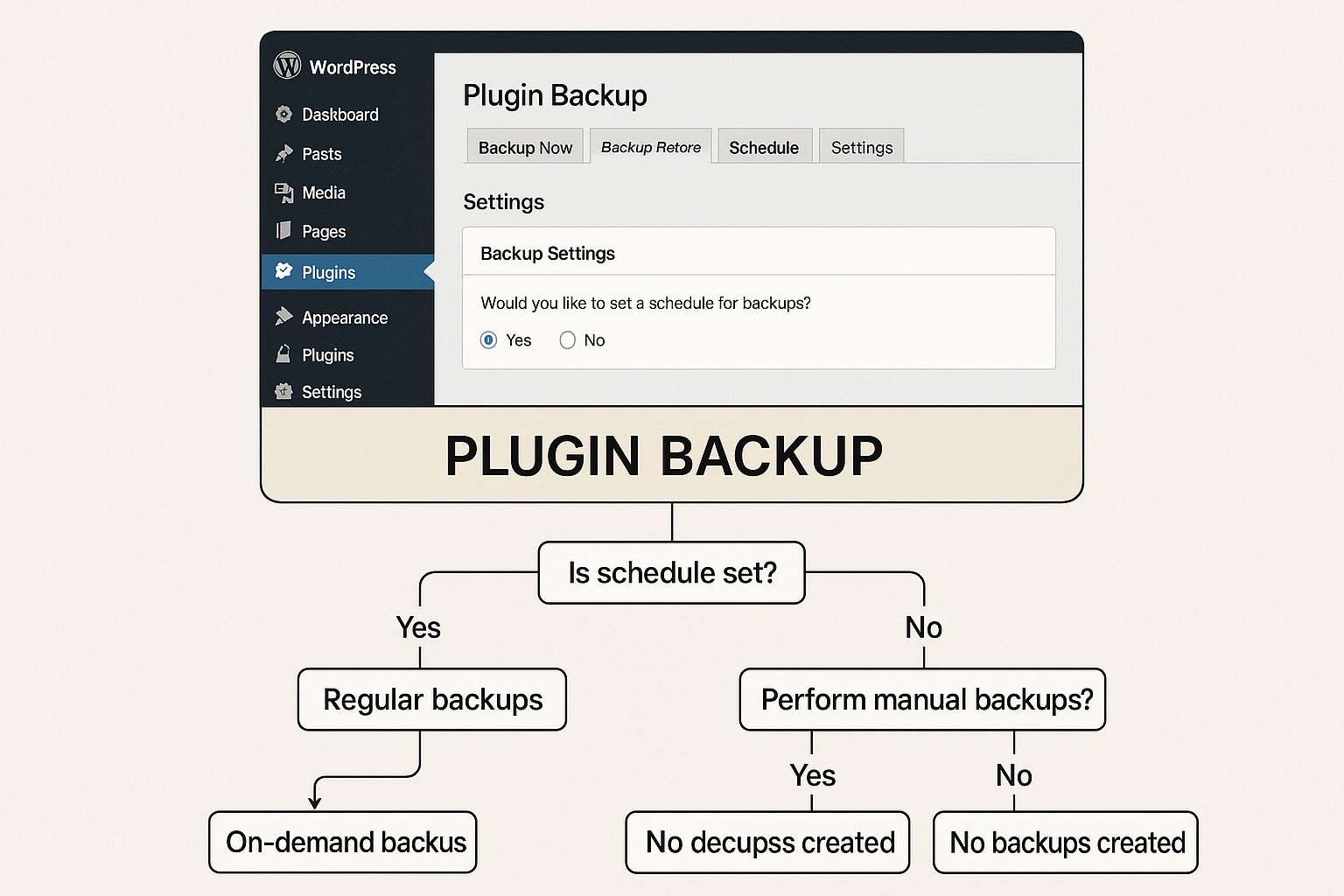
Having the tools right inside your WordPress dashboard just simplifies everything. No need to juggle different logins or platforms.
Manual Backups: For Total Control
If you're a developer or just a tech-savvy user who wants ultimate control, learning to do a manual backup is a skill worth having. This means you'll be directly accessing your server to download a copy of your files and export your database. It’s definitely more hands-on.
You’ll typically need two things for this:
- An FTP client like FileZilla to connect to your server and grab all the WordPress core files, themes, plugins, and uploads.
- phpMyAdmin, which is usually available in your hosting control panel, to export a
.sqlfile of your database.
The biggest win here is complete ownership. You aren't relying on a third-party script; you know exactly what’s being saved and when. The downside? It's all on you. If you forget, you simply don't have a backup.
A manual backup gives you direct ownership of your data, free from any plugin's settings or potential conflicts. It's the digital equivalent of having a physical key to your own vault.
Hosting Provider Backups: Convenience Built-In
Many quality WordPress hosts include backups as part of their service package. This is often the easiest path, especially if you're just starting out, because it usually requires no setup at all. Your host just takes care of it, creating daily snapshots of your site.
Restoring from these backups is often just a one-click affair in your hosting dashboard, which is incredibly convenient. The trade-off is that you have less say over the backup schedule, and your only copies are stored with the same company that hosts your site. That's a lot of eggs in one basket.
While convenient, I always recommend having your own, separate backup as well. A solid strategy for 2025 and beyond combines automated, scheduled backups with secure storage in multiple locations and—this is key—practicing a restoration every now and then to make sure it all works. You can find more great tips on backup methodologies in this guide from LitExtension.com.
To help you decide, let's lay out the options side-by-side.
Comparison of WordPress Backup Methods
This table breaks down the three main backup approaches across a few key factors to help you figure out what makes the most sense for you.
| Method | Ease of Use | Reliability | Control Level | Best For |
|---|---|---|---|---|
| Plugin | High | High (with proper setup) | Medium | Most users; busy site owners looking for automated, set-and-forget solutions. |
| Manual | Low | Depends on user | High | Developers and tech-savvy users who want granular control and a deep understanding of their site. |
| Hosting | Very High | Generally High | Low | Beginners or users who prioritize convenience and have a reliable host. |
Ultimately, choosing the right method is about being realistic about your needs. Short on time? A plugin is a lifesaver. Crave total control? Get comfortable with the manual process. Just want a safety net? Your host’s backups are a fantastic starting point.
Automating Backups with a WordPress Plugin
For most people running a WordPress site, a dedicated backup plugin is easily the simplest and most reliable way to get the job done. It takes the manual work and guesswork out of the equation, creating a safety net that just works.
These plugins plug right into your WordPress dashboard, giving you a familiar place to schedule, manage, and restore your site. Forget about wrestling with FTP clients or database tools; everything happens in one spot. This is the perfect route if you want a solid solution without the headache of manual backups.
Getting Started with a Backup Plugin
There are tons of great backup plugins out there. We're going to use UpdraftPlus as our main example because it's trusted by millions of users, but the concepts here apply to pretty much any quality backup plugin you choose.
First, you need to install it. From your WordPress dashboard, go to Plugins > Add New Plugin and search for "UpdraftPlus." Click Install Now, then Activate. This will add a new settings area to your dashboard, usually under the "Settings" menu.
Once it's active, it’s a good idea to run your first backup right away. This gives you a solid recovery point before you start messing with schedules. Most plugins have a big, obvious "Backup Now" button to make this easy.
Configuring Your First Automated Backup
The real magic of a plugin is the automation. You can set it and forget it. In the plugin's settings, you'll find options to schedule your file and database backups separately.
This is actually pretty handy. You might only update themes and plugins (your files) once a month, but if you're blogging every day, your database is constantly changing.
Here’s a common setup for an active site:
- Database Backup Frequency: Set this to Daily. This will catch all your new posts, comments, and user signups.
- Files Backup Frequency: Set this to Weekly. This is usually enough unless you’re constantly adding new plugins or redesigning your theme.
- Retention: Decide how many backups to keep. Storing the last four recent sets is a good starting point—it gives you a safety buffer without eating up all your storage space.
A pro tip is to schedule your backups to run during off-peak hours, like 3:00 AM. This way, the process won't slow down your site for visitors.
Connecting to Off-Site Storage
Storing backups on the same server as your website is a huge mistake. If that server goes down, you lose everything—your site and your backups. This is where remote storage saves the day.
Any good backup plugin will connect to popular cloud storage services. The most common choices are:
- Google Drive: A great free option for most people.
- Dropbox: Another simple and reliable choice.
- Amazon S3: A more powerful, scalable option for bigger sites or developers.
Connecting your account is usually just a matter of logging in and granting the plugin permission. Once it's linked, every scheduled backup will automatically be sent to your cloud storage, giving you a secure, off-site copy.
This isn't optional; it's essential for a real backup strategy. It follows the industry-standard 3-2-1 rule: three copies of your data, on two different types of media, with at least one copy off-site. A plugin makes this rule surprisingly easy to follow. To see more tools that handle this well, take a look at our guide on the best WordPress backup plugins available.
Performing a Manual Backup for Total Control
While automated plugins are incredibly convenient, there's a lot to be said for learning how to backup a WP site by hand. Doing it manually puts you in the driver's seat. You'll gain a much better understanding of how your site is put together and won't be completely dependent on a third-party script.
It’s not as daunting as it might sound. A manual backup is really just a two-part process: first, grabbing your database, and second, downloading your website files. This is the go-to method for developers or any site owner who wants absolute certainty about what's being saved and where.
Exporting Your Database with phpMyAdmin
Your WordPress database is the brain of your website. It holds every post, page, user, comment, and setting. The most common way to get to it is through phpMyAdmin, a tool you'll almost always find inside your hosting provider's control panel (like cPanel).
Log into phpMyAdmin, and you'll see your databases listed on the left. You just need to select the one that belongs to your WordPress site. If you have a few and aren't sure which is which, pop open your wp-config.php file—the database name is defined in there.
With the right database selected, click the "Export" tab along the top. You'll see two main choices:
- Quick: This is the one you'll use 99% of the time. It simply exports the entire database into a single
.sqlfile using the default settings. It just works. - Custom: This option gives you more control, like choosing specific tables or changing the compression. Unless you have a very specific reason to dig in here, stick with the quick method.
Go ahead and choose "Quick," make sure the format is set to "SQL," and click the "Export" button. Your browser will download the database backup. Tuck that .sql file away somewhere safe. For a deeper dive, our guide on how to backup a WordPress database breaks down every little detail.
A manual database export gives you a pure, unadulterated copy of your site's content. There are no plugin settings or extra files—just the raw data that powers your website, ready for restoration at any time.
Downloading Your Website Files via FTP
Now that your database is secure, it's time to download a copy of all your website files. This includes your themes, plugins, images, and the core WordPress files that give your site its look and feel. The standard tool for this job is a File Transfer Protocol (FTP) client.
An FTP client is just a simple desktop app that connects your computer to your web server's files. FileZilla is a fantastic choice—it's free, reliable, and works on Mac, Windows, and Linux.
To get connected, you'll need the FTP credentials from your web host. This usually includes:
- Host: Your domain name or server IP address.
- Username: Your FTP username.
- Password: Your FTP password.
- Port: Typically 21 for FTP or 22 for SFTP (the secure version, which you should use if available).
Once you're logged in, you’ll see a two-pane view: your local files on the left and the server's files on the right. On the server side, navigate to your site's root directory. This folder is often called public_html or is named after your domain.
Inside, you'll see the familiar WordPress folders: wp-admin, wp-content, and wp-includes. To back everything up, just select all the files and folders in this directory, right-click, and hit "Download."
The FTP client will start copying everything over to your computer. This can take a while, especially if you have a large media library, so it's a good time to grab a coffee. Once it's done, you'll have a complete, manual backup of your entire WP site.
Backup Best Practices You Shouldn't Ignore
Just having a backup file tucked away somewhere isn't enough. A real, resilient backup strategy is about much more than just clicking "backup"—it involves smart scheduling, secure storage, and regular testing. If you skip these, your backup could easily fail you right when you need it most.
The gold standard here is the 3-2-1 backup rule. It’s a simple but incredibly effective framework that pros have trusted for years.
Here’s the idea:
- Keep three copies of your data.
- Store them on two different types of media.
- Keep one copy stored completely off-site.
For a WordPress site, that could look like having one copy on your live server, a second on your local computer, and a third in a cloud storage account. This builds in redundancy, making sure a single point of failure—like a server crash or a dead hard drive—doesn't take your only escape route with it.
The Dangers of On-Server Backups
A huge mistake I see all the time is people storing their backups on the same server that hosts their website. Sure, it’s convenient, but it's also incredibly risky.
If your server gets hit with malware, suffers a hardware failure, or is wiped out for any other reason, you lose everything in one go: your live site and all your backups. It's like keeping the spare key to your house right next to the front door. It completely defeats the purpose.
To have a robust setup, you have to send your backups somewhere else. This is where remote storage is non-negotiable. Services like Google Drive, Dropbox, or Amazon S3 give you a secure, independent place for your files. When you integrate these with a backup plugin, the whole process becomes automatic, ensuring your backups are always stored safely away from your primary server.
You can explore how WP Foundry handles these connections by learning more about our remote server backups. And remember, whenever you're setting up these connections, it's critical to follow essential API security best practices to protect your data as it moves between services.
The Most Important Step: Testing Your Backups
An untested backup is just a hope, not a plan. You absolutely have to check that your backup files are complete and can actually be restored. The best place to do this is on a staging site—a private clone of your live website where you can't break anything important.
At least once a quarter, or after any big site changes, you should take your latest backup and run through a full restoration on your staging environment.
This simple test confirms two critical things:
- The backup file itself isn't corrupted or incomplete.
- You actually know the steps to restore your site when the pressure is on.
Finding a problem during a routine test is a minor inconvenience. Finding that same problem during a real crisis is a complete disaster. This is the one step you can't afford to skip if you want to be sure you can backup your WP site and recover it flawlessly.
Common Questions About WordPress Backups
Even with a solid plan in place, a few questions always seem to come up when you start thinking seriously about backing up your WP site. Let's get those sorted so you can move forward with confidence.
How Often Should I Run Backups?
This really comes down to how often your site changes. There's no one-size-fits-all answer.
If you’re running a busy e-commerce store, you'll want daily backups, minimum. Losing a day's worth of orders is a nightmare you don't want to live through. On the other hand, if you have a personal blog that you update once a week, a weekly backup is probably plenty.
The rule of thumb is simple: match your backup schedule to your content schedule. Ask yourself how much data you're willing to lose if things go sideways, and that’s your answer.
Where Should I Store My Backups?
The golden rule is to never store your backups only on the same server as your website. That's like keeping your spare key locked inside your house. If the server goes down or gets hacked, you lose everything—your live site and your only way to get it back.
A much safer approach is to use off-site storage. Some reliable options are:
- Cloud Storage: Services like Google Drive, Dropbox, or Amazon S3 are excellent choices.
- Your Local Computer: Downloading a copy to your own machine is a great secondary, or even tertiary, location.
This strategy follows the industry-standard 3-2-1 rule: keep three copies of your data, on two different types of media, with at least one copy stored off-site.
What Is the Difference Between a Full and Database Backup?
Think of it this way: a database backup saves the "brains" of your site. This includes all your posts, pages, user comments, and various settings. It’s the core content.
A full backup, however, includes the database plus all of your website files. That means your themes, plugins, images, videos, and every other upload are all bundled together.
For total peace of mind and the ability to do a simple one-click restoration, you almost always want a full backup. Only do a database-only backup if you have a very specific technical reason for it.
Juggling backups, updates, and security can become a massive chore, especially when you have more than one site. WP Foundry pulls everything into a single dashboard, letting you manage unlimited WordPress sites right from your desktop. You can generate backups, update plugins, and check for vulnerabilities all from one app.