

Managing just one WordPress site can feel like a full-time job. But when you're juggling a portfolio of client sites, it quickly becomes a frantic game of whack-a-mole. Real WordPress website management isn't about just putting out fires—it's about having a solid, proactive plan to keep every site secure, fast, and reliable.
This guide is about ditching the chaotic, site-by-site fixes and adopting a modern, centralized system to get things back under control.
Moving Beyond the Chaos of Site Management
If you’re responsible for more than one WordPress site, you know the grind. It's a constant cycle of logging into different admin panels, each one screaming with its own set of update notifications. Plugin updates, theme patches, core releases—it’s a to-do list that never ends and only gets longer with every new site you take on.
This scattered approach isn't just a time-sink; it's a huge risk. A single missed security patch on one site can expose client data. An unexpected performance drop can tarnish a brand's reputation overnight. The old way of hopping between dozens of dashboards is purely reactive, and it just doesn't scale.
The Case for Centralized Control
A smarter way to manage your WordPress sites is to treat them as a single, unified system. Instead of fighting fires individually, you can roll out consistent security protocols, backup schedules, and update routines across all of them from a single dashboard.
This is a fundamental shift from manual oversight to streamlined command. If you want to dig deeper, our article on why you need a centralized WordPress admin dashboard breaks down why this is a total game-changer for freelancers and agencies.
For e-commerce stores, efficient WooCommerce integration strategies are critical. Centralizing your management ensures your online store stays secure, updated, and running without a hitch.
The core idea is simple but powerful: stop managing websites and start managing a system. By unifying your workflow, you reclaim valuable time, reduce human error, and deliver a more reliable service to your clients or stakeholders.
Understanding WordPress's Dominance
The need for efficient management is only growing, especially when you consider how massive the WordPress ecosystem is. Looking at the content management system (CMS) market, WordPress holds a staggering 62% market share as of 2025.
That means nearly two-thirds of all websites using a CMS are built on WordPress. Its closest competitor, Shopify, holds just 6.7% of the market in comparison. The platform is everywhere.
This guide will give you a clear path forward, showing you how to implement a unified strategy with a tool like WP Foundry. We'll walk through everything from core updates to user roles, all from a single interface designed to bring order to the chaos.
How to Safely Manage Core Updates
Keeping your WordPress sites updated is non-negotiable. Outdated software is the number one way attackers get in, so running regular updates is the most important thing you can do for site management. But we've all been there—that "click and pray" moment when you hit the update button and hope for the best.
That approach just doesn't cut it, especially when you're responsible for client sites. One bad update can tank a website, hurt your reputation, and leave you scrambling to fix things for hours.
To get off that hamster wheel, you need a solid, repeatable process. This means moving away from logging into each site individually and instead using a central dashboard that puts you in control. It’s all about turning a stressful, risky task into a safe and predictable one.
The infographic below shows how the core components of domain and hosting management fit together, which is the foundation for every WordPress site you look after.
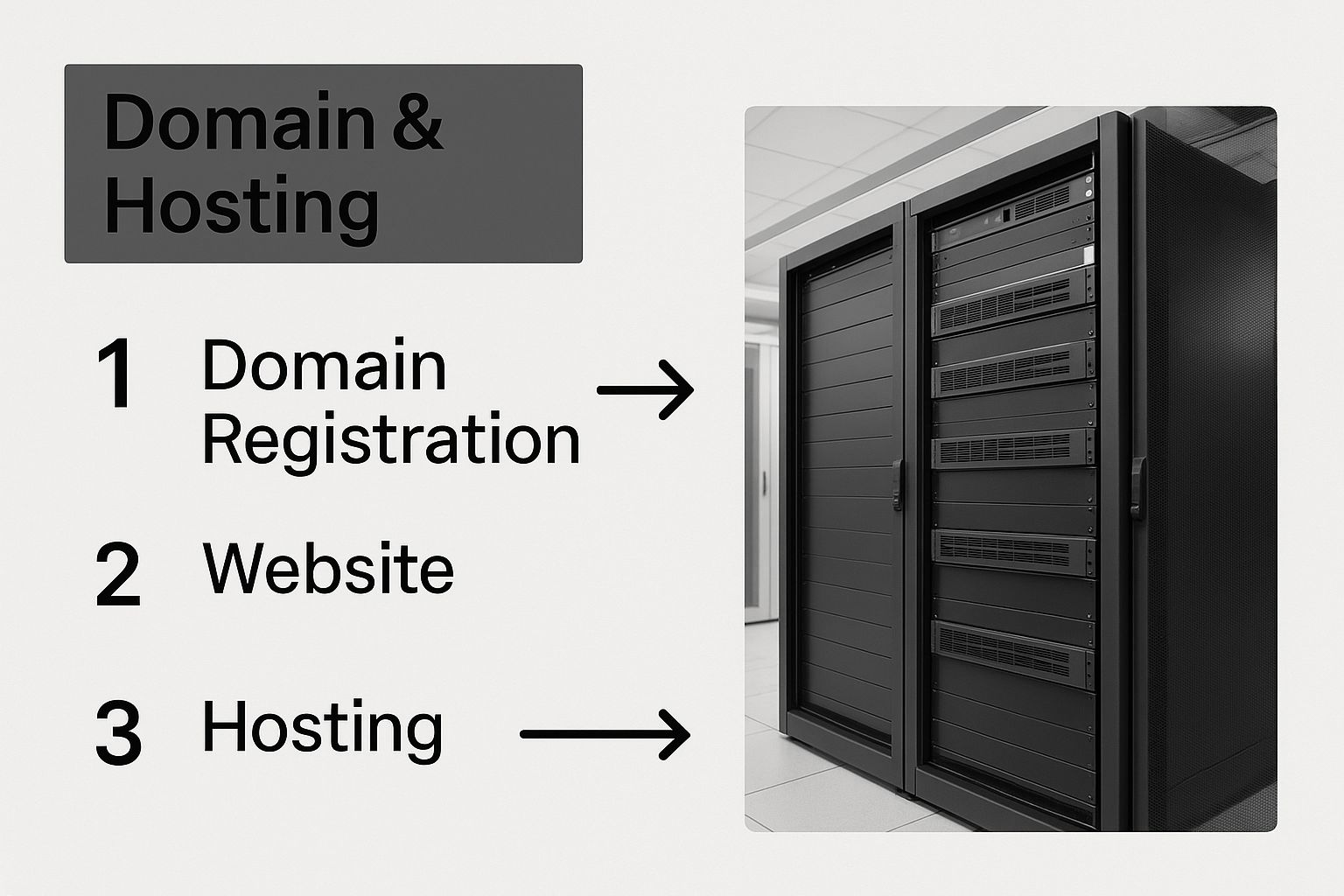
This visual just reinforces how critical services like domain registration and hosting are. They're the bedrock, and WordPress is what you build on top.
Creating a Bulletproof Update Strategy
A smart update strategy is never one-size-fits-all. A simple portfolio site with a handful of plugins is a totally different beast than a busy WooCommerce store with custom payment and shipping extensions. If you just apply bulk updates to both without thinking, you're asking for trouble.
Your workflow should always include checks before an update and verification after. This is where modern management tools really shine compared to the standard WordPress updater.
The goal isn't just to update everything; it's to update everything safely. A good workflow prioritizes stability over sheer speed, making sure every update actually improves the site without breaking something else.
This is where a feature like Safe Updates becomes a game-changer. The tech takes a snapshot of your site right before applying an update and another one right after. It then uses visual regression testing to compare the two. If it spots any visual changes that could signal a broken layout or feature, it flags it immediately. If a problem is found, the system can automatically roll back the update, meaning a broken site never even goes public.
Implementing Visual Regression Testing
Let's put this in a real-world context. Imagine you're updating the WooCommerce plugin on an e-commerce site that gets a lot of traffic. A conflict with the theme could easily break the "Add to Cart" button, which could cost your client a small fortune in lost sales. Visual regression testing is your automated safety net for this exact scenario.
Here’s how that would play out:
- The Trigger: You schedule the WooCommerce update to run overnight when traffic is low.
- The "Before" Snapshot: The system automatically creates a backup and takes screenshots of key pages—homepage, product pages, checkout, etc.
- The Update: The plugin updates to the new version.
- The "After" Snapshot: The system takes another round of screenshots of those same key pages.
- The Comparison: An algorithm compares the "before" and "after" images, pixel by pixel. If that "Add to Cart" button vanished or the layout got messed up, the test fails.
- The Rollback: Because the test failed, the system instantly restores the site from the pre-update backup. You get a notification about the failed update, but the live site was never affected.
Scheduling and Rolling Back Updates
For anyone managing dozens of sites, being able to schedule updates in bulk is a huge time-saver. You can group sites however you want—for instance, all your simple brochure sites in one group, and all your e-commerce sites in another—and set different update schedules. This approach helps you quickly pinpoint any issues caused by a specific plugin.
If you want to dive deeper into this, our guide on setting up automatic WordPress updates has all the details.
Of course, even with the best precautions, an update can sometimes cause problems you can't see, like a subtle PHP error that only pops up under certain conditions. For those moments, having an instant rollback feature is essential. From your central dashboard, a single click can revert any plugin, theme, or even WordPress core to its previous version. What could have been a full-blown crisis becomes just a minor hiccup.
Building an Automated Security and Backup Plan
Let’s be honest, nobody wants to spend their days manually running security scans and downloading backup zip files. A proactive WordPress management strategy hinges on a solid security and backup plan, but the key is to make it run on autopilot. The goal is to build a resilient system that protects your sites around the clock without you needing to constantly check in.
This isn't just about saving time; it's about consistency. When you automate security and backups from a central dashboard like WP Foundry, you remove the risk of human error. No more forgotten scans or misplaced backup files. You create a standardized safety net for every single site you manage, ensuring nothing ever slips through the cracks.
Automating Your First Line of Defense
Regular security scans are your eyes and ears, constantly watching for threats. But trying to scan dozens of sites by hand just doesn't scale. Automation is the only practical way forward. Using a centralized tool, you can schedule scans to run automatically—daily or weekly—across your entire portfolio of sites.
These scans dig deep, looking for the tell-tale signs of trouble:
- Known Vulnerabilities: It cross-references your WordPress core, plugin, and theme versions against a live database of known security holes.
- Malware and Malicious Code: The scanner actively hunts for suspicious code injections, backdoors, and other common footprints of a hack.
- File Integrity Changes: You get an alert if core WordPress files have been modified, which is a classic red flag for a breach.
When a vulnerability pops up, you get an immediate notification. This lets you patch the hole before it can be exploited by an attacker, turning security from a reactive headache into a manageable, routine process.
Website attacks are almost always automated, with bots constantly searching for easy targets. Your defense needs to be just as automated and relentless. Setting up scheduled, comprehensive scans is the most effective way to stay one step ahead.
A consistent routine is the backbone of good site management. To keep things running smoothly, it helps to distinguish between daily check-ups and weekly deep-dives.
Essential Daily vs Weekly Management Tasks
Here's a simple breakdown of the core tasks and a recommended schedule to maintain optimal performance and security across your WordPress sites. Sticking to a routine like this prevents small issues from turning into major emergencies.
| Management Task | Recommended Frequency | Why It's Critical |
|---|---|---|
| Security Scanning | Daily | Catches malware, injections, and new vulnerabilities immediately, minimizing the window of exposure for attackers. |
| Off-Site Backups | Daily | Ensures you have a very recent recovery point, which is essential for dynamic sites (e-commerce, blogs) to prevent data loss. |
| Plugin & Theme Updates | Weekly | Keeps sites protected from vulnerabilities found in older versions. Weekly checks are a good balance between security and stability. |
| Performance Checks | Weekly | Monitors site speed and responsiveness to catch issues like slow queries or resource hogs before they impact user experience. |
| Database Optimization | Weekly / Monthly | Cleans up overhead, post revisions, and transients to keep the database lean and fast, improving overall site performance. |
This table provides a solid baseline. You might adjust the frequency based on a specific site's traffic and importance, but automating these tasks ensures they get done consistently, no matter what.
Configuring Off-Site Automated Backups
A good backup strategy is your ultimate insurance policy. When a hack, a botched update, or a server crash takes a site down, a recent backup is the only thing that will get you back online quickly. But not all backups are created equal. Storing backups on the same server as your website is a start, but it won't help if the entire server is compromised.
Real peace of mind comes from automated, off-site backups. This means your site's data is regularly copied to a secure, remote location—like Amazon S3, Google Drive, or Dropbox—that is completely separate from your web host.
A central management tool makes this incredibly simple. You just connect your preferred cloud storage provider and set a schedule. For example, you can configure your high-traffic e-commerce sites to back up daily while your static portfolio sites back up weekly, all from one dashboard.
The Power of One-Click Restoration
Having backups is only half the battle. You also need to be able to restore them in a hurry. When a client’s site is down, every minute counts. Fumbling with FTP clients and phpMyAdmin during a crisis is stressful and slow.
This is where a one-click restore feature becomes a lifesaver. From your central WP Foundry dashboard, you can see a list of recent backup points for any site. With a single click, the system grabs the backup file from your cloud storage and restores the site's files and database automatically. What could take an hour of manual work is done in just a few minutes.
This kind of rapid recovery is a cornerstone of professional WordPress management. And the need for it is huge—WordPress powers an estimated 861 million websites, a number that grows by about 660 new sites every day. With the platform running 36% of the world's top one million sites, efficient management is non-negotiable. You can learn more about the incredible global reach of WordPress and its dominance on the web.
By combining automated scans, off-site backups, and simple restoration, you build a powerful safety net that protects your clients' sites without eating up all your time.
User Roles and Secure Site Access
Giving people access to your WordPress sites feels like a constant tightrope walk. You have to let your team, clients, and contractors in to do their jobs, but every new user is another potential door for trouble. This gets messy fast when you're managing a whole portfolio of sites. Juggling dozens of logins isn't just a headache; it's asking for a security breach.
For anyone running an agency or freelancing, this is a huge part of managing WordPress sites effectively. The old way—creating individual admin accounts on every site and passing passwords around in emails or chats—is a massive liability. A better way is to centralize the whole process, letting you grant, check on, and pull access across all your sites without ever giving out a single password.
This isn't just a small tweak; it's a fundamental shift in how you operate. It’s all about keeping iron-clad control while still giving people exactly the access they need, but only for as long as they need it.
Centralized User Management
Picture this: you've just hired a new content editor who needs to work on three different client sites. The old-school way means logging into three separate WordPress dashboards, creating a new user on each, setting their role to "Editor," and then sending them three different sets of login details. A platform like WP Foundry completely changes the game.
From one screen, you just select the three sites, create a single "collaborator" account, and give them passwordless access. They get a secure link to log in directly, and you never touch—or share—a password.
This approach gives you some serious advantages:
- Tighter Security: No shared passwords means you slash the risk of someone getting in who shouldn't. A staggering 81% of breaches are linked to stolen or weak passwords, which makes going passwordless a major security win.
- Quick Onboarding and Offboarding: You can give a new team member access to a dozen sites in seconds. Just as crucial, when their project is over or they leave the company, you can revoke all their access instantly with one click. All those sites are secured, just like that.
- Clear Oversight: A central dashboard gives you a clean audit trail. You can see who has access to what, and what their role is, all in one place. No more guessing games or digging through individual WordPress installs.
To really make this work, you need to know what each role can actually do. For a deep dive, check out our guide to understanding WordPress user roles. It breaks down the permissions for every default role, from Administrator all the way down to Subscriber.
Developer Access with SSH and SFTP
For your developers, just getting into the WordPress dashboard is rarely enough. They need to get their hands dirty with direct server access using SSH or SFTP for things like deploying code, running command-line tools, or fixing server-level problems. Managing these credentials can be even more chaotic than WordPress logins.
Typically, this meant creating separate SSH/SFTP users on every server and trying to securely share private keys or passwords. It's a time-consuming mess and creates yet another set of credentials you have to track.
A central management tool can reach beyond the WordPress dashboard and right down to the server level. This lets you handle developer access with the same slick, secure process you use for content editors.
Think about a real-world situation. You hire a freelance dev for a two-week project on five client sites, all hosted on different servers.
Instead of a drawn-out manual setup, you can use a tool like WP Foundry to:
- Pick the five sites from your dashboard.
- Create one profile for the freelancer.
- Grant them temporary SSH/SFTP access to all five sites at once.
- Set their access to expire automatically at the end of their two-week contract.
When their time is up, their access is cut off from all five servers completely, without you having to lift a finger. This kind of automated, time-based control ensures that temporary access doesn't turn into a permanent security vulnerability. It's just a smarter, safer way to collaborate.
Developing a Proactive Maintenance Routine
This dashboard is the command center for millions of websites, which really drives home the need for a solid management strategy. Good WordPress website management isn't about fighting fires; it’s about preventing them from starting in the first place.
Instead of just reacting when things break, a proper maintenance routine lets you systematically keep sites healthy, fast, and secure. This shifts your role from a panicked problem-solver to a strategic manager—which is a lot less stressful and way more valuable to your clients.
Automating Key Maintenance Tasks
Let’s be honest, many of the most important maintenance jobs are repetitive and frankly, a bit boring. That makes them perfect for automation. Using a tool like WP Foundry, you can schedule these critical tasks to run across all your sites automatically.
Think of it as hiring a digital janitor for each website. It handles the cleanup so you can focus on more important work.
Here are a few essential tasks you should absolutely automate:
- Database Optimization: Your WordPress database is constantly collecting junk—old post revisions, spam comments, and expired temporary data. This "database bloat" slows everything down. A weekly automated cleanup keeps the database lean and responsive.
- Broken Link Checks: Broken links are terrible for user experience and can ding your SEO. A scheduled scanner can crawl your sites, flag any 404 errors, and report them back so you can fix them quickly.
- Server Error Log Reviews: Your server logs are a goldmine for spotting hidden issues, like plugin conflicts that haven't caused a visible crash… yet. An automated review can alert you to recurring PHP errors before they become a real headache.
The real magic of a maintenance routine isn't just the tasks themselves, but the consistency. Automation ensures that even your least-active sites get a baseline of care, stopping small issues from becoming site-down emergencies.
Uptime Monitoring for Instant Alerts
Even with perfect maintenance, sites can go down. A server might hiccup, a host could have an outage, or a fatal error could knock a site offline. The last thing you want is a client calling you in a panic to tell you their site is down.
Uptime monitoring flips that script. It’s a simple service that "pings" your websites every few minutes from different locations around the globe.
If a site doesn't respond, you get an instant alert via email or text. This means you almost always know there's a problem before your client does, giving you a head start to get things back online. It’s a simple way to look incredibly professional and build a ton of trust.
Creating a Practical Maintenance Schedule
To keep it all straight, it helps to organize your maintenance work into a simple schedule. This makes sure nothing gets missed without feeling overwhelming. For a deeper dive, check out this practical guide to WordPress website maintenance.
Here’s a sample schedule you can adapt for your own workflow:
| Frequency | Tasks |
|---|---|
| Daily | Automated off-site backups, uptime monitoring checks. |
| Weekly | Automated database optimization, broken link scans, update all plugins/themes. |
| Monthly | Manually review security scan logs, check performance metrics, generate client reports. |
| Quarterly | Review user accounts and remove old ones, check contact forms and key user flows. |
This kind of rhythm turns website management from a chaotic scramble into a predictable process.
The need for routines like this is only growing. WordPress now powers roughly 43.6% of the entire internet as of early 2025. That's a massive jump from just 13.1% back in 2011, showing just how many sites rely on this platform and need skilled people to manage them.
By putting a consistent, automated maintenance plan in place, you can deliver a top-tier service that keeps sites running smoothly and proves your value time and time again.
Common Questions About WordPress Management
When you’re thinking about moving all your WordPress sites under one roof, a few big questions always come up. It’s a significant change to your workflow, after all. You want to be sure about the real-world benefits and, just as importantly, the security of it all.
These aren't just minor details. They get to the very core of why managing sites this way is so much better for freelancers and agencies. Let's dig into the questions we hear the most.
How Much Time Can a Centralized Dashboard Save?
The time you get back is very real, and it adds up fast.
Think about a simple task: updating one plugin. You have to log in, go to the updates screen, select the plugin, run the update, then check the site to make sure nothing broke. That's easily five minutes per site.
If you manage 20 sites, that's almost two hours of your day gone, just for one plugin update. Now, picture doing that same task from a single dashboard in about two minutes. The difference is huge.
Let's look at some common jobs:
- Plugin and Theme Updates: Instead of logging into site after site, you can select them all and update a specific plugin (like Yoast SEO) everywhere with a single click. What took hours now takes minutes.
- Backup Verification: Manually confirming that daily backups ran successfully on 15 different sites is a real grind. A central dashboard gives you a simple "success" or "fail" status for all your sites on one screen. That's probably 30 minutes saved every morning.
- User Onboarding: Adding a new developer to five different projects might take you 20 minutes of setting up accounts. With a tool like WP Foundry, you can give them access to all five projects in less than a minute.
These little bits of saved time accumulate quickly. It’s pretty common for agencies to reclaim 10-15 hours a month—time that can go straight back into client work or growing the business.
Is It Secure to Manage All Sites From One Place?
This is the big one, and the answer usually surprises people. A modern management platform is almost always more secure than juggling dozens of separate logins. The old way means relying on password managers, spreadsheets, or worse, reusing passwords—all things that open you up to risk.
A centralized system like WP Foundry is built from the ground up with security in mind. It actually hardens your entire process by funneling access through one, heavily protected entry point.
Centralizing access doesn't create a single point of failure; it creates a single point of defense. By channeling all management activity through one secure gateway, you can monitor, control, and audit access with a level of precision that is impossible with scattered logins.
This is possible because of a few key security protocols:
- Two-Factor Authentication (2FA): This locks down the master login to your dashboard. Even if someone got your password, they couldn't get in.
- Passwordless Site Logins: The tool connects to your sites using secure API keys or an installed plugin. You never have to store or send individual site passwords, which closes the biggest security hole.
- Granular Access Controls: You can set up accounts for your team members with very specific permissions. They only get access to the sites and functions they absolutely need to do their job.
By getting rid of shared passwords and adding modern authentication, a central dashboard makes your whole operation much safer.
What Is the Difference Between a Management Tool and a Hosting Dashboard?
This is another common point of confusion. They're both "dashboards," but they do completely different jobs. A good analogy is the difference between a mechanic's garage and the driver's seat of your car.
Your hosting dashboard (like cPanel or a custom panel from your host) is the garage. It's for managing the server infrastructure—things like setting up email accounts, handling domains, and tweaking server resources like RAM or PHP versions. It deals with the nuts and bolts that your site runs on.
A WordPress management tool, on the other hand, is the driver's seat. It works at the application level, focusing only on the WordPress software itself. Its purpose is to handle tasks inside your WordPress sites, no matter where they're hosted. This covers updates, backups, security scans, and user roles.
You can use a tool like WP Foundry to manage sites spread across a dozen different hosting companies, all from one interface. It brings the WordPress experience together, while the hosting dashboards stay separate for server-level jobs.
Ready to stop juggling dozens of tabs and start managing your sites efficiently? With WP Foundry, you can bring all your WordPress website management tasks into one powerful, secure desktop application. Get started for free and see how much time you can save.