

A website security audit is a deep dive into your site's code, settings, and server infrastructure to find weak spots. It’s a mix of automated scanning and manual, hands-on inspection to find vulnerabilities before a hacker does. This is how you protect your data and, just as importantly, your reputation.
Why a Security Audit Is Your Best Defense
It’s easy to think of a security audit as another task on a never-ending to-do list. That’s a mistake. In reality, it’s one of the smartest, most strategic things you can do for your website. It flips your security approach from a frantic, reactive scramble—cleaning up a mess after a breach—to a calm, proactive defense.
That shift in mindset is critical, because the threats aren't going away and the stakes have never been higher.
The financial hit and reputational damage from a security breach can be catastrophic. Someone tries to hack a website every 39 seconds, and a staggering 73% of companies expect a security incident to disrupt their business in the next couple of years. With the global cost of cybercrime expected to reach $10.5 trillion by 2025, sitting back and hoping for the best is a gamble you can't afford to take. You can find more of these eye-opening cybersecurity statistics over on BrightDefense.
It’s About More Than Just Finding Flaws
A proper security audit gives you a clear, documented picture of your site's overall health. It's not just about flagging an outdated plugin or a weak password; it's about understanding the reason behind each vulnerability.
This process forces you to look at the bigger picture and ask some tough questions:
- Are our user roles too permissive, giving a junior editor access to things they shouldn't have?
- Is our server actually configured to block common, well-known exploits?
- Are any of our third-party plugins creating backdoors we don't even know about?
Answering these questions gives you a clear, prioritized list of what to fix first. You can focus your energy on the biggest risks instead of getting lost in a long list of minor warnings.
A security audit isn’t just about finding what’s broken; it’s about building a stronger, more resilient foundation for the future. It instills a security-first mindset across your entire workflow.
Staying One Step Ahead of a Moving Target
The security world never stands still. A plugin that was perfectly safe last week could have a major vulnerability discovered today. Hackers are always creating new ways to get around defenses. A "set it and forget it" approach to security is like leaving your front door unlocked and hoping no one notices.
Doing regular audits means your defenses keep up with the threats. By systematically checking your entire setup on a schedule, you can adapt to new risks and keep your site locked down. This constant vigilance is what modern website security is all about. For a deeper look at what this entails, check out our guide on the ultimate WordPress security checklist. This review process is what separates a resilient website from an easy target.
Setting the Stage for an Effective Audit

A good security audit doesn't just start with running a scan. It starts with careful planning. Diving in unprepared is like trying to navigate a new city without a map—you’ll get lost, miss important spots, and waste a ton of time.
Putting in the groundwork first makes sure your audit is thorough, efficient, and—most importantly—doesn't take your live site down. A little prep turns a potentially chaotic fire drill into a structured, manageable project.
Define Your Audit Scope
First things first, you need to know exactly what you're auditing. If your goal is vague, your results will be incomplete. Your scope is simply the boundary you draw around your investigation.
Are you only looking at the core WordPress installation? Or does your audit need to cover the server environment, any custom APIs you've built, and all those third-party services you're plugged into?
Start by creating a detailed inventory of every single asset tied to your website. This list should include:
- Core WordPress Files: The engine of your website.
- Database: Home to all your content, user data, and settings.
- Plugins and Themes: Both active and inactive. A disabled plugin is still code on your server and can be a backdoor.
- Custom Code: Any unique functions, scripts, or tweaks you've added.
- User Accounts: Every user role and what permissions they have.
- Server Configuration: The environment where your website actually lives.
Documenting all these assets gives you a concrete checklist. It's the only way to make sure no stone is left unturned.
The point of defining your scope isn’t just to make a list. You're building a complete map of your digital territory. You need to know exactly where the borders—and potential battlegrounds—are.
Prepare Your Safe Testing Environment
I'm going to say this in big, bold letters: never, ever perform a security audit on your live website. The tools and tests you'll run can be resource-intensive. They can slow your site to a crawl, break key features, or even accidentally open up new holes if you're not careful.
This is where two non-negotiable prep steps come in.
- Perform a Full Backup: Before you do anything else, take a complete backup of your website files and your database. This is your ultimate safety net. If something goes haywire, you have a clean, working version to restore from.
- Set Up a Staging Site: A staging environment is just an exact clone of your live site, tucked away on a private server or subdomain. It’s your personal sandbox. Here, you can run aggressive scans, test fixes, and poke at potential weaknesses without a single visitor ever knowing.
A staging site gives you the freedom to be aggressive with your testing. You can try to exploit a vulnerability to confirm it's real or apply a patch to see if it fixes one thing without breaking ten others.
Gather Your Tools and Credentials
With the prep work done, it's time to get your logistics sorted. This means getting all your access credentials in one place and documenting your current security setup.
Create a secure document (using a password manager is ideal) with the logins for your WordPress admin, hosting control panel, FTP/SFTP, and database.
At the same time, take stock of your current security posture.
- Which security plugin are you using, if any?
- Do you have a Web Application Firewall (WAF) in place?
- What are your password policies for users?
This documentation creates your baseline. Once the audit is done, you can compare the results against this baseline to see exactly what you've improved. It’s the perfect way to show the value of all your hard work.
To keep everything straight, a simple checklist can be a lifesaver.
Your Pre-Audit Preparation Checklist
Use this table to track the essential tasks you need to complete before kicking off the audit. This ensures nothing gets missed in the crucial setup phase.
| Task | Status (To Do / In Progress / Done) | Notes |
|---|---|---|
| Define Audit Scope | To Do | Inventory all plugins, themes, custom code, and user roles. |
| Full Website Backup | To Do | Backup both files and the database. Store it securely off-site. |
| Set Up Staging Site | To Do | Create an exact clone of the live site for testing. |
| Gather Credentials | To Do | Collect logins for WP-Admin, hosting, SFTP, and database. |
| Document Current Security | To Do | Note existing security plugins, WAF, and server settings. |
Once every item on this list is marked "Done," you're officially ready to start the audit. With a clear scope, a safe environment, and all your tools at the ready, you’re set up for success.
Using Automated Scanners to Find Easy Targets
Automated scanners are the workhorses of any modern website security audit. Think of them as tireless security guards, methodically checking every door and window for an obvious opening. They’re brilliant at finding the low-hanging fruit—the common, well-documented vulnerabilities that opportunistic attackers look for first.
These tools work by cross-referencing your site’s components against massive databases of known threats. This includes outdated WordPress core files, plugins with documented security holes, and compromised themes. Kicking off your audit with an automated scan is easily the fastest way to get a baseline on your site's security posture.
How Scanners Uncover Common Threats
Most automated tools focus on a few key areas where websites are notoriously weak. Their primary job is to flag issues that can be fixed with straightforward updates or quick configuration changes, giving you immediate security wins.
The main targets for these scanners include:
- Outdated Software Versions: This is arguably the most common and dangerous vulnerability. A scanner will instantly check if your WordPress core, plugins, and themes are running the latest versions.
- Known Vulnerabilities (CVEs): They compare your installed software against public databases of Common Vulnerabilities and Exposures (CVEs), flagging any matches.
- Basic Server Misconfigurations: Scanners can often detect issues like publicly accessible configuration files or directory listings that expose sensitive information.
- Malware Signatures: If your site has already been infected, many scanners can identify malicious code by matching it against a library of known malware signatures.
This process gives you a prioritized to-do list based on known, quantifiable risks. You can get a deeper look at how this all works by reading our detailed guide on what vulnerability scanning is and the tech that powers it.
Interpreting Your First Scan Results
Running the scan is the easy part; making sense of the report is where the real work begins. Your results will likely be a mix of critical alerts, moderate warnings, and low-priority informational notes. The key is to avoid getting overwhelmed and learn to tell a real fire from a false alarm.
A common mistake is treating every finding from an automated scanner as a five-alarm fire. The goal is to use the report as a starting point for investigation, not a definitive judgment. Prioritize, verify, and then remediate.
For instance, a scanner might flag a plugin as "outdated" even if the developer has confirmed the latest version is secure but hasn't updated the version number in the official repository. This is where context matters. Always start by addressing anything labeled "Critical" or "High" severity, as these usually represent active and easily exploitable threats.
It’s no surprise that, according to PwC’s 2025 Global Digital Trust Insights survey, 77% of organizations expect their cybersecurity budgets to increase. This is driven by concerns over cloud-related risks (42%), hack-and-leak operations (38%), and third-party breaches (35%). These are all areas where scanners provide vital initial detection. To see the full scope, you can read the complete PwC security insights report.
The Limits of Automation in an Audit
While incredibly useful, automated tools are not a silver bullet. They are fantastic at finding known problems but are completely blind to others. A comprehensive security audit can't rely on automation alone.
Here’s a quick look at what scanners do well versus what they tend to miss:
| Strengths of Automated Scanners | Weaknesses and Blind Spots |
|---|---|
| Speed and Efficiency | Business Logic Flaws |
| Broad Coverage of Known Issues | Zero-Day Vulnerabilities |
| Consistency and Repeatability | Weak or Reused Passwords |
| Easy to Integrate into Workflows | Excessive User Permissions |
Scanners can't understand the unique logic of your site. For example, they won't know if a low-level "Subscriber" user account somehow has the ability to delete posts. This type of flaw requires a manual, human-led inspection, which is a critical next step in our audit process.
Think of the automated scan as step one—it clears the battlefield of the easy targets so you can focus your manual efforts on the more sophisticated, hidden threats.
The Manual Checks That Scanners Always Miss
Automated scanners are brilliant at flagging the usual suspects—outdated plugins, known malware, and basic server misconfigurations. They give you a solid baseline for your security audit. But relying on them alone is like locking your front door while leaving a ground-floor window wide open.
The real, often more insidious, vulnerabilities are hiding in the unique logic and context of your specific website. These are blind spots for scanners.
This is where rolling up your sleeves for a manual inspection becomes non-negotiable. You have to put on your attacker hat and think creatively about how your site could be broken. A scanner follows a rigid script; a human auditor follows a trail of breadcrumbs, hunting for flaws unique to your setup.
Auditing User Accounts And Privileges
One of the most common ways attackers get in is through a compromised user account. This is a classic. An automated tool can't judge the appropriateness of user permissions—it just sees that an account exists. Only a manual review can spot these hidden risks.
First, export a full list of every user account on your WordPress site. Go through it line by line, paying special attention to high-level roles like Administrator or Editor.
Ask yourself these questions for every single user:
- Does this person still need access? Be on the lookout for accounts belonging to former employees or short-term contractors. These dormant accounts are a massive security liability just waiting to be exploited.
- Is their permission level correct? A content writer probably doesn’t need full administrator rights. Stick to the principle of least privilege—give people the absolute minimum access they need to do their job, and nothing more.
- What's their password situation? While you can't see their passwords, you can and should enforce strong password policies. Better yet, mandate two-factor authentication (2FA), especially for admin accounts.
It's amazing what you'll find. This simple check often reveals that a surprising number of users have far more power than they need, creating a much larger attack surface than you thought.
An attacker who compromises a simple 'Author' account with a weak password is an inconvenience. An attacker who compromises a forgotten 'Administrator' account from a contractor who left two years ago is a catastrophe. Manual audits find the catastrophe waiting to happen.
Inspecting File And Directory Permissions
File permissions on your server dictate who can read, write, and execute files. If they’re too loose, an attacker who gains even a tiny foothold can potentially rewrite critical files, upload malicious scripts, or take over your entire site.
Scanners rarely give you a nuanced look here. You need to get in there with an SFTP client or your hosting control panel to check things yourself.
Here’s what you should be looking for:
- Core WordPress Files: These should generally be set to
644. This means the owner can read and write, but everyone else can only read. - Directories: Aim for
755. This lets the owner read, write, and execute, while others can only read and execute (which is necessary to browse the directory). - wp-config.php File: This is the big one. It holds your database credentials. Harden its permissions to
600or440to make it unreadable to other users on the server.
Incorrect permissions are a silent threat. Your site might seem to be working perfectly, but you're just one minor breach away from a total compromise.
A security audit relies on a mix of automated tools and manual, hands-on inspection. Neither one is a complete solution on its own. The table below breaks down where each approach shines.
Automated Scans vs Manual Inspection
| Check Type | Automated Scanning | Manual Inspection |
|---|---|---|
| Outdated Software | Excellent. Quickly flags old versions of WordPress core, plugins, and themes. | Good. Can verify versions, but much slower than an automated tool. |
| Known Malware | Excellent. Matches file signatures against a database of known threats. | Poor. Impractical to manually search for thousands of malware variants. |
| User Role Logic | Poor. Can list users and roles but cannot assess if they are appropriate. | Excellent. Perfect for identifying excessive permissions and dormant accounts. |
| Business Logic Flaws | Non-existent. Scanners have no understanding of your site's unique purpose. | Excellent. The only way to find flaws in custom code or business processes. |
| File Permissions | Okay. Can flag obviously insecure permissions (e.g., 777) but lacks nuance. |
Excellent. Allows for a granular check of critical files like wp-config.php. |
| Third-Party Code Quality | Poor. Only checks the version, not the quality or security of the code itself. | Good. Allows for vetting developer reputation and code maintenance history. |
Ultimately, you need both. Let the scanner handle the low-hanging fruit so you can focus your manual efforts on the complex, context-specific vulnerabilities that truly put your site at risk.
Vetting Third-Party Plugins And Themes
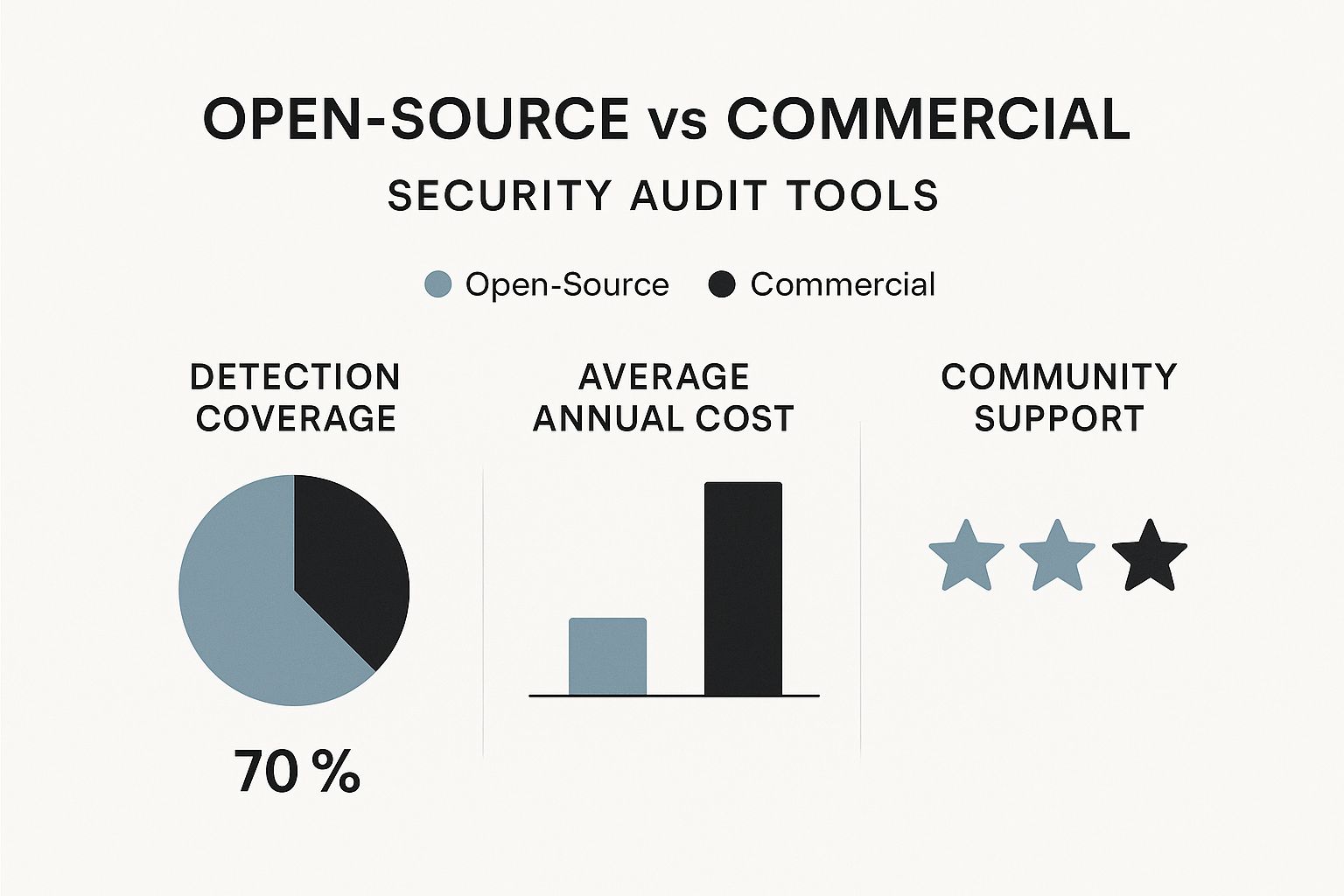
Your WordPress site is really just an ecosystem of third-party parts. Every single plugin and theme is a potential entry point, creating a digital supply chain you’re responsible for securing. A scanner can tell you if a plugin version is old, but it can’t tell you if it’s poorly coded, abandoned by its developer, or has a subtle logical flaw.
This is more critical than ever. In 2024, supply chain cyberattacks hit around 183,000 customers globally, a 33% jump from the year before. And to make matters worse, encrypted threats—which are much tougher for automated tools to spot—shot up by 92%. You can see more data on these cybersecurity trends on SentinelOne. These numbers show exactly why a manual deep dive into your third-party components is a must.
Your manual vetting process should be thorough:
- Check the Source: Look at the plugin's last update date in the WordPress repository. If it’s been more than a year, it’s likely abandoned and a ticking time bomb.
- Read the Support Forums: Are there unresolved security issues or a flood of complaints from other users? These are major red flags.
- Evaluate the Developer: Is the developer or company known for producing high-quality, secure code, or do they have a spotty reputation?
- Be a Minimalist: If you’re not using a plugin or theme, deactivate and delete it. Even disabled plugins contain code that can be exploited if a vulnerability is discovered.
This part of the audit is all about quality control. You are the gatekeeper for your website, ensuring only trusted, well-maintained code gets to run. It's a level of diligence that no automated tool can ever replicate.
Turning Your Findings into Action

Finishing a security audit feels good, but that report is just a starting point. It's a map showing you where all the traps and weak points are. The real work—the part that actually makes your site safer—starts now. This is where you shift from finding problems to fixing them.
The goal is to take that long list of vulnerabilities and turn it into a clear, structured project plan. If you skip this part, even the most thorough audit is just a document that gathers dust, leaving your website just as vulnerable as when you began.
Creating a Structured Remediation Report
First things first, you need to pull everything together. Combine the results from your automated scans and all your manual checks into one organized document. A raw dump of data is just noise; you have to add context to make it useful.
For every single vulnerability you found, your report needs to clearly spell out:
- The Vulnerability: A simple, direct description of the issue (e.g., "Outdated Plugin – Contact Form 7 v5.3").
- The Location: Pinpoint exactly where you found it (e.g., the specific file path or URL).
- The Risk: Explain what a hacker could actually do with this vulnerability.
- The Fix: Provide clear, step-by-step instructions on how to resolve it.
This format gets rid of any guesswork. It turns vague warnings into concrete tasks that a developer or site admin can tackle immediately, making the whole process way more efficient.
Prioritizing Threats by Impact and Effort
You can't fix everything at once. It's a classic recipe for getting overwhelmed and doing nothing. The smart move is to prioritize based on a simple matrix: how big is the risk, and how hard is it to fix? Always go after the biggest dangers first.
A standard severity scale is your best friend here:
- Critical: These are the "drop everything and fix this now" issues. Think SQL injection, remote code execution, or exposed database credentials. A flaw like this can lead to a complete site takeover and needs to be patched immediately.
- High: These are still very serious problems that could lead to major data leaks or attackers hijacking user accounts. Things like cross-site scripting (XSS) or broken access controls fall into this bucket.
- Medium: Vulnerabilities that pose a moderate risk. An outdated plugin with a less severe known flaw or a minor information leak might fit here.
- Low: These are usually best-practice tweaks, like adding missing security headers or hiding verbose server error messages. They're important for overall security hygiene but aren't an immediate threat.
Start with the critical and high-priority items. A single critical vulnerability can make all your other security efforts pointless. Fixing one of those is worth more than fixing ten low-priority issues.
Executing the Remediation Plan
Once you have your prioritized to-do list, it’s time to get your hands dirty. But remember the golden rule: always work on your staging site first. Pushing a patch or changing a config on a live site without testing is just asking for trouble.
Your workflow for fixing things should be methodical. For example, if you find malware, the job isn't done when you delete the malicious files. You have to figure out how the attackers got in and seal that entry point. If you don't, they'll be back next week, and you'll be doing this all over again.
Common remediation tasks usually include:
- Removing Malware and Backdoors: This often means replacing compromised WordPress core files with fresh ones and manually hunting for any suspicious code left behind.
- Patching Software: This will be your most common task. Keep the WordPress core, all your plugins, and your themes updated to the latest secure versions. A good WordPress vulnerability scanner can be a huge help in keeping track of what needs updating.
- Hardening Access Controls: Time for some housekeeping. Delete old, unused admin accounts, enforce the principle of least privilege for current users, and make strong passwords and two-factor authentication (2FA) mandatory for everyone.
- Implementing a Web Application Firewall (WAF): A WAF is like a security guard for your website. It sits in front of your site and blocks common attacks like SQL injection and XSS before they can do any damage.
Validating Fixes and Re-Testing
After you've applied a fix on your staging site, you're not quite done. You need to verify two things: that the vulnerability is actually gone, and that your fix didn't accidentally break something else on the site.
This validation step is non-negotiable. Run the exact same scan or perform the same manual check that found the problem in the first place. If it doesn't show up anymore, you’ve plugged the hole. Next, do some quick regression testing. Make sure your contact forms, checkout process, and other key features still work perfectly.
Only after you’ve confirmed the fix works and doesn’t cause new problems should you push the changes to your live site. This final loop ensures all your hard work has actually improved your site's security.
Common Questions About Security Audits
Even with a step-by-step guide, it's natural to have a few questions pop up. Let's tackle some of the most common ones we hear from people running WordPress sites. Getting these answers straight will help you focus your energy where it counts.
How Often Should I Perform a Website Security Audit?
This is the big one, and the honest answer is: it depends. The right frequency really comes down to your site's risk profile. A simple personal blog just doesn't have the same needs as a busy e-commerce store handling thousands of transactions.
As a general rule, a full website security audit should be on your calendar at least annually. But for many sites, that's not nearly enough.
- Quarterly Audits: This is a much better rhythm for e-commerce sites, membership platforms, or any website that handles sensitive user data like credit card numbers or personal info.
- Post-Change Audits: You absolutely need to run an audit after any major change. Think installing a complex new plugin, switching themes, moving to a new host, or dropping in a big chunk of custom code.
Treat it like a regular health check. The more complex and active your site is, the more often it needs a check-up to catch problems early.
Waiting a full year between audits leaves a huge window of opportunity open for attackers. A critical vulnerability could be found in one of your plugins, and without a regular audit schedule, you might not know you're exposed for months.
Can I Do a Security Audit Myself or Do I Need a Pro?
You can absolutely run a solid, effective security audit on your own. Following the steps in this guide—mixing automated tools with manual checks—is a fantastic way to spot common vulnerabilities and harden your site's defenses. Doing it yourself also builds a crucial security-first mindset without needing a big budget.
That said, there are definitely times when calling in a professional is the smart move. If you're running a highly complex site, a custom web application, or handling high-value data, a cybersecurity expert brings a whole different level of scrutiny. They have specialized tools and, more importantly, think like an attacker to find deep-seated issues that scanners and basic checks will almost always miss.
For many, a hybrid approach works best: handle your own regular audits (maybe quarterly or semi-annually) and then bring in a pro once a year for a deep-dive penetration test.
What Is the Difference Between a Vulnerability Scan and a Pen Test?
This one trips a lot of people up, but the distinction is really important. They're both key parts of a good security plan, but they are not the same thing.
Here’s a simple way to think about it:
- A vulnerability scan is like walking around your house and checking all the doors and windows to see if any are unlocked. It’s an automated process that uses a database of known weaknesses to find potential entry points.
- A penetration test (pen test) is when you hire someone to actively try to break into your house. This is a hands-on, simulated attack designed to see if your security measures actually hold up against a real attempt.
A security audit usually includes vulnerability scanning. A pen test is a much more intense, focused effort to actively exploit weaknesses, not just find them.
Ready to take control of your website's security? WP Foundry centralizes your WordPress management, offering a built-in vulnerability scanner that checks your core, plugins, and themes for known issues. Streamline your security audits and manage all your sites from a single, powerful interface. Learn more at https://wpfoundry.app.