

Running a WordPress site without checking for security flaws is a bit like leaving your front door wide open. A wordpress vulnerabilities scan is your security patrol, actively hunting for weak spots in your site’s code before someone with bad intentions finds them. This isn't a one-and-done task; it's a routine, essential practice for anyone serious about their website.
Why You Can't Afford to Skip a Security Scan
It's tempting to think your small business site or personal blog is too small to attract attention. That's a dangerous assumption. Most cyberattacks are completely impersonal, carried out by automated bots that scour the internet for any exploitable website, no matter its size or popularity.
The very thing that makes WordPress great—its popularity—is also what makes it such a juicy target. Powering over 43% of the web, its massive user base gives hackers a gigantic, uniform surface to attack. When a vulnerability is discovered in a widely-used plugin or theme, they can write a simple script to hit thousands of sites at once.
The Ever-Growing Threat Landscape
The sheer scale of the threat is staggering. In 2024 alone, a staggering 7,966 new vulnerabilities were found in WordPress core, plugins, and themes. That's a 34% jump from the year before. By 2025, security databases had cataloged a colossal 64,782 total vulnerabilities across the WordPress ecosystem. If you want to dive deeper, you can explore more WordPress vulnerabilities statistics and their sources.
This data really drives home a critical point: security is a moving target. A site that was secure yesterday could be vulnerable today. A brand-new flaw can pop up in a plugin you've trusted for years, instantly putting your entire site on the line.
The real danger is what you don't know. All it takes is one outdated plugin with a hidden flaw for an attacker to compromise your data, inject malware, or even knock your entire site offline. A regular scan turns those unknowns into a clear, manageable action plan.
Where Vulnerabilities Typically Hide
Most security issues aren't with the WordPress core software itself. The core is maintained by a dedicated security team that does a fantastic job. The real trouble spots are almost always the third-party bits and pieces you add to your site.
- Plugins: This is ground zero for most vulnerabilities. The cause is often sloppy coding, a lack of updates, or developers simply abandoning their projects.
- Themes: Just like plugins, themes can have exploitable code, especially if they're not from a reputable source or haven't been updated in a while.
- Outdated Core Files: While less common, failing to update WordPress itself leaves you exposed to known security holes that have already been patched—and you can bet attackers are actively looking for them.
Skipping a routine wordpress vulnerabilities scan is a gamble against odds that are getting worse every day. It’s a fundamental part of any solid security plan, giving you the awareness you need to protect your website, your reputation, and your users.
Choosing the Right Vulnerability Scanning Tool
Picking a tool for a wordpress vulnerabilities scan is a bit like choosing a security system for your house. You could go for a simple alarm on the door, a full-blown system with cameras and 24/7 monitoring, or something in between. What's right for you really depends on your site's complexity, your budget, and how much you want to get your hands dirty.
The market is packed with options, from free plugins you can grab from the repository to sophisticated, paid security suites. They all serve different purposes, so it’s crucial to know what you’re getting into. A basic, free scanner might just check your installed plugins against a public list of known issues. That's a decent start, for sure. But the more advanced tools offer a much deeper, more robust layer of protection.
Core Features to Look For
When you're weighing your options, try to look past the price tag and focus on the features that will actually keep your site safe. Not all scanners are built the same, and a few key functions can make a world of difference in how secure you really are.
A solid tool should do more than just check version numbers. Here's what I always tell people to prioritize:
- A Massive Vulnerability Database: A scanner is only as good as its library of threats. You want a tool that pulls data from multiple sources, including its own security research, to make sure it can spot the very latest vulnerabilities as they emerge.
- File Integrity Monitoring: Think of this as a silent alarm. It keeps an eye on your core WordPress files, themes, and plugins. If anything changes without your permission, it alerts you. This is a classic sign of a breach.
- Malware Signature Matching: Beyond just looking for potential holes (vulnerabilities), a good scanner also hunts for the digital fingerprints of known malware. This helps you find infections that might already be lurking on your site.
- Web Application Firewall (WAF) Integration: A WAF is your proactive bodyguard. It stands between your website and all incoming traffic, blocking malicious requests before they even have a chance to exploit a weakness. Many of the best tools bundle a scanner with a WAF for a powerful, layered defense.
This infographic really drives home why having a scanner with broad coverage is so important.
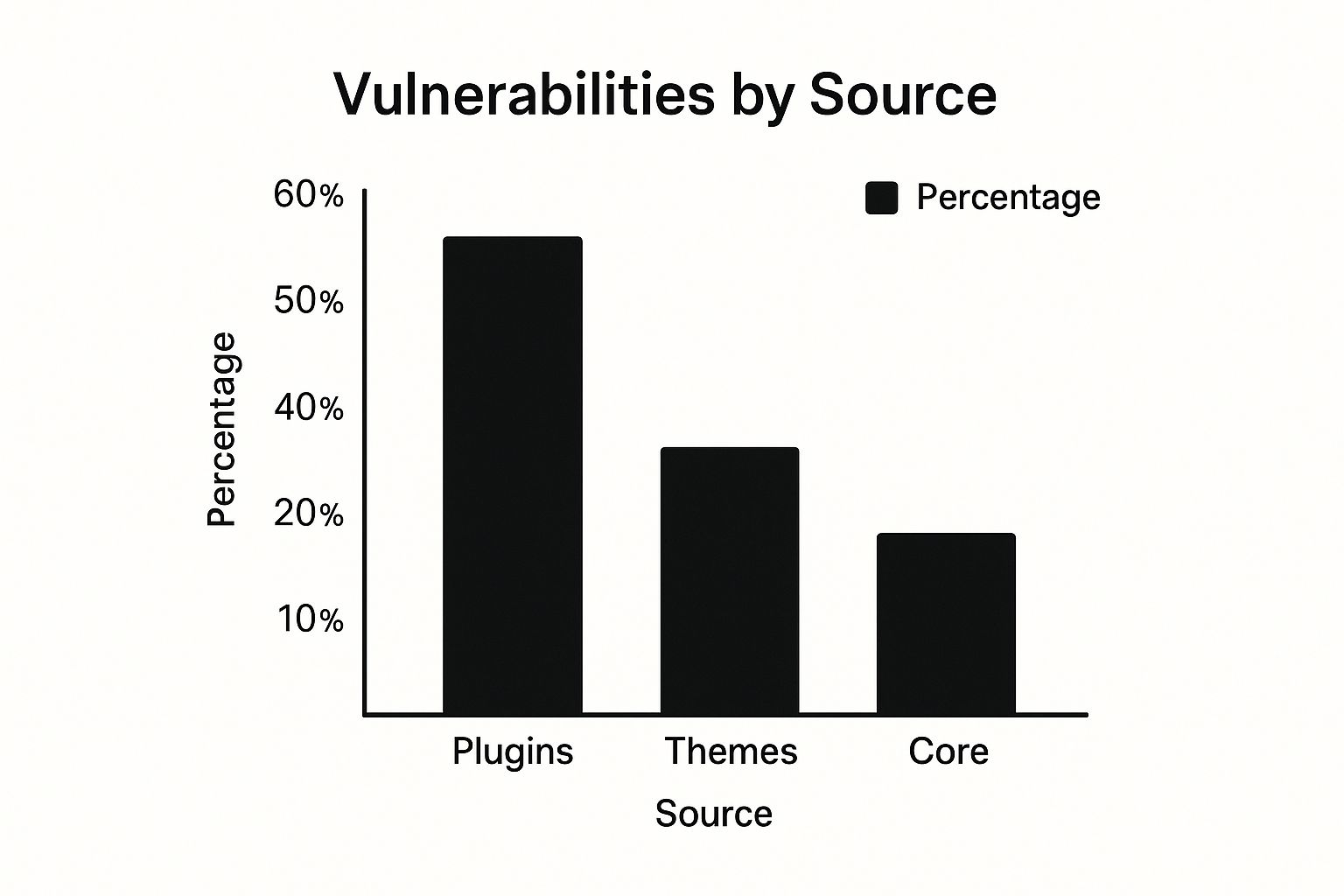
As you can see, plugins are by far the biggest attack vector. That makes a high-quality plugin scanner an absolute must-have for any serious WordPress site owner.
Comparing Top WordPress Security Scanners
To give you a clearer picture, I've put together a quick comparison of some of the most common choices out there. This table breaks down key features, pricing, and who each tool is really built for, helping you find the perfect fit for your website.
| Tool | Type | Key Features | Best For |
|---|---|---|---|
| Wordfence | Plugin Suite | WAF, malware scanning, file integrity checks, login security | Site owners wanting an all-in-one, free or premium solution. |
| Sucuri | Platform & Plugin | WAF, malware scanning, CDN, incident response | Businesses needing a comprehensive security platform with cleanup services. |
| WPScan | Dedicated Scanner | Extensive vulnerability database, CLI tool available | Developers and admins who need a highly accurate, dedicated scanner. |
Industry giants like Wordfence and Sucuri are fantastic all-in-one solutions, bundling robust scanning with firewalls and other protections. They’re a great choice if you want everything under one roof.
For those who prefer a more specialized approach, WPScan is the gold standard. Its vulnerability database is so respected that many other security plugins actually use its data. It's laser-focused on one thing: identifying known issues in themes, plugins, and the WordPress core.
And if you're like me and manage a bunch of different sites, a tool like the WP Foundry WordPress vulnerability scanner can be a real game-changer. It lets you run all your security checks from a single desktop app, which saves a ton of time.
Ultimately, the "best" tool is the one that fits your workflow and security requirements. A free plugin is always better than nothing, but I generally find that investing in a premium tool with a WAF gives you a much more proactive and resilient defense against the constant threat of attacks.
Running Your First Comprehensive Scan
Alright, you've got your security tool installed. Now it's time to put it to work. Kicking off your first wordpress vulnerabilities scan can feel a bit like you're about to open Pandora's box, but modern tools have made it surprisingly painless. The real goal here isn't just to push a button; it's about getting a meaningful report that gives you a genuine snapshot of your site's security.
Think of this first scan as your baseline. It's the starting point that reveals the current state of your website, flagging any obvious weak spots that attackers love to exploit—things like outdated plugins or themes with well-known security holes. This initial audit will guide everything you do from here on out.
Configuring Your Scan Settings
Before you hit "go," spend a minute poking around in the settings. Most solid scanners, including tools like Wordfence or the one built into WP Foundry, let you tweak the scan's scope and sensitivity. For a first run, a standard scan is usually all you need.
However, if you’ve had a nagging feeling about your site's health or it’s been ages since you last checked, you might want to opt for a high-sensitivity or "deep" scan. This type of check digs much deeper into your site's files looking for malware signatures and other anomalies. It’s more demanding on your server, but the trade-off is a far more thorough analysis. It's worth taking a moment to understand what vulnerability scanning is to make the right call for your situation.
Pro Tip: Schedule your heavy-duty scans for when your site is quiet. Running a deep scan during peak traffic hours can really slow things down for your visitors. I usually set mine to run late at night or in the very early morning.
Initiating the Scan Process
Once your settings are dialed in, kicking off the scan is typically just a matter of clicking a "Start Scan" button. The tool will then get to work, methodically combing through every part of your WordPress installation.
So, what is it actually looking for? A good scan will check a few key areas:
- WordPress Core Files: It checks to see if your core WordPress files have been modified, comparing them against the official versions from WordPress.org.
- Plugin and Theme Vulnerabilities: This is the big one. The scanner will check the version numbers of all your plugins and themes against massive databases of known vulnerabilities.
- Malware and Backdoors: It hunts for known malware signatures and suspicious code patterns that hackers might have injected into your files.
- Public Configuration Issues: It looks for common setup mistakes, like leaving sensitive files publicly accessible or enabling directory browsing.
The whole thing can take anywhere from a few minutes to over an hour, mostly depending on how big your site is and how deep you told it to scan. Just be patient and let it finish. If you stop a scan midway, you'll get an incomplete report, which can give you a dangerous false sense of security. The detailed report you get at the end is the real prize—it’s your action plan for locking down the site.
Decoding Scan Results and Prioritizing Threats

So, your wordpress vulnerabilities scan is done. Now you’re looking at a report that might feel a bit overwhelming. Seeing a list of terms like "XSS," "SQLi," or "CSRF" can feel more like deciphering a secret code than getting helpful advice.
But don't panic. That report is your roadmap to a safer website. The scanner's job is to be paranoid for you, flagging everything from gaping security holes to minor setup issues. Your job is to take that raw data and turn it into an actual action plan.
Understanding Common Vulnerability Types
First things first, let's translate the jargon. Knowing what these threats actually do makes it much easier to gauge the risk.
-
Cross-Site Scripting (XSS): Think of this as an attacker sneaking a malicious script onto your site. When your visitors load a page, that script runs in their browser. It's a classic trick for stealing user data or hijacking their accounts.
-
SQL Injection (SQLi): This one is nasty. It's where an attacker finds a way to sneak their own commands into your website's database. With SQLi, they could potentially dump your entire user list, passwords and all, or just delete everything. It's a direct line to your site's most sensitive data.
-
Arbitrary File Upload: This is exactly what it sounds like, and it's incredibly dangerous. A flaw like this lets an attacker upload any file they want to your server—usually a script that gives them a permanent backdoor to control your site.
For a real-world gut check, look at the critical flaw found in the TI WooCommerce Wishlist plugin. It allowed attackers to do exactly this, earning a perfect 10.0 severity score. This single bug put over 100,000 sites at risk of a complete takeover. You can see the details on this real-world arbitrary file upload vulnerability.
A Simple Triage System for Threats
To get from a long list of findings to a focused plan, you need a triage system. I sort everything based on severity and the potential damage it could cause. This tells me what needs to be fixed right now versus what can be handled later.
The goal isn't just to find vulnerabilities; it's to fix the most dangerous ones first. A low-risk issue is a concern, but a critical flaw is an emergency that needs immediate attention.
Here’s a simple way to categorize your scan results:
-
Critical Priority (Fix Immediately): These are the drop-everything-and-fix-it-now problems. This includes any bug that lets an attacker run their own code, talk to your database (SQLi), or upload malicious files. An outdated plugin with a known remote code execution flaw is a perfect example.
-
High Priority (Fix Within 24 Hours): These are serious threats that could lead to a major data breach or compromise your site. Cross-Site Scripting (XSS) often lands here because it can be used to swipe admin login details.
-
Low Priority (Fix When Possible): This bucket is for less severe issues. Things like exposing your WordPress version number or other minor configuration weaknesses. They should be fixed, absolutely, but they aren't an active, five-alarm fire.
By sorting your results this way, that confusing report becomes a clear, step-by-step to-do list. You'll know exactly where to start and can be confident you're tackling the biggest risks first.
From Fixing Flaws to Proactive Defense
Running a WordPress vulnerability scan is a solid move, but let's be clear: the report itself doesn't magically fix anything. Real security comes from what you do next. This is the remediation phase, where you roll up your sleeves and systematically knock out every weakness the scan uncovered.
Before you even think about updating a plugin or touching a line of code, there’s one step you absolutely cannot skip: create a full backup of your website. I'm talking files and the database, the whole thing. This is your safety net. If an update goes sideways and breaks your site, a recent backup turns a potential catastrophe into a minor hiccup you can fix in minutes.
The Remediation Workflow
Got your backup safely stored? Good. Now you can start tackling the issues flagged in your report. The best way to do this is methodically, starting with the easiest wins.
Kick things off by updating any outdated plugins or themes. Honestly, this simple action usually clears up the vast majority of common vulnerabilities. The numbers don't lie. In 2024, a staggering 96% of vulnerabilities were discovered in plugins, with another 4% in themes. The really scary part? 43% of these flaws could be exploited without any authentication at all, which is why updating immediately is so critical. You can get more details on recent WordPress security trends and findings.
If your scan turned up something nastier, like malicious code or modified core files, the job gets a bit more intense. You’ll need to carefully remove the infected files and replace them with clean versions from the official WordPress repository or the developer's site. For a deep-seated infection, this is where bringing in a professional cleanup service is worth every penny.
Building a Proactive Security Posture
Fixing problems after they appear is purely reactive. The real goal is to get proactive—to build up layers of defense that make it much harder for attackers to get a foothold in the first place. This goes way beyond just running a routine scan.
A clean scan report is a good sign, but a strong defense is what keeps it that way. Proactive measures are your best investment against future attacks.
Here are the essential pieces for a truly solid, proactive defense:
-
Implement a Web Application Firewall (WAF): Think of a WAF as a security guard for your website. It filters out malicious traffic before it can even reach your site, blocking common attack patterns and virtually patching vulnerabilities you haven't had a chance to fix yet.
-
Enforce Strong Password Policies: Weak passwords are like leaving the front door wide open for brute-force attacks. You need to require all users—especially admins—to use long, complex, and unique passwords.
-
Adopt the Principle of Least Privilege: Not every user needs the keys to the kingdom. Assign roles based on what people actually need to do their jobs. An editor has no business installing plugins, and by limiting their permissions, you shrink your site's overall attack surface.
Making these practices a regular habit shifts your entire security approach. You'll go from constantly putting out fires to maintaining a well-defended fortress. You can discover more strategies in our complete guide to foundational security for WordPress sites. This kind of consistent, forward-thinking maintenance is your single strongest asset.
Common Questions About WordPress Scans
When you start running a wordpress vulnerabilities scan, a few practical questions always pop up. Getting good answers to these is the key to building a security routine that you'll actually stick with. Let's dig into some of the most common ones I hear.
One of the first things people want to know is how often they should scan their site. For most websites—think standard business brochure sites or personal blogs—a weekly scan is a great starting point. It’s frequent enough to catch emerging threats without bogging down your server.
But if your site is doing more heavy lifting, you need to ramp that up. High-traffic sites, e-commerce stores that process payments, or membership sites handling user data should absolutely be scanned daily. The real trick is consistency. Set up automated, scheduled scans so you never forget, and you can jump on newly found issues right away.
Scan Impact and Unpatched Plugins
A big concern is whether a security scan will slow down a website. The honest answer is yes, a really deep scan can eat up a good chunk of server resources and might slow things down for your visitors temporarily.
The best way around this is to schedule your scans for off-peak hours. For most of us, that’s late at night or in the wee hours of the morning when traffic is lowest. Many of the better security plugins also have a "throttling" feature, which lets you control how much of your server's CPU the scan is allowed to use.
So, what happens when your scan flags a vulnerability in a plugin that has no update? This is a tough spot, and you need to act fast. First, check if your Web Application Firewall (WAF) can apply a "virtual patch" to block any attempts to exploit the vulnerability.
Next, get in touch with the plugin developer. Report the problem and ask if they have a fix in the pipeline. If you get radio silence or it looks like the plugin has been abandoned, you have a decision to make. You have to put your site's security first, which means finding a secure, well-maintained alternative plugin and migrating over as soon as you can. No feature is worth the risk of a compromised website.
Juggling security for one or more WordPress sites can feel like a full-time job. With WP Foundry, you can run vulnerability scans, manage all your updates, and handle backups from a single desktop app. It's a huge time-saver. Discover how WP Foundry can centralize your WordPress management.