

Think of a security audit for your website as a top-to-bottom health check for your digital presence. It's a methodical process of poking and prodding your site's defenses to find weak spots before someone else does. This involves a mix of automated scanning and manual review of your files, settings, and who has access to what, all to stop a data breach in its tracks.
Why You Absolutely Cannot Skip a Website Security Audit
Leaving your website unaudited is like leaving the keys in your car with the engine running. It doesn't matter how big or small your site is; online, everyone's a potential target. A security breach isn't just a technical headache—it can seriously damage your reputation and your bank account.
This is why you have to stop thinking of security as just another task on the to-do list. It’s a core business strategy. A proper audit moves you from a defensive, reactive mode into a proactive one. You're not just waiting around for an attack; you're actively hunting for the very same vulnerabilities hackers look for and sealing them up tight.
The Staggering Economics of Cybercrime
The sheer scale of cybercrime is almost unbelievable. It’s not just random kids in basements anymore; it's a full-blown global economy. In fact, projections show that the cost of cybercrime is on track to hit an eye-watering $10.5 trillion a year by 2025. That's a 15% increase, year after year.
To put that in perspective, if cybercrime were a country, it would have the third-largest economy in the world, right behind the U.S. and China. You can dig into more of these cybersecurity statistics over at brightdefense.com.
This isn't just a scary number; it means your website is a valuable asset to criminals. A solid audit is your direct counter-move.
A security audit is your first line of defense. It's the process of methodically checking for weaknesses that automated attacks and human hackers are programmed to find and exploit.
What an Audit Actually Uncovers
Running a thorough security audit for your website, especially with a toolset like WP Foundry, gives you a clear, actionable game plan. No more guesswork. You get a concrete list of what’s wrong and how to fix it.
Here’s what you’re really trying to accomplish:
- Spot Known Vulnerabilities: This is about finding outdated plugins, themes, or even a WordPress core version with known security holes. These are the low-hanging fruit for attackers.
- Find Risky Misconfigurations: Simple setup mistakes, like incorrect file permissions or sloppy server settings, are surprisingly common. They act like an open window for intruders.
- Check User Access and Permissions: Are old employee accounts still active? Does your freelance writer have admin-level access? An audit ensures only the right people have the right permissions.
- Hunt for Hidden Threats: Sometimes, the damage is already done. A manual inspection of files and your database can uncover backdoors, weird code, or other signs of a past compromise you never even knew about.
By tackling these areas one by one, you take your site from being a soft target and turn it into a hardened asset. This isn't just about tech; it's about building a foundation of trust with your customers and ensuring your online operations are stable and secure.
Setting the Stage for a Successful Audit
Diving right into a vulnerability scan without any prep work is a recipe for disaster. It’s a bit like starting a cross-country road trip with no map and an empty gas tank—you’re not going to get very far. A little groundwork beforehand ensures your security audit for your website is smooth, thorough, and doesn't end up causing more problems than it solves. Think of this as your pre-flight check.
To make sure you don't miss anything, it helps to adopt a structured mindset. Approaching the audit like you would a Technical Due Diligence Checklist helps you cover all your bases before you get into the weeds.
Your first practical step, always, is to take a full, verified backup of your entire site. Things can go sideways during an audit, especially when you start prodding things or running deep scans. A reliable backup is your safety net. WP Foundry’s one-click backup feature makes this dead simple, securing your database, themes, and plugins so you can restore everything in a heartbeat if needed.
Create a Safe Testing Environment
Running scans directly on your live production website is just asking for trouble. A scanner-induced server spike or an unexpected plugin conflict could easily take your site offline, which means lost visitors and sales. This is exactly why a staging environment is non-negotiable.
A staging site is just an exact clone of your live site that’s completely private. It's the perfect sandbox to unleash WP Foundry’s vulnerability scanner and do all your manual poking and prodding without any risk. If something breaks, who cares? Only you will know. Once you’ve found and fixed the issues on staging, you can push the changes to your live site with confidence.
Think of a staging site as a dress rehearsal for your security fixes. It lets you find and resolve any drama backstage before the main performance, ensuring a flawless show for your audience.
Define the Scope of Your Audit
The term "website audit" can mean a lot of different things. To do this right, you have to clearly define what you’re actually going to check. A well-defined scope keeps you focused and makes sure no critical areas get overlooked.
Here's what your checklist should cover at a minimum:
- Core Files: Check for any unauthorized modifications to WordPress core files. This is a classic sign of a hack.
- Plugins and Themes: Take inventory of every single plugin and theme. You're looking for anything outdated, abandoned, or downloaded from a sketchy source.
- User Accounts: Go through every user account. Are there any weak passwords? Does everyone have the correct role? Get rid of any old or unnecessary accounts immediately.
- Database Tables: A quick scan of your database can often reveal suspicious tables or entries left behind by malicious scripts.
- File Permissions: This is a common and easily fixed vulnerability. You need to verify that your file and directory permissions are set correctly—not too loose, not too tight.
Assemble Your Credentials and Tools
Before you start, get all your logins and tools ready to go. There’s nothing more frustrating than having to stop what you're doing to scramble for a password you can't remember.
Have this list ready:
- WordPress Admin Login: You'll obviously need this to review settings, users, and plugins from inside the dashboard.
- WP Foundry Access: Have the app open and connected to your site. This gives you immediate access to the scanner, backup, and SSH terminal.
- SSH/SFTP Credentials: You'll need these for the manual file inspection part of the audit. WP Foundry’s built-in SSH terminal makes this incredibly direct and simple.
Alright, with a fresh backup in hand, a safe staging environment ready, a clear scope defined, and all your tools on standby, you’ve laid the perfect foundation. Now you're truly prepared to run a methodical and effective security audit.
Using Automated Scans To Find Vulnerabilities
With your prep work done, it's time to bring in the automation. This is where you really start digging into the security audit for your website. An automated vulnerability scanner, like the one built right into WP Foundry, is your digital bloodhound, designed to sniff out the most common weak points that attackers love to exploit.
Think of it this way: manually checking every single file and setting on your site is like trying to inspect an entire office building brick by brick. A scanner, on the other hand, is like a specialized thermal camera that instantly highlights all the open windows and unlocked doors. It’s fast, efficient, and gives you a powerful starting point.
This visual shows how tools like WP Foundry's scanner fit into the broader security workflow.
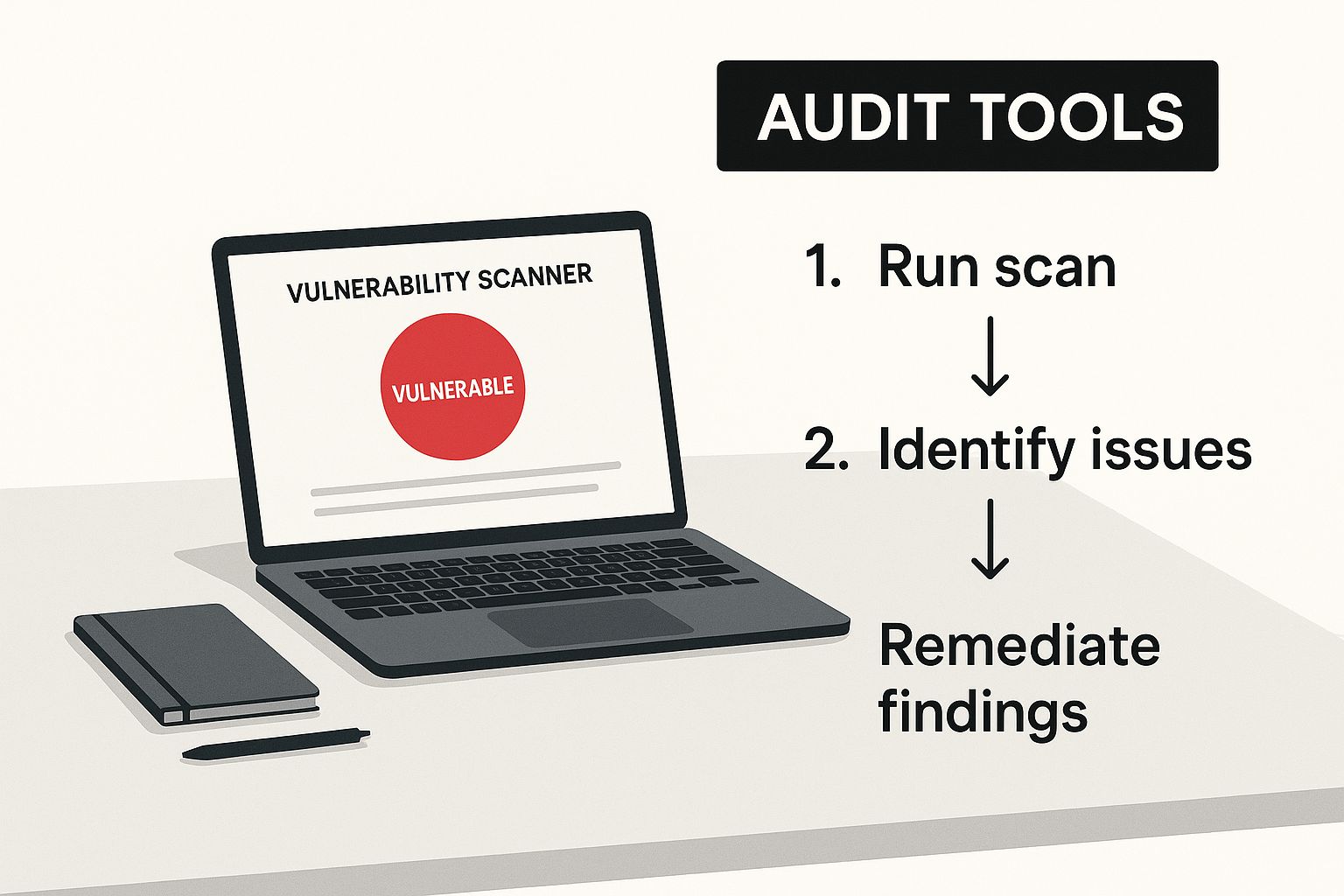
As you can see, the scanner is a core component. It takes in raw data and turns it into a clear path for fixing things.
What Scanners Look For
WP Foundry's scanner isn’t just poking around randomly. It systematically checks your site against a massive, constantly updated database of known threats. This goes way beyond a simple check for outdated software; it's a deep dive into your site's code and configuration. For a closer look at the technical side of things, check out our guide on what vulnerability scanning actually is.
So, what does a quality scan actually uncover? Here’s a quick snapshot:
- Outdated Components: This is the big one. The scanner checks your WordPress core version, every single plugin, and your active theme against known security flaws. An old plugin with a published vulnerability is one of the easiest ways for an attacker to get in.
- Weak Credentials: It can identify users with easily guessable passwords (like "password123") or default usernames like "admin"—both are prime targets for brute-force attacks.
- Configuration Errors: The scanner looks for common setup mistakes, like incorrect file permissions that could allow someone to run unauthorized code or publicly visible config files that leak sensitive info.
- Malicious Code Signatures: Often, the scanner can spot signatures of known malware or backdoors that might have been injected into your files from a previous attack.
Interpreting and Prioritizing Your Scan Results
Just hitting "scan" and getting a long list of problems is overwhelming, not helpful. The real skill is turning that report into a smart, actionable to-do list. You need to shift from just finding problems to strategically fixing them.
Here's what you might find when the WP Foundry scanner is done, with issues categorized to help you focus.
The interface is designed to draw your eye to the most severe issues first, using clear labels and colors so you know exactly where to start.
Remember, not all vulnerabilities are created equal. You have to learn how to triage the results based on risk. A critical vulnerability is a five-alarm fire that needs to be put out right now. A low-risk issue is more like a leaky faucet—you need to fix it, but you can schedule it for later.
A vulnerability scan report isn't a list of failures; it's a prioritized roadmap. Your job is to follow the map, starting with the most dangerous roadblocks first to clear the path to a secure website.
Let's walk through how to prioritize with a real-world example. Imagine your scan comes back with these three findings:
- Critical: A popular plugin you use has a known Remote Code Execution (RCE) vulnerability. This means an attacker could potentially run their own code on your server. It’s a wide-open backdoor.
- Medium: Your
wp-config.phpfile permissions are too permissive, making it readable by other users on a shared server. - Low: A deactivated plugin hasn't been updated in over two years. It's not active, but it's still sitting in your files.
In this scenario, that RCE vulnerability is your absolute top priority. You need to update or replace that plugin on your staging site immediately, test it, and push the fix live. The file permissions issue is next—it’s a quick fix that closes a significant security gap. Finally, you can schedule time later to delete the old, inactive plugin to keep your site tidy.
This methodical approach is the key to a successful security audit for your website, turning a daunting list into a set of manageable tasks.
Digging Deeper with Manual File Checks
Automated scanners are fantastic for catching the low-hanging fruit—outdated plugins, weak passwords, and common configuration errors. But they don't see everything. The more sophisticated attacks often leave behind subtle clues that only a human can spot. This is where we move from simply scanning to actively hunting.
A manual file check is a cornerstone of any serious security audit for your website. It means using SSH to get right onto your server and poke around in the files and directories, looking for anything that feels out of place. Think of it as a detective dusting for fingerprints. While it might sound intimidating, WP Foundry's built-in SSH terminal makes this whole process much more straightforward.
This hands-on approach is more critical than ever. In 2024, North America was the world's second most targeted region for cyberattacks. A huge chunk of these incidents, 40% to be exact, exploited public-facing applications, while another 40% relied on stolen credentials. A deep, manual audit is precisely what you need to find and fix these kinds of vulnerabilities. You can dig into these numbers yourself in this report on global threat intelligence.
Navigating Key Directories with SSH
When you first log in via SSH, the sheer volume of files can be overwhelming. The good news is you don't need to check every single one. Experienced pros know exactly where to look to get the biggest bang for their buck.
Start by getting into your WordPress root directory. From there, here are the high-priority areas to inspect:
wp-content/uploadsDirectory: This folder is a prime target because it's often set up to allow file uploads. Attackers love to hide malicious PHP scripts here, sometimes disguised as images. Keep an eye out for any non-media files (.php,.js,.exe) that have no business being there.wp-includesandwp-adminDirectories: You should never be modifying these core WordPress directories yourself. A quick and effective check is to compare their contents against a fresh, clean download of WordPress from the official repository. Any extra files or files with very recent modification dates are immediate red flags.- Theme and Plugin Folders: Hackers often slip malicious code into existing theme or plugin files to hide their tracks. They might add a single, messy line of code to a legitimate file, which is easy for scanners to miss. Look for files that have been modified recently, especially if you haven't run any updates yourself.
Manual file inspection really comes down to pattern recognition. You’re hunting for anomalies—files that shouldn’t be there, code that looks deliberately confusing, and permissions that are way too open. It’s where your human intuition becomes your most powerful security tool.
Spotting Suspicious Code Snippets
You don't have to be a senior developer to spot malicious code. More often than not, it stands out because it looks intentionally messy or completely out of place. You're looking for warning signs, not trying to reverse-engineer the entire script.
Here are a few common signs of trouble to watch for:
| Code Red Flag | What It Looks Like | Why It's a Concern |
|---|---|---|
| Obfuscated Code | Long strings of random-looking text, often using functions like base64_decode, gzuncompress, or eval(). |
Attackers use this to hide what the code actually does, making it unreadable to you and some scanners. |
| Suspicious Keywords | Look for terms like shell, passthru, exec, system, or str_rot13. |
These functions can execute commands directly on your server, which is a classic feature of a backdoor. |
| Unusual File Names | Files with weird names like 1.php, tmp.php, or names that mimic core files (e.g., wp-load.php vs. wp-Ioad.php). |
Hackers use generic or deceptive names to blend in and avoid being spotted during a quick look. |
| Timestamps | Files that were modified at strange hours or on dates that don't line up with your own activity. | A core file changed at 3 AM on a Sunday when you were asleep is a massive red flag. |
Auditing User Permissions and Roles
The final piece of your manual check is a hard look at who has access to your site. This is a non-negotiable step in any security audit for your website, as a compromised user account is one of the easiest ways for an attacker to get in.
Head to the "Users" section in your WordPress dashboard and ask these questions for every single account:
- Do I recognize this user? If you see an unfamiliar account, delete it. Be especially wary of new administrator accounts you don't remember creating.
- Does this user still need access? If a contractor finished their project three months ago, their account should be long gone, not just sitting inactive.
- Is their role appropriate? A blog author doesn't need administrator-level power. Always follow the principle of least privilege—give users only the bare minimum access they need to do their job.
Beyond the dashboard, you also need to check that your file permissions are set correctly on the server itself. The wrong permissions can let an attacker modify your most important files. For a full breakdown of this, check out our guide on how to manage file and folder permissions on WordPress websites. Combining a user review in the dashboard with a permissions check on the server gives you a complete picture of your site's access security.
From Audit Findings to a Hardened Website
Finding security holes is really just step one. Now, it's time to turn that audit report into a fortress. Your report is the blueprint, showing you every single crack in your site's defenses. The real work begins now: methodically patching these issues and, more importantly, strengthening your website against whatever comes next.
The process kicks off by tackling the most critical findings first. You always want to start with the biggest threats—things like known plugin vulnerabilities or an outdated WordPress core. Before you touch anything, though, use WP Foundry's one-click backup feature. This is non-negotiable. It creates a safe restore point, so you can instantly roll back if an update goes sideways.
With a fresh backup in hand, start methodically updating plugins and patching core files, but do it on your staging environment. This is a crucial sanity check. It lets you confirm everything still works as it should without putting your live site at risk.
Moving from Remediation to Proactive Hardening
Just fixing what's broken isn't enough for long-term security. You'll just be chasing your tail forever. Real security comes from proactive hardening—making your site a fundamentally tougher target for attackers to crack. It’s all about layering different defenses to build a truly robust security posture.
A Web Application Firewall (WAF) is a great place to start. Think of a WAF as a bouncer for your website. It inspects and filters out malicious traffic before it can even reach your server, blocking common attacks like SQL injections and cross-site scripting right at the door. It’s a massive reduction in your risk exposure.
Next up, lock down your access control. Implementing two-factor authentication (2FA) for all administrator accounts is one of the single most effective things you can do. Even if an attacker manages to steal a password, they're stopped in their tracks without that second verification step from a trusted device.
Hardening your website is about shifting from a reactive mindset to a proactive one. Instead of just patching holes as they appear, you’re building a system so resilient that many attacks fail before they even start.
Implementing Key Security Best Practices
Beyond a good firewall and 2FA, a few other hardening techniques are essential. Each one closes another potential door for attackers, making a successful breach that much harder. For a much deeper look at these, check out our detailed guide on essential website security best practices.
Here are a few actionable steps you can take right away:
- Disable Unnecessary Services: Every active feature on your server is another potential attack vector. If you aren't actively using XML-RPC or the built-in WordPress file editor, turn them off.
- Change Default Settings: Attackers know all the default settings. Change your database table prefix from the standard
wp_to something completely unique. It’s a simple change that trips up many automated attacks. - Secure Critical Integrations: As you fix issues from your audit, pay special attention to third-party connections. For e-commerce sites, mastering secure payment gateway API integration is absolutely critical to protect financial data.
These steps are what transform your audit from a simple report into lasting security improvements. It's a critical shift from awareness to action, especially as new digital risks emerge. A recent PwC report, the 2025 Global Digital Trust Insights, found that a staggering 67% of organizations feel generative AI has expanded their attack surface, while only 2% have achieved full cyber resilience. Those numbers really underscore how vital a thorough hardening process is after every security audit. You can read more about how organizations are preparing for future cyber threats in the full report.
By combining immediate fixes with proactive hardening, you end up with a website that isn't just patched—it's genuinely resilient.
Common Questions About Website Security Audits
Even after running scans and doing some manual checks, you're bound to have a few questions. Let's walk through some of the most common ones that pop up when you're getting serious about a security audit for your website.
How Often Should I Audit My Website Security?
The right answer really depends on what your site is doing and the kind of data you're handling. The key is to make it a regular thing, part of your routine maintenance, not just something you do when you suspect a problem.
Here’s a simple way to think about it:
- E-commerce or High-Traffic Sites: If you're taking payments or storing customer information, a quarterly audit is a solid baseline. Honestly, for sites in high-risk industries, some folks even run checks monthly.
- Business or Portfolio Sites: For a typical business site that doesn’t handle transactions, a semi-annual (twice a year) audit is usually enough to keep you ahead of any trouble.
- Personal Blogs or Simple Sites: Running a small blog with just a few plugins? An annual audit will likely catch any big, obvious vulnerabilities.
No matter what schedule you pick, you should always run an immediate audit after making big changes. This includes things like installing a major new plugin, moving to a new host, or anytime you see something that just doesn't look right.
Is a Vulnerability Scan the Same as a Penetration Test?
This is a really common mix-up, but they're two completely different things. It helps to think of it like securing your house.
A vulnerability scan, like the one inside WP Foundry, is automated. It’s like walking around your house and methodically checking every single door and window to see if any are unlocked. It's quick, efficient, and fantastic for spotting known, common weak points.
A penetration test (or pen test) is a whole different beast. This is where you hire an ethical hacker to actually try and break into your house. They won't just check for unlocked doors; they’ll try to pick the locks, find a weak spot in the foundation, or even try to social-engineer their way inside. It's a much deeper, more creative, and highly specialized service. Your audit will often include a scan, but a pen test is a separate, much more hands-on engagement.
Can I Do a Security Audit Myself or Should I Hire an Expert?
You can absolutely get started and perform a solid foundational security audit for your website on your own. By following the steps in this guide and using tools like WP Foundry, you'll be able to spot and fix the vast majority of common security holes yourself. For most small-to-medium websites, this is a great approach.
But there are definitely times when bringing in a pro is the smart move. If your site handles extremely sensitive data (think financial or medical records) or if you need to meet strict compliance standards like PCI-DSS or HIPAA, hiring a dedicated cybersecurity expert isn't just a good idea—it's the responsible thing to do.
What should I do if I find a hack during my audit?
Move fast. First thing: restore your site from your most recent clean backup. If you don't have one you can trust, take the site offline immediately to stop the bleeding. Next, change every important password—hosting, SSH/FTP, all WordPress admin accounts, and your database password. Then, you can start the cleanup process, hunting down and removing every malicious file before you even think about bringing the site back online. For a serious breach, calling a security professional is your safest bet.
Ready to take control of your website’s security? WP Foundry gives you the tools you need—from vulnerability scanning to backups and SSH access—to conduct a thorough audit and keep your site protected. Download WP Foundry today and start securing your sites with confidence.