

To really get a handle on scanning WordPress for malicious code, you can’t just rely on one method. The best approach is layered, combining automated plugins with external scanners and good old-fashioned manual file checks. This way, you catch everything from obvious malware to those sneaky, deeply embedded backdoors.
The key is making this a regular, non-negotiable part of your website maintenance.
Why Regular WordPress Scans Are Non-Negotiable
Ignoring your website’s security is a bit like leaving your front door wide open in a busy neighborhood. It’s not a question of if someone will try the handle, but when. For anyone running a WordPress site, the threat is always there, and it's only growing. A hacked website can do a lot more than just take your site offline; it can systematically tear down the reputation you've worked so hard to build.
The fallout can be severe. Imagine your carefully crafted SEO strategy getting wiped out overnight because Google blacklists your domain for spreading malware. Or picture the trust you've built with customers vanishing when their data is stolen or they're redirected to spammy, malicious sites. Every website, big or small, is a potential target for automated bots hunting for vulnerabilities.
The Ever-Growing Threat Landscape
The reality is, the digital world is getting more hazardous by the day. The WordPress security space has seen a massive jump in vulnerabilities, with 7,966 new security issues discovered in a single year. That’s a 34% rise from the year before.
This surge makes one thing clear: attackers are relentlessly hammering away at plugins and themes, which is where most security breaches originate. You can dig into more data on this trend, but the takeaway is simple—staying vigilant is no longer optional.
Waiting for obvious signs of a hack, like a defaced homepage or a flood of error messages, is a recipe for disaster. By then, the damage is already done. Proactive scanning is the only way to catch threats before they can harm your brand and your bottom line.
Beyond the Obvious Dangers
A compromised site doesn't always scream for help. Hackers are often subtle, embedding malicious code that works quietly behind the scenes, doing damage you won't notice until it's too late.
Some of the most common hidden threats include:
- SEO Spam Injectors: These nasty scripts add hidden links and pages stuffed with spam keywords to your site. They're designed to hijack your domain authority to boost sketchy websites.
- Malicious Redirects: This type of malware sends a chunk of your visitors—often mobile users or people from specific countries—to phishing sites or online scams.
- Backdoors: A backdoor is a secret entry point that lets an attacker sneak back into your site whenever they want, even after you think you’ve cleaned up an infection.
Here's a quick look at the most common threats found during a scan and what they do to your website.
Common Malware Types and Their Impact on Your WordPress Site
| Malware Type | Primary Function | Potential Impact |
|---|---|---|
| Backdoors | Create a hidden entry point for attackers to access your site undetected. | Persistent access for hackers, data theft, further malware installation. |
| SEO Spam | Injects spammy links, keywords, and pages into your content. | Damages search engine rankings, gets your site blacklisted by Google. |
| Malicious Redirects | Forwards visitors to phishing sites, scam pages, or ad-filled domains. | Loss of traffic and customer trust, potential legal issues. |
| Phishing Kits | Creates fake login pages to steal user credentials (e.g., banking, email). | Data breaches, identity theft, severe reputation damage. |
| Credit Card Skimmers | Steals payment information from checkout pages on e-commerce sites. | Financial loss for customers, massive liability for your business. |
| Ransomware | Encrypts your website's files and demands a payment for their release. | Complete site lockdown, potential for permanent data loss. |
Recognizing these threats is the first step, but proactive detection is what truly keeps you safe.
Regular WordPress scans are a vital piece of a larger website security audit, which is a systematic check-up of your entire digital storefront. Making proactive scanning a core part of your routine is the single most important step you can take toward building a solid security foundation.
Using Security Plugins for Automated Malware Detection
For most people running a WordPress site, a good security plugin is the simplest and most reliable way to scan WordPress for malicious code. Think of it as your website's own 24/7 security guard, constantly checking your files for anything that looks suspicious. This hands-off approach takes a huge, complex task and turns it into something that just runs in the background.
These plugins generally have a two-pronged approach. First, they perform file integrity monitoring. This means they compare your core WordPress files, themes, and plugins against the official, clean versions from the WordPress repository. If a file has been changed when it shouldn't have been, it gets flagged immediately.
Second, they check your site against a massive database of malware signatures. These are known fingerprints of malicious code, allowing the scanner to spot common threats that have been seen elsewhere. When you install a quality plugin, you’re not just getting a scanner; you're getting an early warning system.
Setting Up Your Automated Scans
The real advantage here is automation. A one-off scan is good, but having scans run on a regular schedule is what keeps your site safe long-term. Most top-tier plugins, including the scanner built right into WP Foundry, make this incredibly easy to set up.
When you're configuring your schedule, pay attention to a few key settings:
- Scan Frequency: Daily scans are the way to go, especially if you run an e-commerce store or handle any kind of user data. For a small personal blog, weekly might seem okay, but daily is always the safer bet.
- Scan Timing: Set your scans to run during your site's quietest hours, like 2 AM. This ensures there's minimal to no impact on your site's performance for your visitors.
- Notification Settings: Make sure the alerts go to an email you check every single day. There's no point in getting a security warning if you don't see it for a week.
Get this right, and your site is being monitored around the clock, even when you're sleeping.
It's a huge mistake to treat a security plugin as a "set it and forget it" tool. Automation is fantastic, but you still need to look at the reports. Understanding what the scanner finds is just as critical as running the scan in the first place.
Interpreting Scan Results Correctly
Getting a scan alert can be stressful, but don't panic. The report will usually sort the findings by severity, so you know what to tackle first. You'll often see warnings for things like outdated plugins or themes—these aren't malware themselves, but they are major security holes.
You'll also need to learn the difference between a real threat and a false positive. A false positive can happen if you have custom code that a scanner's signature database doesn't recognize. Before you hit delete on a flagged file, do a little digging. Compare it against a clean backup or the original file from the developer. Good scanners will give you some context on why a file was flagged, which helps you make an informed call.
For a bit more background, understanding what is vulnerability scanning can give you a much clearer picture of how these tools work behind the scenes.
It's a sobering fact, but malware is the most common threat out there, impacting roughly 72.72% of all infected WordPress sites. This is almost entirely due to weak spots in third-party plugins and themes, which are the source of the vast majority of security gaps. To put that in context, the core WordPress software itself is only responsible for about 1.1% of vulnerabilities, a testament to its solid build. This just goes to show why keeping a close eye on your plugins and themes is so incredibly important.
Manual Checks for a Deeper Malware Investigation
Security plugins are fantastic, but even the best automated scanners can miss something. Hackers are always finding clever ways to hide malicious code in places you wouldn't expect. This is when you have to go beyond the scanner and start a manual investigation.
Think of it as the difference between a security camera and a detective on the scene. The camera observes, but the detective investigates. When a plugin can't find the source of an issue, it’s time to roll up your sleeves and look at the site's files yourself.
First thing's first, you'll need access to your website's file system. You can get in using the File Manager in your hosting control panel (like cPanel) or with an FTP client such as FileZilla. Once connected, you’re looking directly at your WordPress installation—exactly where we need to be.
Identifying Recently Modified Files
Your first move should be hunting down files that were changed recently without your permission. Most File Managers and FTP clients let you sort everything by the "Last Modified" date. This is an incredibly simple but powerful way to spot trouble.
Attackers almost always alter existing files or upload new ones to maintain access. If you see a core file like wp-config.php or a random theme file that was modified yesterday—and you know you didn't touch it—that’s a huge red flag.
Be sure to pay extra attention to these hotspots:
- The Root Directory: Look for any strange PHP files hanging out with your core WordPress files.
wp-content/uploads: This folder is a prime target because it often has looser permissions to allow uploads. Hackers love stashing PHP backdoors here right next to your images.- Theme and Plugin Folders: Scan for unfamiliar files or recent modifications in any theme or plugin folders you haven't personally updated.
A common trick I've seen is malware creating files with innocent-sounding names like
favicon.icoorupdate.phpin unexpected places. These files look harmless but contain hidden PHP code that gives an attacker a way back into your site.
Scrutinizing Critical Configuration Files
A few specific files are the nerve center of your WordPress site, which makes them prime targets. You'll want to open these up and look for any strange code snippets, unusual characters, or even just extra spaces at the beginning or end of the file.
Here are the main files to put under the microscope:
.htaccess: This file controls how your server behaves. Malicious redirects are very often inserted here. Look for any rewrite rules that you don't recognize, especially any that point to spammy-looking domains.wp-config.php: This is one of the most sensitive files on your site, containing all your database connection details. Attackers love injecting code here because it gets executed on every single page load.index.php: Both the mainindex.phpin your root directory and the one inside your theme folder can be compromised. Be on the lookout for obfuscated code, which often uses functions likeevalorbase64_decodeto disguise its real purpose.
Auditing User Accounts for Intruders
Finally, never underestimate a simple user check. A classic hacker move is to create a new administrator account for themselves to ensure they always have a way in.
Just navigate to Users > All Users inside your WordPress dashboard. Carefully review the list for any administrator accounts that you or your team didn't create. If you find a stranger on the list, delete them immediately. It's a dead giveaway that your site was breached, and removing their account is like changing the locks after a break-in.
Leveraging External Scanners For An Outside Perspective
While internal security plugins are your boots on the ground, they can sometimes miss the bigger picture. Because they scan from inside your server, they don't always see your site the way the rest of the world does. This is exactly why external scanners are a crucial part of any security check-up.
Think of it this way: an internal scanner is like an inspector checking the wiring and foundation inside your house. An external scanner is like a security consultant walking around the outside, checking for unlocked windows, broken fences, and anything that looks suspicious from the street.
These tools scan your website just like a visitor's browser or a Google crawler would. They don't have access to your server files, but they're incredibly good at spotting issues that are only visible from the outside.
Finding Problems The Public Sees
This "outside-in" view is perfect for catching malware that internal tools might not be designed to find, such as:
- Blacklisting Status: Is your site on a major blacklist like Google Safe Browsing? An external scanner checks these lists and tells you right away.
- Hidden Spam Links: These tools are great at detecting injected spam links or malicious iframes that are hidden in the final HTML code your visitors see.
- Drive-By-Downloads: They can flag scripts that try to force malware onto a visitor's computer without their consent.
Most remote scanners are simple to use—you just enter your website's URL and hit "scan." A couple of reliable free options are Sucuri SiteCheck and Google's Safe Browsing site status checker. They crawl your public pages and check the code against known malware signatures and blacklist databases.
When you scan WordPress for malicious code this way, the report you get is usually pretty straightforward. It will flag any dangerous scripts, shady redirects, or confirm if your domain has been blacklisted. It gives you a clear, public-facing security to-do list.
An external scan is your reality check. It shows you how search engines and potential customers see your site's security, which can directly affect your traffic and reputation.
To better understand your scanning options, it's helpful to see how internal and external methods stack up.
Comparing Internal vs. External Scanning Methods
When you're deciding how to scan your site, you're essentially choosing between an internal, server-side approach (like a plugin) and an external, remote one (like a website scanner). Each has its strengths and weaknesses.
| Scanning Method | How It Works | Pros | Cons |
|---|---|---|---|
| Internal (Plugin-Based) | Scans your website's files and database directly on the server. | Comprehensive access to all files; can detect backdoors and file modifications. | Can miss issues that only appear when the site is rendered; can be resource-intensive on your server. |
| External (Website Scanner) | Crawls your live site from the outside, analyzing the final HTML, CSS, and JavaScript. | Sees what your visitors see; great for detecting blacklisting, spam, and client-side malware. | Cannot access server files; unable to find server-side backdoors or database infections. |
Ultimately, a robust security strategy uses both. You get the deep file-level analysis from an internal tool and the real-world perspective from an external one.
The infographic below highlights the key differences in time, accuracy, and expertise required when comparing manual and automated scanning methods.
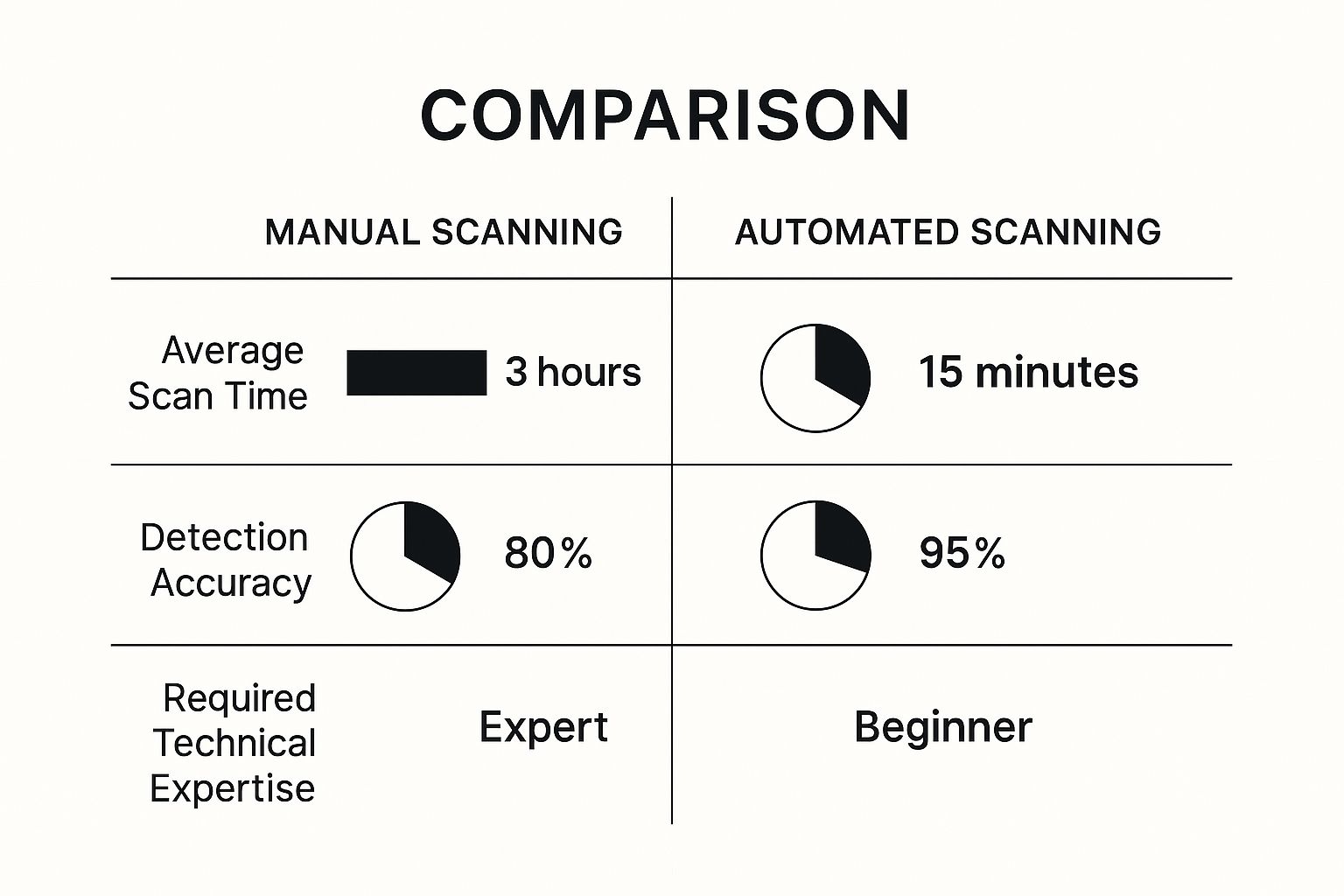
As you can see, automated scanners deliver higher accuracy in a fraction of the time, making them a more efficient solution for most website owners.
A complete security plan involves layering different methods. Understanding the nuances of WordPress vulnerability scanning helps you choose the right tools for the job. Combining a powerful internal tool like WP Foundry's scanner with occasional external checks gives you comprehensive coverage, ensuring you catch threats from every possible angle.
Your Post-Scan Cleanup and Hardening Plan
Finding malware is a huge relief, but it's only half the battle. The real victory comes from meticulously cleaning up the infection and then making sure it can never happen again. This post-scan action plan is just as critical as the scan itself, turning a reactive cleanup into a proactive defense.
The first instinct might be to just start deleting flagged files, but a more careful approach is much safer. Before you remove anything, take a full backup of your infected site. I know it sounds counterintuitive, but this "quarantined" backup is invaluable if the initial cleanup doesn't work or if you need to investigate how the attackers got in.
Once you have that safe copy, you can start removing the malicious code. Go through the list from your scanner and carefully delete the flagged files and database entries. If any core WordPress files were flagged, don't try to edit them. The best practice is to replace them with fresh copies from a clean, official download.
Fortifying Your Defenses Post-Cleanup
Simply removing the malware and calling it a day is a recipe for reinfection. You have to lock down the entry points the hackers used in the first place. This "hardening" process is essential.
The WordPress ecosystem is a massive target—it powers 43.5% of all websites, after all. A staggering 95% of reported vulnerabilities come from outdated plugins. Regular updates and scanning are simply non-negotiable.
Here’s your immediate hardening checklist:
- Reset Everything: Change all your passwords immediately. This means WordPress admins, FTP accounts, database passwords, and your hosting panel login. Assume everything was compromised.
- Update All Components: Get everything up to date. Update the WordPress core, all your themes, and every single plugin. Outdated software is the most common way hackers get in.
- Audit User Accounts: Take a hard look at all administrator accounts. Delete any you don't recognize and demote any users who don't absolutely need full admin privileges.
Don't make the mistake of cleaning up and stopping there. A clean site with the same old vulnerabilities is just an open invitation for attackers to come right back. Hardening isn't optional; it's the most important part of the entire process.
Implementing Long-Term Security Measures
With the immediate threats neutralized, it’s time to shift from cleanup mode to a permanent security posture. Implementing a Web Application Firewall (WAF) is an excellent step. It acts like a shield, blocking malicious traffic before it can even reach your site.
As you build out your hardening plan, getting familiar with the Top 5 CMS Security Risks and Solutions can give you a solid framework for thinking about security, even beyond WordPress.
For a deeper dive, check out our complete guide on how to secure your WordPress site. It's packed with a more detailed list of protective measures. The goal here is to leave you with a site that is not just clean, but truly secure from the ground up.
Frequently Asked Questions About WordPress Malware Scans

Even when you have the right tools, questions always come up when you scan WordPress for malicious code. Getting a straight answer quickly is the key to staying ahead of threats and tackling problems with confidence. Let's go over a few of the most common things people ask.
How Often Should I Scan My WordPress Site for Malware?
For most sites, a weekly automated scan is a great starting point. That frequency is usually enough to spot new threats before they can cause any real trouble.
But if you’re running an e-commerce store, handling sensitive user data, or have a high-traffic site, you should really be running a daily scan. It’s just not worth the risk. I also always recommend running a quick manual scan right after you install a new plugin or theme—just in case it introduced an unexpected vulnerability.
Can I Just Delete a Suspicious Plugin to Remove Malware?
If only it were that easy. A vulnerable plugin might be how the hacker got in, but they almost never just stop there. Attackers are known for leaving backdoors all over the place to make sure they can get back into your site later.
These backdoors can be hidden away in your wp-content folder or even buried in your database. Deleting the plugin is like pulling the top off a weed but leaving the roots. A full scan is the only way to make sure you’ve removed every last trace of the infection.
Don't mistake the entry point for the entire infection. Hackers plant roots deep within your site's file system and database. A comprehensive cleanup is the only way to be sure they are gone for good.
My Scan Is Clean but My Site Is Still Acting Weird. What Should I Do?
Always trust your gut. If your security plugin says everything is fine but your site is still slow, showing weird pop-ups, or redirecting visitors, it’s time to dig deeper. Some of the more advanced malware is built specifically to hide from standard scanners.
Your first move should be to use a remote, external scanner to get a second opinion. These tools can often spot issues on the client side that a server-side scan might miss. After that, it’s time for the manual checks we’ve talked about. Pay extra close attention to recently modified files and your core configuration files like .htaccess and wp-config.php.
Will Scanning for Malware Slow Down My Website?
A server-side scan can use up a lot of resources, which might cause a temporary dip in performance while it’s running. The good news is that this is incredibly easy to manage.
The simplest solution is to schedule your automated scans to run during off-peak hours, like in the middle of the night when your traffic is lowest. Most modern security plugins are already optimized to minimize their impact, but smart scheduling is your best defense against any potential slowdown.
Take control of your website's security with WP Foundry, the all-in-one desktop app for managing all your WordPress sites. Our built-in vulnerability scanner helps you find and fix threats before they become a problem. Streamline your workflow and keep your sites secure by visiting https://wpfoundry.app to get started.