

A website backup for WordPress is simply a full copy of your site—all the files, all the database entries—tucked away in a safe, separate location. It’s your digital insurance policy. When something goes wrong, and it eventually will, that backup lets you restore everything in an instant.
Why a WordPress Backup Is Your Digital Insurance Policy
Let's be honest, backups feel like a chore. That is, until the moment you desperately need one.
The dreaded "white screen of death" after a plugin update, a security alert that your site has been compromised, or a simple human error can wipe out months or even years of hard work in a heartbeat. A reliable backup strategy turns that potential catastrophe into a minor hiccup.
It’s not a question of if something will go wrong, but when. Your website is a complex machine built from WordPress core, themes, and a mix of plugins. A single conflict between any of these moving parts can bring the whole thing crashing down.
The Real-World Risks You Face
Imagine launching a huge marketing campaign only to find your site is offline because of a botched update. Or discovering a hacker has injected malicious code, getting your domain blacklisted by Google. These aren't just hypotheticals; they happen to businesses every single day.
Without a recent backup, your options are grim and usually expensive. You could be looking at hiring a developer for emergency surgery, spending days manually rebuilding lost content, or, in the worst-case scenario, starting over from scratch. Every minute of downtime costs you revenue, credibility, and customer trust.
The massive scale of the WordPress ecosystem makes this a critical issue. Powering around 43.4% of all websites, its popularity also makes it a prime target. In 2024 alone, reported vulnerabilities shot up by 34%, with over half coming from plugins. This paints a stark picture: an estimated 70% of WordPress sites are vulnerable to attack, making a solid website backup wordpress strategy absolutely non-negotiable. It’s worth reading up on the latest WordPress security statistics and trends to see just how real the risks are.
A backup isn't just a technical file; it’s your reset button. It’s the ability to rewind the clock and undo a disaster with a few clicks, ensuring business continuity and preserving your peace of mind.
Common Scenarios That Cause WordPress Data Loss
To really drive home why backups are so essential, it helps to understand the specific threats you're up against. These are the most frequent culprits we see that lead to data loss and significant downtime.
| Threat | What It Looks Like | Why It Happens |
|---|---|---|
| Plugin & Theme Conflicts | Your site breaks, shows errors, or goes completely offline after an update. | A seemingly harmless update introduces code that clashes with your existing setup, causing fatal errors. |
| Human Error | A critical page disappears, or you accidentally delete an important file via FTP. | It's easy to delete the wrong thing or overwrite content, especially when you're in a hurry. We've all been there. |
| Failed Updates | Your site is stuck in "maintenance mode" or becomes totally inaccessible after a WordPress core update. | The update process can be interrupted by server timeouts or other issues, leaving your site in a broken state. |
| Malware & Hacking | Your homepage is defaced, spammy links appear, or you get blacklisted by search engines. | Malicious actors exploit vulnerabilities to inject code, steal data, or use your server for their own purposes. |
| Hosting Server Failures | Your site vanishes, and your hosting provider confirms a hardware failure. | While rare with good hosts, server hardware can fail, potentially wiping out all your data if you rely solely on their backups. |
From accidental deletions to coordinated attacks, the threats are varied and constant. Having your own independent backup is the only way to guarantee you can recover quickly and completely, no matter what goes wrong.
Navigating Your WordPress Backup Options
When you need to create a website backup for WordPress, you've got a few different paths to choose from. It's easy to get bogged down in the options, but they really boil down to three main ways of doing things: getting your hands dirty with a manual backup, using an automated plugin, or relying on your web host.
Each one has its own balance of time commitment, technical know-how, and cost. Figuring out these differences is the key to picking a strategy that not only keeps your site safe but also works with your schedule and comfort level. Let's dig into what each option really means for you.
The Hands-On Manual Approach
Going the manual route gives you total control. The process has two main parts: grabbing all of your website's files and exporting your database.
To get the files, you’ll typically use an FTP (File Transfer Protocol) client, like FileZilla, to connect directly to your server. From there, you download everything—especially the all-important wp-content folder, which is where your themes, plugins, and uploaded media live.
At the same time, you'll need to log into your hosting control panel and use a tool like phpMyAdmin to export the database. This creates an SQL file that holds every post, page, user account, and setting on your site. The big upside here is that it's completely free. The downside? Human error. It's surprisingly easy to miss a file or skip a step, which can make your backup completely useless when you need it most.
This decision tree gives you a quick visual to see which backup solution makes the most sense for your needs.
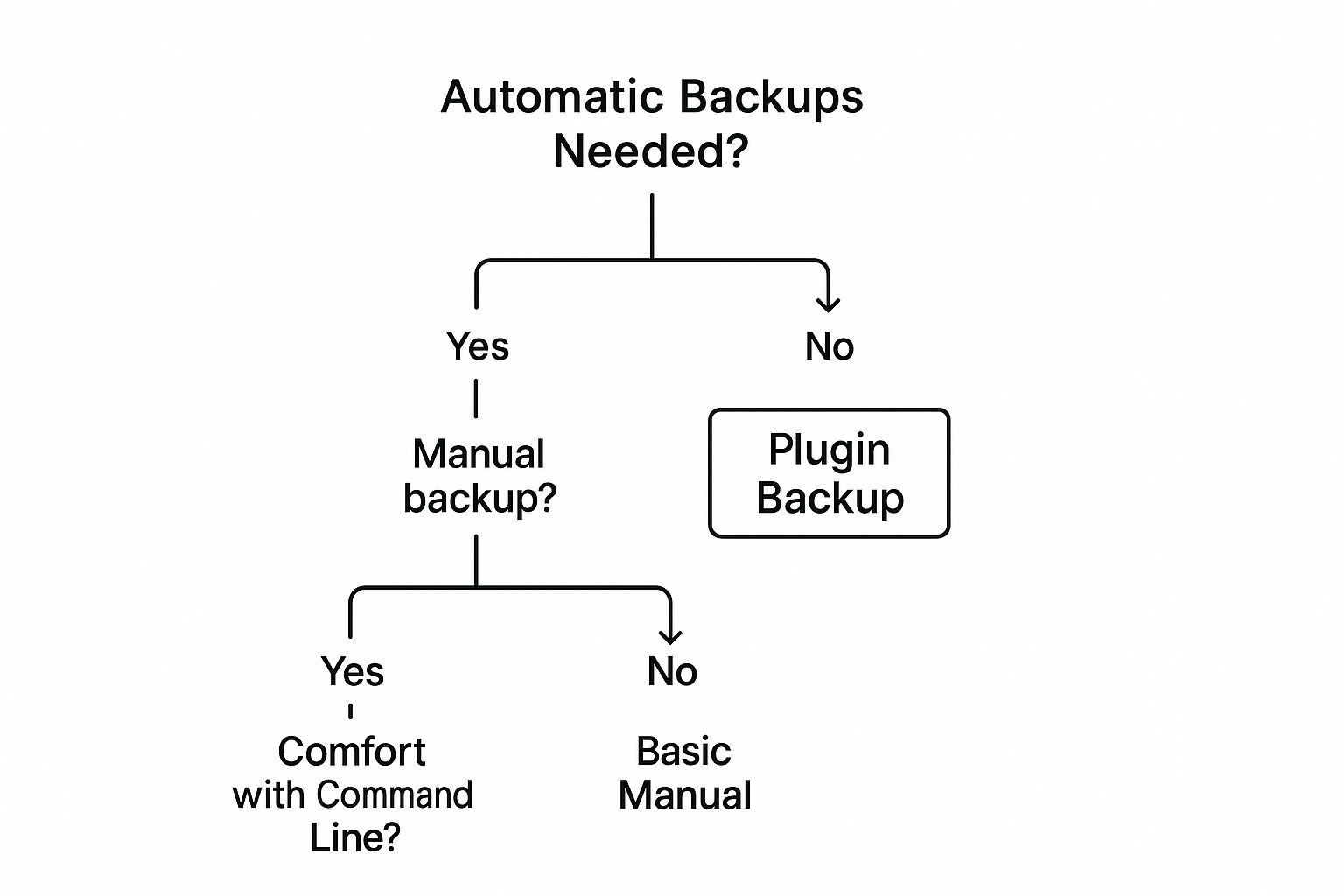
As you can see, the first big question is whether you need automation. That single choice immediately points you toward either a plugin or sticking with the manual process.
To help you weigh the pros and cons at a glance, here’s a quick breakdown of the most common backup strategies. This table should make it easier to see which approach is the right fit for your situation.
Comparing WordPress Backup Approaches
| Method | Ideal For | Key Advantages | Potential Drawbacks |
|---|---|---|---|
| Manual Backup | Developers and tech-savvy users on a tight budget. | Complete control over every file and setting. No cost. | Time-consuming and prone to human error. No automation. |
| Plugin Automation | Most WordPress users, from bloggers to businesses. | "Set it and forget it" scheduling. Easy off-site storage. Simple one-click restores. | Premium features often require a paid subscription. |
| Host-Level Backups | Beginners or as a supplementary backup layer. | Utterly hands-off and convenient. Managed entirely by the host. | Less control over frequency. Backups stored on the same server. |
Ultimately, the best choice depends on how much time you have and your comfort level with the technical side of WordPress. For most people, a good plugin strikes the perfect balance.
The Efficiency of Backup Plugins
For the vast majority of WordPress site owners, a dedicated backup plugin is the way to go. It automates the entire process, neatly packaging your files and database together without you having to lift a finger. This completely removes the risk of manual mistakes and frees up a ton of your time.
Most good backup plugins let you:
- Schedule automatic backups on a daily, weekly, or even hourly basis.
- Store backups in off-site locations like Google Drive, Dropbox, or Amazon S3. This is absolutely critical; it protects your data if your entire server goes down.
- Restore your site with one click, which can turn a full-blown crisis into a minor inconvenience.
Investing in a reliable backup plugin is one of the smartest moves you can make for your site. It changes your website backup for WordPress strategy from a nagging chore into a safety net you can count on.
While the best plugins usually have a subscription fee, the peace of mind they provide is almost always worth it. Free versions can be a good starting point, but they often come with limits on scheduling, where you can store your backups, or how easily you can restore them.
Relying on Your Hosting Provider
Most reputable web hosts include some kind of backup service with their plans. This is often the easiest option of all because it's completely automatic—your host takes care of everything behind the scenes.
But there are some potential catches to relying only on your host. You get very little say over how often backups are taken, and they're usually stored on the same server as your live site. If something catastrophic happens to your host's infrastructure, you could lose both your site and your backups in one fell swoop.
Restoring can also be a bit rigid, and getting a copy of your files to move to a different host can sometimes be a hassle. It's best to think of your host's backups as a good first line of defense, but you should always have your own, independent backup system running alongside it. This creates redundancy and ensures you always have the final say over your site's data.
Setting Up Your First Automated Backup
This screenshot shows a typical backup plugin's dashboard, with the core actions laid out clearly: Backup, Restore, and Clone. It's designed to make a pretty technical process feel manageable, which is exactly what we're about to do.
Okay, let's get down to business. Knowing you should have a website backup for WordPress is great, but it’s the setup that actually protects your site. I'll walk you through how to configure an automated system using a standard backup plugin, turning this into a simple "set it and forget it" task.
The goal here is to take human error out of the equation. Automation is your single best friend for keeping your backup strategy consistent and reliable.
Choosing and Installing Your Backup Plugin
First things first, you need to pick a plugin from the WordPress repository. You've got plenty of solid options, like UpdraftPlus, Duplicator, or All-in-One WP Migration. For this guide, we'll stick to the general steps that apply to most of these, since they all follow a similar logic.
Head over to your WordPress dashboard.
- Navigate to Plugins > Add New.
- Use the search bar to find the plugin you want (e.g., "UpdraftPlus").
- Click Install Now, wait for it to finish, and then hit Activate.
Once the plugin is active, you'll see a new menu item for it, usually in the main sidebar or under the "Tools" or "Settings" sections. This is your new command center for all things backup-related.
Connecting to Secure Off-Site Storage
This is the most important part of the entire process, and it’s shocking how many people skip it. Storing backups on the same server as your website is like hiding your spare key under the welcome mat—it feels safe, but it isn't. If that server goes down, you lose everything: your live site and your only way to get it back.
To do this right, you need to connect your plugin to an off-site storage provider.
A backup is only truly safe when it’s stored independently from your live website. Cloud services like Google Drive, Dropbox, or Amazon S3 are perfect for this because they are physically and digitally separate from your hosting environment.
Inside your plugin's dashboard, look for a tab labeled "Settings" or "Remote Storage." You'll see a list of icons for different cloud services.
- Pick the service you use, like Google Drive or Dropbox.
- Follow the on-screen prompts to authenticate. This usually involves signing into your cloud account and giving the plugin permission to save files in a specific folder.
- Finalize the connection. The plugin will let you know once it's successfully linked.
Now, every backup will automatically get shipped off to your secure cloud account. This one step massively boosts the resilience of your website backup wordpress strategy.
Configuring Your Automated Backup Schedule
The real magic of a plugin is its scheduling feature. It runs backups on its own, so you don't have to think about it. In the settings, you'll see separate scheduling options for your files and your database. It’s a good idea to set different frequencies for each.
- Files Backup Schedule: This covers your themes, plugins, and uploads. For most websites, a weekly backup is plenty. Your site's core files don't change that often unless you're constantly adding new media or plugins.
- Database Backup Schedule: This is where all your content lives—posts, pages, comments, user data, and settings. If you run an active blog, an e-commerce store, or any site with frequent user activity, a daily backup is non-negotiable.
You'll also need to decide how many old backups to keep. I find that retaining three to four recent copies gives you a good range of restore points without clogging up your storage space.
Modern backup tools have come a long way, focusing heavily on smart automation and security. Many now offer incremental backups, which only save what's changed since the last run, easing the load on your server. They also help you follow the classic 3-2-1 rule: three copies of your data, on two different media types, with one copy offsite. If you want to dive deeper, you might explore a WordPress backup plugin that bundles these advanced features into a single, easy-to-manage dashboard.
Thinking about automation more broadly can also streamline other parts of your work. Learning about automating repetitive tasks can free up a surprising amount of time. With your schedule now locked in, your automated backup system is officially on duty, protecting your site 24/7.
Using WP Foundry for Backups
While backup plugins are great, there's a simpler and more secure option: backups integrated at the host level. Imagine a backup system so seamless you never have to think about it. That's what a managed solution like WP Foundry offers, building backup features right into its site management platform.
This approach takes the entire task off your plate. You don't have to configure plugins, set up cloud storage, or cross your fingers hoping a scheduled job ran correctly. The platform handles it, creating a safety net that works quietly in the background.
The Power of Integrated Automation
With a managed tool, backups are a core feature of your site's environment, not a separate task. WP Foundry handles everything automatically, creating daily snapshots of your entire WordPress installation—files and database—without you lifting a finger.
This isn't just for convenience; it's about reliability. Because the backup system is part of the management tool, it’s optimized to work perfectly with your site. You avoid the risk of a third-party plugin clashing with your theme or another tool, which is a common reason backups fail.
Key advantages of this integrated approach include:
- Daily Automated Snapshots: Your site gets backed up every single day, so you always have a recent restore point. This is essential for active sites with frequent content changes.
- Secure Off-Site Storage: All backups are stored on separate, secure infrastructure, completely isolated from your live website. This protects you if your server goes down.
- Zero Configuration: There’s nothing to install or set up. The system is protecting your site from the moment you add it to the platform.
One-Click Restores When Disaster Strikes
Let's imagine a real-world scenario. You're updating a crucial e-commerce plugin during a big sale. You click "Update," and suddenly your product pages break, showing errors and stopping customers from checking out. Every minute of downtime costs you money and hurts your brand.
With a typical setup, you'd be scrambling to find your backup plugin, locate the right file in your cloud storage, and start a complicated restoration. But with a solution like WP Foundry, the fix is almost instant.
A one-click restore point turns a potential disaster into a minor hiccup. Instead of spending hours troubleshooting, you can roll back your entire site to its last good state in minutes.
You just log into your WP Foundry dashboard, pick the restore point from before the bad update, and click a button. The platform takes care of the rest, replacing the broken site with the clean, working version.
More Than Just a Backup—It's Peace of Mind
Ultimately, a managed approach to your website backup wordpress strategy is about more than just files. It’s about ensuring your business stays online. It means that no matter what happens—a botched update, a security breach, or human error—you have a system ready to fix it instantly.
This level of protection gives you the peace of mind to focus on growing your business, not on technical maintenance. When your backups are handled by a dedicated platform, you're not just buying a tool; you're investing in a professional safety net that's always on guard.
Implementing a Bulletproof Backup Strategy

Having a backup tool is a good start, but having a solid strategy is what actually keeps your website safe. A "bulletproof" plan isn't about buying the most expensive plugin; it’s about building smart, consistent habits. It’s the difference between having a file saved somewhere and knowing you have a reliable recovery plan ready to go.
The foundation of any serious backup plan is the industry-standard 3-2-1 Rule. It’s a beautifully simple concept that builds layers of redundancy to protect you from just about any type of data loss scenario.
- Three Copies: Keep three total copies of your data—the live website itself, plus two backups.
- Two Media: Store these copies on at least two different types of media (for example, your hosting server and a separate cloud service like Google Drive or Dropbox).
- One Off-Site: Make sure at least one of these copies is stored in a completely separate, off-site location.
Following this rule means that even if your web server completely fails—taking your live site and any on-server backups down with it—you still have that secure, independent copy ready to pull from.
Determining Your Ideal Backup Frequency
So, how often should you actually run backups? The only correct answer is: it depends entirely on how often your site's content changes. There is no one-size-fits-all schedule that works for everyone.
For a busy e-commerce store processing orders every hour, daily backups are the bare minimum. Losing just a few hours of transaction data would be a catastrophe. On the other hand, a simple portfolio site that only gets updated a few times a year might be perfectly fine with monthly backups.
Think about your site's activity to find the right rhythm:
- Daily Backups: Perfect for e-commerce sites, active blogs, membership sites, or any platform where users are constantly generating new content.
- Weekly Backups: A solid middle ground for most business sites, smaller blogs, or portfolios that add new content once or twice a week.
- Monthly Backups: Generally suitable only for static sites where the content almost never changes.
The goal is to match your backup schedule to your workflow. The best way to figure this out is to ask yourself one simple question: "How much work am I willing to lose and redo from scratch?" Your answer tells you exactly how often you need to back up. For a more detailed look at this, our guide on backing up your WordPress website offers more specific advice.
The Non-Negotiable Step: Testing Your Backups
This is the single step that separates the amateurs from the pros. A backup you haven’t tested is just a hope, not a plan. It's absolutely crucial to regularly check that your backup files are complete, uncorrupted, and can actually be restored.
The best and safest way to do this is on a staging environment—a private clone of your live site. Every so often, take your latest backup file and run through a full restoration on your staging site. This gives you a no-risk way to practice the recovery process without ever touching your live website.
A backup strategy without regular testing is fundamentally incomplete. Verifying your backups ensures that your safety net will actually hold when you need it most, preventing a minor issue from escalating into a full-blown catastrophe.
This simple habit gives you peace of mind, knowing that if disaster ever strikes, your recovery will be smooth and predictable. It helps you catch potential problems—like a corrupted file or an incomplete database export—long before they become emergencies.
Your WordPress Backup Questions Answered
Even with a solid plan, a few questions always pop up when you're managing a website backup wordpress strategy. Let's run through some of the most common ones to clear up any confusion. Getting these details right is what turns a good habit into a reliable safety net.
Think of this as a final check-in, making sure you're ready to protect your site with confidence.
How Often Should I Really Back Up My Website?
There's no single right answer here; the best backup frequency is tied directly to how active your site is. You need to match your backup schedule to how often you're adding new content or data.
If you're running a busy e-commerce store or a blog that publishes daily, daily backups are non-negotiable. For a company website that gets a new blog post once a week, weekly backups are a practical choice. And if your site is mostly static—like an online portfolio that rarely changes—a monthly backup will probably do the trick.
The golden rule is simple: schedule your backups so you never risk losing more work than you're willing to redo from scratch. That one question tells you everything you need to know about your current frequency.
What Files Are Essential for a Full Restore?
A complete WordPress backup always has two critical parts: your website files and your database. You absolutely need both for a successful restore.
Here's a quick breakdown of what's in each:
- Website Files: This is your WordPress core installation, all your themes (active and inactive), every plugin, and the entire
wp-contentfolder. That folder is key because it holds your media library—all the images and files you’ve uploaded. - Database: This is your site's brain. It stores all your posts, pages, user comments, site settings, user accounts, and configuration data from your plugins and theme.
If you're missing either piece, a proper restore just isn't possible. Any quality backup tool or service will always grab both together in a single package.
Where Is the Safest Place to Keep My Backups?
Creating backups is only half the battle; where you store them is just as important. The number one rule is to never store your backups only on the same server as your website. If that server crashes or gets hacked, you'll lose your live site and your only way to recover it at the same time.
The best practice is to keep backups in a secure, off-site location. This creates a vital separation between your live site and your recovery files.
Third-party cloud services are perfect for this.
- Google Drive
- Dropbox
- Amazon S3
These platforms are great options because they're completely independent of your hosting. This ensures that even in a worst-case server failure, your backup files are still safe and accessible. For a deeper dive into backup strategies, you can explore our guide on the essentials of a WordPress site backup.
With WP Foundry, you get a centralized dashboard to manage all your WordPress sites, including streamlined, one-click backups. Stop juggling multiple plugins and settings—simplify your workflow and secure your sites today. Learn more at https://wpfoundry.app