

Before you can even think about scanning for malware on your WordPress site, you’ve got to learn how to spot the warning signs. Most of the time, an infection doesn't announce itself with a big, obvious error message. It's usually much sneakier.
Think sudden performance drops, an unexplained dip in traffic, or maybe a few users emailing you about strange redirects. Picking up on these little clues early is the absolute key to protecting your site.
Is Your WordPress Site Secretly Infected?
Malware is designed to fly under the radar. It often works quietly in the background, slowly chipping away at your site’s performance and your hard-earned reputation. You might notice your pages are taking forever to load, or see your server resources spiking for no good reason. It's easy to blame your hosting provider or a dodgy plugin update, but these are classic symptoms of a hack.
Another dead giveaway is finding content on your site that you didn't put there. This can show up in a few ways:
- Unusual Files: You might spot weird-looking PHP or image files in your media library or inside the
wp-content/uploadsfolder. - New Admin Accounts: Finding a new administrator account that you didn't create is a massive red flag. This means someone has gained significant control.
- Strange Links: Spammy links can get injected just about anywhere—your site's footer, the header, or even buried within your blog posts.
The bottom line is this: if your site just feels "off," it probably is. Trust your gut. Running a proactive check is always a thousand times better than getting a Google blacklist notification and watching your SEO rankings get destroyed overnight.
The Scale of the Problem
Being vigilant is just part of the deal when you run a WordPress site. Its massive popularity makes it the number one target for attackers.
As of 2025, WordPress powers a staggering 43.1% of all websites, making it the most hacked content management system on the planet. This huge market share is exactly why you need to know how to spot and scan for malware. It’s not just a good habit; it’s essential. You can explore more about these WordPress security statistics to see just how big the threat is. If you ignore the signs, you're just giving malware more time to do serious, sometimes irreversible, damage.
Your Practical Guide to Scanning a WordPress Site
When you think your site's been hacked, the best defense is a good offense. Don't just rely on one scanning method; you'll want to layer a few different techniques to get the whole story on your site's health. The easiest place to kick things off is right inside your WordPress admin area.
Security plugins are your first line of defense here. You install them directly on your site, and they get to work scanning your core files, themes, and other plugins. They check everything against massive lists of known malware signatures—think of it as an internal audit, poking into every corner from the inside out. This is a great way to catch infections that have already found their way into your file system.
Expanding Your Scan Beyond the Dashboard
While those internal plugin scans are essential, they can have blind spots. That's where remote, or server-side, scanners come in. These tools look at your site from an attacker's perspective.
They probe for weaknesses like open ports, outdated software, or bad configurations that an internal plugin might not see as "malware" but are basically an open invitation for trouble. A remote scan might find your site on a public blacklist or discover it's sending out spam without your knowledge.
Combining both internal and external scans gives you a much more complete picture of your security. Many tools, including the one built into WP Foundry, offer this type of vulnerability check. To really get into the weeds, check out our guide on how to perform a comprehensive WordPress vulnerabilities scan.
The image below shows some of the common red flags that should have you running these scans right away.
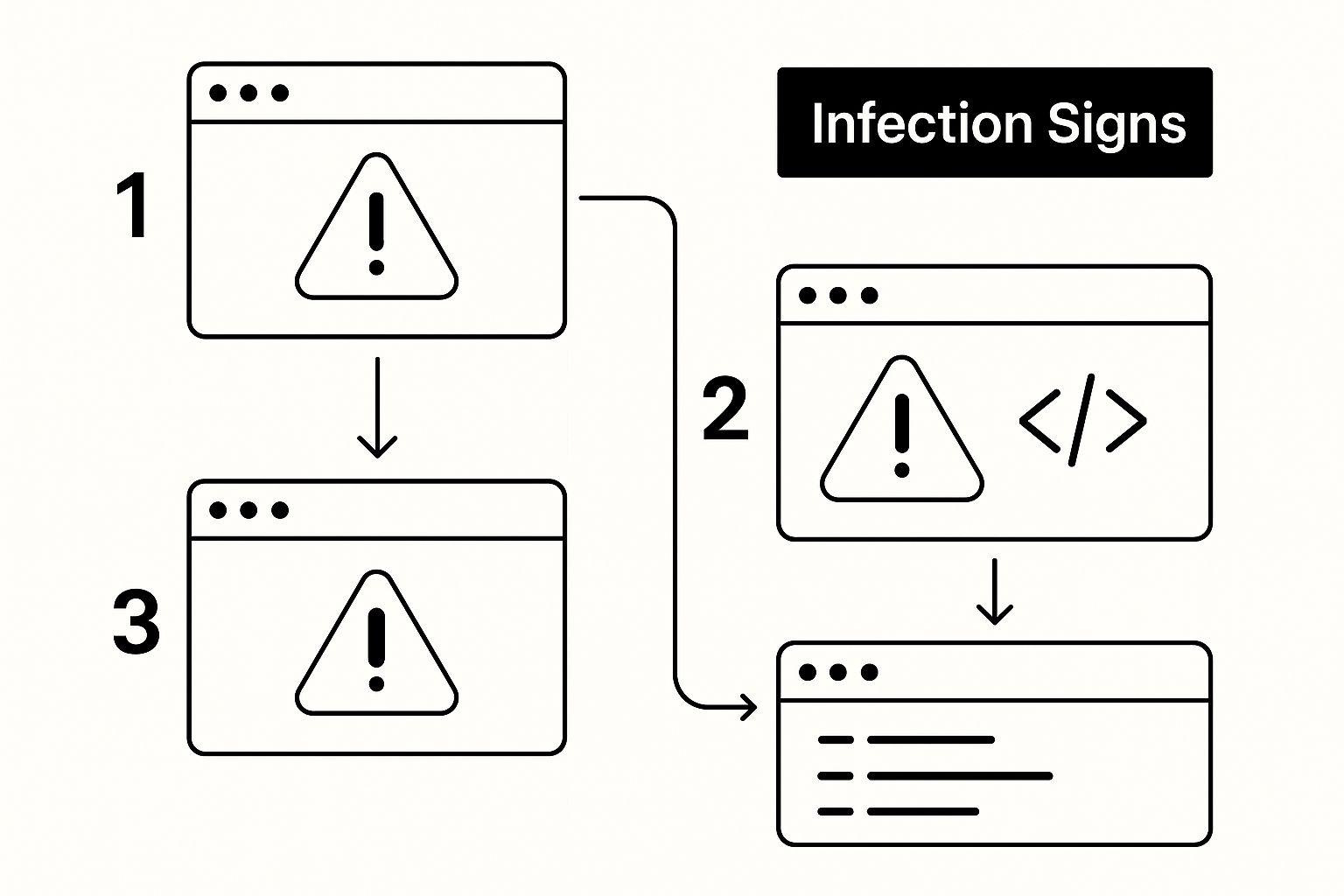
As you can see, malware often masquerades as simple performance hiccups or weird code showing up where it shouldn't. This is exactly why thorough scanning is so important.
The Manual Inspection Approach
If you're comfortable getting your hands dirty, a manual file inspection can sometimes spot things that automated tools miss. Hackers are sneaky and love to hide malicious code in places you'd least expect.
A classic hiding spot is the
wp-content/uploadsdirectory. Attackers know this folder often has looser permissions, making it a perfect place to upload and run malicious PHP scripts disguised as regular image files.
To start, connect to your site using an FTP client or your hosting provider's file manager. The first thing I always do is sort the files by "last modified" date. This immediately flags any recent, unexpected changes.
You'll want to pay extra close attention to key files like wp-config.php, index.php, and your theme's functions.php file, as these are huge targets for code injection. Keep an eye out for anything that looks out of place—especially long, nonsensical strings of characters or functions like eval() and base64_decode(). These are frequently used to hide malicious code. It takes more time, sure, but a manual check gives you the ultimate control to scan malware WordPress files directly.
Comparing WordPress Malware Scanning Methods
Not sure which scanning approach is right for you? It really depends on your comfort level with the tech and how deep you need to go. This table breaks down the common methods.
| Scanning Method | Ease of Use | Thoroughness | Best For |
|---|---|---|---|
| Security Plugins | High | Medium-High | Quick, automated scans from the WP dashboard for ongoing monitoring. |
| Remote Scanners | High | Medium | Identifying external vulnerabilities and blacklist issues. |
| Manual Inspection | Low | High | Finding deeply hidden or cleverly disguised malware for tech-savvy users. |
Ultimately, a combination of a reliable security plugin and an occasional remote scan is the best bet for most WordPress site owners. But if you suspect a stubborn infection, a manual check might be what it takes to finally root it out.
Choosing the Right Malware Scanning Tool
When you're trying to scan malware WordPress files, the number of tools available can feel overwhelming. They all promise perfect protection, but the choice usually comes down to free versus paid. Knowing the difference is crucial for your site's security.
Free scanners are a good place to start. They check your site's files against a database of known malware signatures and can catch common threats. The catch? They're often limited. You usually won't get features like automated cleanup or a Web Application Firewall (WAF), which is your first line of defense against attacks.
When to Invest in a Premium Scanner
Moving up to a paid tool is the right call when you need more than just a basic check-up. A premium scanner offers a much stronger defense, often with features that stop infections from happening in the first place.
If you're handling sensitive customer data, running an e-commerce store, or simply can't afford the hit to your reputation from a hack, it's time to invest. The real value in paid tools comes from features like these:
- Integrated Malware Removal: Instead of just telling you there's a problem, these tools can often quarantine or delete the malicious files for you. It's a huge time-saver.
- Web Application Firewall (WAF): This is a game-changer. A WAF actively filters traffic and blocks malicious requests before they can ever reach your website.
- Automated Scheduling: You can set scans to run automatically, maybe daily or weekly, during off-peak hours so your site's performance isn't affected.
- Vulnerability Detection: Good scanners don't just look for malware. They also check for outdated plugins or weak spots in your setup that hackers love to exploit.
A great security tool isn't just about finding existing malware; it's about making it much harder for attackers to get in. Think of it as installing a full security system rather than just reacting after a break-in.
Many modern WordPress management tools now include these security features right out of the box. You can see how a comprehensive WordPress vulnerability scanner works to get a better idea of how scanning and proactive management come together. This approach not only helps you find and remove malware but also hardens your site against future attacks.
What to Do After You Find Malware
That sinking feeling when a scan comes back positive is something no site owner wants to experience. But finding malware is just the first step. What you do next is critical, and acting rashly can make things much worse.
Your first instinct might be to start deleting suspicious files, but hold off. Before you change anything, you need to take a full backup of the site as it is, infection included. I know it sounds crazy, but this infected backup serves as a digital crime scene. It gives you a safe, offline copy to dissect later, which can help you understand how the attackers got in without putting your live environment at further risk.
With the infected snapshot saved, your next move is to find a clean backup. This is a version of your site from before the infection happened. If you have a solid backup routine, this is the moment it pays for itself. This clean backup is your lifeline.
Isolate Your Site and Start Cleaning
Now that your backups are secure, it's time to take your site offline by putting it into maintenance mode. This stops any visitors from stumbling onto a compromised page and protects your reputation while you work.
With the site isolated, you can begin the cleanup. Start with the infected files your scan flagged. For any compromised WordPress core files, the safest bet is to download a fresh copy from WordPress.org and overwrite them. Do the same for your plugins and themes—delete the compromised versions entirely and reinstall them from their official sources. Trying to manually edit out malicious code is a recipe for disaster, as hackers are experts at hiding backdoors.
Next up is the database. Attackers often leave nasty surprises here, like injecting spammy links, malicious scripts, or even creating their own admin accounts. You'll need to go through your wp_users table with a fine-tooth comb and delete any user accounts you don't recognize. Also, check your posts and pages for any weird scripts or iframes that don't belong there.
Reset Everything to Lock the Doors
Just cleaning up the mess isn't enough. You have to figure out how they got in and slam that door shut for good. If you skip this part, you're practically inviting them to come right back in.
Here’s your essential security reset checklist:
- Reset All Passwords: This is non-negotiable. Force a password reset for every single user, paying special attention to anyone with an administrator role.
- Change the Database Password: Head into your hosting control panel, generate a new, strong password for your database, and then make sure to update your
wp-config.phpfile with the new credentials. - Generate New WordPress Salts: Your WordPress salt keys encrypt sensitive login data. You need to generate a completely new set and paste them into your
wp-config.phpfile. This will instantly invalidate all existing login cookies, logging everyone out and kicking out any intruders who might still have an active session.
Once you've cleaned the files, scoured the database, and reset all your credentials, you can proceed with the restoration. Our guide on how to safely restore WordPress from a backup walks you through the process without losing your important content.
After your clean site is back online, run one last, thorough scan. Only after you get a clean bill of health should you take your site out of maintenance mode.
Building a Proactive WordPress Security Routine
Getting your site clean after an infection is a huge relief, but that’s really only half the job done. The real win is shifting your security posture from a reactive cleanup chore to a proactive, preventative habit. You need a solid routine that hardens your site, making it a much tougher target for attackers to begin with.
This all starts with one golden rule: keep everything updated. That means your WordPress core, every single plugin, and your theme. I can’t stress this enough—outdated software is the number one way malware gets in.
Just look at the numbers. In 2024 alone, the WordPress ecosystem was hit with 7,966 new vulnerabilities. That's a staggering 34% jump from the year before. And where did most of them come from? A whopping 90% of these flaws were found in third-party plugins. You can see the full breakdown of these security trends for yourself, but the takeaway is clear. Updates are non-negotiable.
Layering Your Security Defenses
Once you’ve got updates handled, the next step is to layer your defenses. Think of it as adding multiple locks to your front door. If one fails, you have others to fall back on.
- Enforce Strong Passwords: Don't just suggest them; require them. Use a plugin that forces all users—especially admins—to create long, complex passwords that aren't easily guessed.
- Implement Two-Factor Authentication (2FA): This is a game-changer. By requiring a code from a user's phone to log in, you can shut down brute-force attacks even if a hacker manages to steal a password.
- Limit Login Attempts: It’s a simple but effective trick. Set a plugin to automatically lock out any IP address after a few failed login attempts. This stops automated bots dead in their tracks before they have a chance to guess their way in.
Your site’s security is only as strong as its weakest link. Layering these defenses means that one failure doesn't lead to a full breach. It’s a crucial mindset shift from just knowing how to scan malware WordPress files to actively preventing them from ever showing up.
Finally, get your off-site backups on autopilot. A reliable, automated backup system is your ultimate safety net. Should the worst-case scenario happen, you’ll have a clean, recent version of your site ready to restore, which dramatically cuts down on downtime and potential data loss. Combining diligent updates with layered security is what turns your site from an easy mark into a well-defended fortress.
Questions We Hear All the Time
When you're dealing with WordPress security, a few common questions always seem to pop up. Getting these sorted out is key to building a solid defense and keeping your site safe.
How Often Should I Be Scanning My Site for Malware?
For most websites, a weekly scan is a good, solid routine. It’s frequent enough to catch problems before they get out of hand.
However, if your site gets a lot of traffic, is an e-commerce store, or handles any kind of sensitive customer data, you really should be scanning it daily. The main thing is consistency—turning your security checks into a regular habit is far more effective than just reacting when something goes wrong.
Should I Try to Remove Malware Myself or Hire a Pro?
This is a tough one. If you're comfortable with the technical side of WordPress and the infection seems small, a good security plugin can often do the trick.
But if you’re looking at a deeply embedded infection, or you just feel like you're in over your head, calling in a professional is always the safer move. A botched cleanup can cause even more damage, potentially breaking your site completely or leaving hidden backdoors that the attackers can use to get right back in.
Stop guessing and start protecting. WP Foundry puts security at your fingertips with a built-in vulnerability scanner that lets you proactively monitor all of your sites from one simple desktop app. Find out more at https://wpfoundry.app.