

Think of a WordPress backup as the ultimate undo button for your website. It’s a complete copy of everything—your files, your database, all of it—tucked away safely so you can get back online fast if things go sideways.
Why a WordPress Backup Is Your Ultimate Safety Net
Let's be honest, setting up a backup plan feels like a chore. But it's genuinely the bedrock of a healthy, secure website. One bad plugin update, a random server crash, or a targeted attack can vaporize years of your work in an instant. If you don't have a recent backup, you’re starting from scratch.
A solid backup strategy is what turns a potential catastrophe into a minor inconvenience. It gives you the confidence to experiment with new themes, test out plugins, or make big changes, because you always have a stable version to fall back on. That peace of mind is priceless.
The Real Risks of Neglecting Backups
WordPress is incredibly popular, which unfortunately makes it a massive target. More than 90% of all CMS-based hacks are aimed at WordPress sites. To put that in perspective, around 30,000 websites are compromised every single day. A huge chunk of these vulnerabilities come from outdated plugins. So, having a reliable backup isn't just a "nice-to-have"—it's your first line of defense. You can dig into more of these stats over at MageComp.
A backup you can't restore is just data. A backup you can restore is a business continuity plan. It's the difference between a minor hiccup and a major outage that could cost you traffic, revenue, and reputation.
More Than Just Security
Backups are about more than just dodging bullets; they're essential for everyday site management and growth. Here are a few real-world scenarios where a backup is a lifesaver:
- Migration Made Easy: Switching to a new web host? A full backup is the cleanest, safest way to move your entire site without losing a single blog post or product image.
- Fixing Human Error: We've all been there. You accidentally delete a critical page or a bunch of user comments. Instead of panicking, you can just restore from your latest backup and fix the mistake in minutes.
- Staging and Development: If you want to test new features, a backup lets you clone your live site to a safe staging environment. You can break things, fix them, and perfect your changes without touching your main website.
Even when you're just starting out and comparing the best website builders for small businesses, it's smart to check out how each platform handles data recovery. You'll thank yourself later.
Choosing the Right WordPress Backup Method for You
Deciding how to backup your WordPress website isn't a one-size-fits-all situation. The best choice really comes down to your technical comfort level, your budget, and how much time you're willing to put into it. There are three main paths you can take.
First up are automated plugins, which are the go-to for most WordPress users. Then you've got the manual approach, giving you total control but demanding a bit more technical know-how. Finally, many hosting providers include their own backup services, which can be a pretty convenient, built-in safety net.
Your decision should match your needs. Are you a busy blogger who just needs a "set it and forget it" solution, or are you a developer who prefers to have direct control over every file?
Weighing Your Options
For the vast majority of WordPress users, a dedicated backup plugin is the clear winner. It hits that sweet spot, balancing ease of use with powerful automation. These tools are designed to run on a schedule, sending secure copies of your site to an off-site location without you having to lift a finger.
A manual backup, on the other hand, puts you firmly in the driver's seat. This means using tools like FTP and phpMyAdmin to download your site files and export your database yourself. While it's more involved, it's a fantastic skill to have for troubleshooting and guarantees you always have a direct copy of everything.
This graphic really helps break down the core differences between the backup methods.
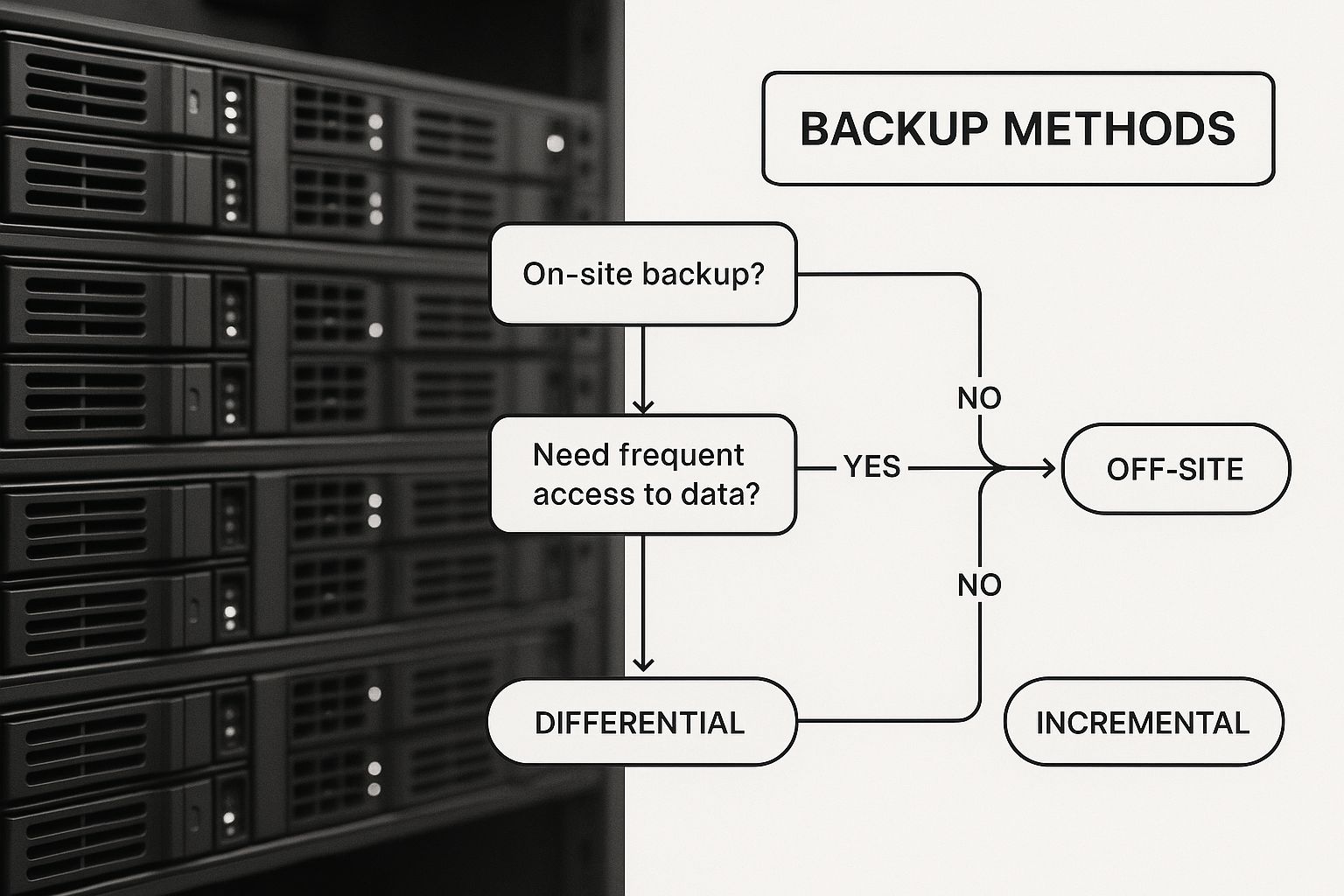
As you can see, plugins offer the most balanced approach for automation and simplicity, while going the manual route gives you the highest degree of control.
Comparing the Three Core Approaches
Let's put these methods side-by-side to make the choice even clearer. Each one has its own distinct pros and cons that appeal to different kinds of website owners.
Remember, the best backup strategy is the one you'll actually stick with. An overly complex manual process that you neglect is far riskier than a simple, automated plugin that runs reliably every day. Consistency is the key to effective data protection.
To help you decide, we've put together a simple comparison table. This gives you a side-by-side look at the most common WordPress backup methods to help you find the perfect fit for your website and skill level.
Comparing WordPress Backup Approaches
| Method | Best For | Technical Skill | Pros | Cons |
|---|---|---|---|---|
| Backup Plugin | Beginners, agencies, and business owners who need reliable automation. | Low | Easy setup, automated scheduling, simple restoration, off-site storage options. | Premium features often require a subscription. |
| Manual Backup | Developers and tech-savvy users who want maximum control and understanding. | High | Free, complete control over files, not dependent on third-party software. | Time-consuming, prone to human error, no automation. |
| Hosting Backup | Users on a tight budget or those looking for a basic, secondary safety net. | Low | Often included with hosting, easy to use, managed by the host. | Less control, may have restoration limits or fees, not an independent copy. |
Ultimately, whether you choose the convenience of a plugin, the control of a manual backup, or the simplicity of your host's service, the important thing is to have a system in place.
Automating Your Backups with a WordPress Plugin
Let’s be honest, nobody has time to manually back up their website every day. It's one of those chores that's easy to put off, but disastrous to neglect. This is exactly why backup plugins exist—they turn a tedious but critical task into a simple, automated process that runs in the background. Think of a good backup plugin as your site's insurance policy.
Using a plugin is easily the most straightforward and reliable way to get a solid backup system in place. These tools are built specifically for WordPress, so they know exactly which files and database tables are essential. They handle the whole show: scheduling the backup, creating the files, and shipping them off to a safe, remote location.
Choosing and Setting Up a Trusted Plugin
The WordPress ecosystem is huge. It powers around 43.6% of all websites, and with over 70,000 plugins to choose from, picking the right one for something as vital as backups can feel overwhelming. For this guide, we're going to use UpdraftPlus, a crowd favorite known for being dependable and easy to get started with.
It's also worth remembering that plugins themselves can sometimes cause problems—they're linked to about 50% of known security issues. This really drives home the need to choose well-coded, frequently updated plugins and, ironically, to have a solid backup just in case a rogue plugin update breaks your site.
Once you’ve installed and activated UpdraftPlus from your WordPress dashboard, you'll find its settings panel. This is your command center for setting up an automated backup schedule.
This screenshot gives you a look at the main settings screen. It’s clean and intuitive, letting you set separate schedules for your files and database and connect to remote storage with just a few clicks.
Configuring Your Backup Schedule
A smart backup plan treats your files and your database differently. Your website is made up of two key parts: the files (like themes, plugins, and images) and the database (where your posts, pages, comments, and settings live). The database changes far more frequently than your site's core files.
Here's a practical schedule that works for most sites:
- Database Backups: Set these to run daily. This ensures you never lose more than a day's worth of new content, comments, or—if you run a store—customer orders.
- File Backups: A weekly backup is usually sufficient. Unless you're constantly installing new plugins or redesigning your theme, these files don't change very often.
This staggered approach is efficient. It saves server resources and keeps your cloud storage from filling up unnecessarily, all while making sure your most dynamic data is protected.
Connecting to Off-Site Storage
Storing your backups on the same server as your website is a rookie mistake. If that server goes down, gets hacked, or has a major failure, you lose everything—your live site and all your backups. This is why sending your backups to an off-site location is an absolute must.
The golden rule of backups is to assume that your primary server will fail. Storing backups remotely on services like Google Drive, Dropbox, or Amazon S3 ensures your recovery files are completely independent of your hosting environment, giving you a true safety net.
Any decent backup plugin will integrate with popular cloud storage services. The setup is typically a breeze and involves a few simple steps:
- Pick Your Storage: Just choose your favorite cloud provider from the list.
- Authenticate Your Account: You'll be redirected to log in and give the plugin permission to save files to a specific folder in your account.
- Run a Test: Most plugins have a button to test the connection, confirming that everything is working as it should.
Once you're connected, every scheduled backup will automatically be sent to your cloud storage. This simple step is what takes your backup strategy from basic to bulletproof. If you're still weighing your options, have a look at our guide on finding the best WordPress backup plugin for your specific needs.
Mastering the Manual WordPress Backup Process
While plugins offer push-button convenience, learning how to manually backup a web wordpress site is a genuinely powerful skill to have in your back pocket. Knowing the nuts and bolts gives you total control and a much deeper understanding of how your site actually works. It's like knowing how to change a flat tire—even if you have roadside assistance, the knowledge is priceless in a pinch.
A manual backup isn't one single action; it's a two-part job. First, you'll need to grab a copy of all your website's files. Second, you have to export your site's database. You absolutely need both for a complete backup.
Downloading Your Site Files with FTP
All your website's files—your theme, plugins, images, and the core WordPress software itself—are sitting on your web host's server. The most straightforward way to get to them is with an FTP (File Transfer Protocol) client. This is just a simple app that connects your computer to the server, allowing you to drag and drop files back and forth.
FileZilla is a great free option that works on pretty much any operating system. To get connected, you'll need four bits of information from your hosting provider:
- Host: This is your server's address, which is usually just your domain name.
- Username: Your specific FTP username.
- Password: The password for that FTP account.
- Port: This is typically port 21 for standard FTP or 22 for SFTP (the secure version).
Once you're logged in, you'll see your computer's files on the left and your server's files on the right. Find your site's root directory, which is often called public_html or something similar to your domain name. The most important folder you need to grab is wp-content. It holds all your themes, plugins, and media uploads. Download that entire folder to your computer.
A manual backup gives you a tangible, offline copy of your entire digital presence. It’s the ultimate fallback, ensuring that even if your hosting account, plugin, and cloud storage are all compromised, you still hold the keys to your website.
Exporting Your Database with phpMyAdmin
The other crucial piece of your website is its database. This is where all your content lives—posts, pages, comments, user info, and site settings. Most hosts provide a tool called phpMyAdmin in their control panel (like cPanel) to manage this.
When you open phpMyAdmin, you'll see a list of databases on the left. You need to select the one your WordPress site uses. If you're not sure which one it is, you can always find the database name listed in your wp-config.php file on the server.
After clicking on the correct database, just follow these quick steps:
- Look for and click the "Export" tab along the top menu.
- Under Export Method, choosing "Quick" is perfectly fine for a full backup.
- Make sure the Format is set to "SQL".
- Click the "Export" button.
This will download a .sql file to your computer, which is a complete snapshot of all your site's content and settings. For a more detailed walkthrough, our guide on how to backup a WordPress database offers some extra pointers for this vital step.
Once you have your wp-content folder and your .sql file saved together, you've got a complete, manual backup of your WordPress site. You now have everything you need to restore it from scratch if you ever have to.
Developing a Bulletproof Backup Strategy
Just having a backup file is a good start, but it's not a strategy. To turn that file into a real safety net, you need a plan. A solid approach to backup web wordpress sites involves more than a single file sitting on your server—it's about redundancy, regular testing, and a schedule that matches your site's activity. This is what separates a simple task from a professional-grade data protection system.
The core of any good strategy is the industry-standard 3-2-1 rule. It’s a simple concept, but it's what data professionals live and die by.
- Three Copies: Always maintain at least three copies of your data. This means your live website plus two separate backups.
- Two Media: Store these copies on at least two different types of media. For example, one on your hosting server and another in cloud storage like Dropbox or Google Drive.
- One Off-Site: Make sure at least one of these backup copies is stored in a completely different physical location.
This layered approach is your best defense against everything from a minor file corruption to a catastrophic server failure at your hosting company.

Setting Your Backup Frequency
There’s no one-size-fits-all answer for how often you should back up your site. Your schedule should directly reflect how often your content changes. A static portfolio site might be fine with weekly backups, but a busy e-commerce store needs something far more frequent.
Think about your "recovery point objective" (RPO). In simple terms: how much data are you willing to lose? If you run a blog with daily posts and lots of comments, a daily backup ensures you’ll never lose more than 24 hours of activity. For a high-traffic online store, hourly backups might be necessary to avoid losing critical transaction data.
A backup you haven't tested is just a hope. Regularly practicing a restore process on a staging site is the only way to be 100% certain your backups are working and that you know exactly what to do when a real crisis hits.
The Critical Role of Testing Your Restores
This leads me to the most overlooked—and most critical—part of any backup plan: testing your restores. An untested backup is a gamble, plain and simple.
You absolutely need to test your ability to restore your site from your backup files every so often. This process will uncover any hidden issues and get you comfortable with the steps. Trust me, you don't want to be learning how to do this for the first time while your site is down and you're losing money.
With 43.5% of all websites running on WordPress, the platform is a massive target. Vulnerabilities saw a 34% rise in 2024 alone, making a functional, tested restore process more important than ever. You can see more data on WordPress usage and security over on MyCodelessWebsite.
A strong strategy isn't just about having the files; it's about being ready. To get everything documented, you can use our disaster recovery planning template to map out your process and make sure your team is prepared.
Answering Your WordPress Backup Questions
Even with a solid plan, you're bound to have questions when setting up your backup web wordpress routine. That's totally normal. Let's walk through some of the most common questions people ask so you can feel confident your site is truly protected.
How Often Should I Back Up My WordPress Site?
This is the big one, and the answer comes down to one thing: how often does your site change?
For a busy e-commerce store with orders coming in all day or a blog that publishes daily, daily backups are non-negotiable. Anything less is asking for trouble.
But if you run a simpler portfolio or business brochure site where you only make changes once a week or so, a weekly backup is probably all you need.
Here's a good rule of thumb: think about the maximum amount of work you'd be willing to lose and redo. If re-writing a week's worth of blog posts sounds like a nightmare, you need to back up more frequently.
Can I Just Rely on My Web Host Backups?
It's tempting, I know. But relying solely on your host's backups is a risky move. Think of them as a secondary safety net, not your primary one.
You have zero control over their schedule, how long backups are kept, or even how you'd get your site back if you needed to. A real restore can be a clunky, support-ticket-driven nightmare. An independent backup you control gives you autonomy and peace of mind.
Storing your only backup with your web host is like keeping the spare key to your house under the doormat. For genuine security, you need a copy stored somewhere entirely separate from the original.
What Is the Difference Between a Full vs. Database Backup?
Getting this right is crucial. A database backup is the heart of your site's content. It saves every post, page, user comment, and setting. It’s the "what" of your website.
A full backup, however, is the whole package. It includes your database plus all your files: the WordPress core, your themes, every single plugin, and all the images and files in your wp-content folder. To properly restore a site from scratch, you absolutely need a full backup.
Where Is the Safest Place to Store My Backups?
Simple: off-site. Your backups should live on a server completely separate from the one hosting your website. This is your only protection if your entire hosting account gets hacked or the server has a catastrophic failure.
Cloud storage is your best friend here. Services like these are perfect:
They're secure, affordable (often with free plans), and keep your data isolated from your live site. Whatever you do, never leave your only backup on the same server.
Ready to take full control of your backups and manage all your WordPress sites from one place? WP Foundry centralizes your updates, security scans, and database backups into a single, powerful desktop app. Save time, reduce risk, and manage your sites like a pro by visiting https://wpfoundry.app.