
Kicking off a malware scan on your WordPress site isn't just a "nice-to-have" security measure; it's an essential task for anyone serious about protecting their online presence. Think of it as a deep-dive health check for your website, where specialized tools hunt through your files and database for anything that looks out of place—from known threats to suspicious code.
Getting ahead of potential infections is the name of the game. A proactive scan can be the one thing that stands between you and a nasty SEO penalty, a customer data breach, or a complete loss of your site's credibility.
Why You Absolutely Need to Scan Your WordPress Site for Malware
It's easy to fall into the trap of thinking, "my site is too small to be a target." But here's the reality: hackers aren't picking and choosing. They use automated bots that relentlessly scour the internet, looking for easy targets. Because WordPress is so popular, it's a massive playground for these bots.
These attacks aren't some mastermind-level heist. They're simple, brute-force attempts that exploit common weaknesses like outdated plugins, easy-to-guess passwords, and themes that haven't been patched. An infection can sneak in and go unnoticed for weeks, quietly stealing data or injecting spammy links that slowly poison your site's reputation.
The Real-World Fallout of a Hacked Site
Getting hit with malware is more than just a technical headache. It creates real, tangible problems that can seriously damage your business.
Here's what you're actually up against:
- Vanishing SEO Rankings: Google takes a hard line on infected sites. Get blacklisted, and you can watch your search traffic disappear virtually overnight.
- Leaked Customer Data: If you handle any user information, from e-commerce transactions to simple contact forms, a breach can expose that data and shatter customer trust.
- A Defaced Website: Imagine your homepage replaced with an attacker's message. It's a direct hit to your brand's credibility that's hard to recover from.
- Getting Kicked Offline: Your web host has a responsibility to protect its servers. If they find your site is compromised, they'll often suspend it immediately, leaving you with costly downtime.
Where Do These Threats Actually Come From?
Most people point fingers at the WordPress core software, but that’s rarely the culprit. The biggest security gaps almost always come from the themes and plugins you install. Just last year, the WordPress ecosystem saw nearly 6,000 new security threats emerge, which is a 24% jump from the year before.
What’s truly eye-opening is that a whopping 90% of these vulnerabilities were found in plugins. Themes accounted for another 6%, making the core software a relatively small part of the problem.
A proactive malware scan isn't just a technical task—it's a fundamental part of protecting your online business. It shifts you from a reactive to a preventative mindset, which is the cornerstone of effective website security.
Getting a handle on these risks is your first priority. To dig deeper, you can learn more about the specifics of vulnerability scanning in our detailed guide and see how it fits into a complete security plan.
Choosing the Right WordPress Malware Scanning Tools
With so many tools on the market, figuring out how to run a malware scan on your WordPress site can feel overwhelming. The options really boil down to a few different types, and the best one for you depends on your budget, technical skills, and how hands-on you want to be.
Most people get started with a dedicated security plugin. It’s easy to see why—they install directly into your WordPress dashboard and bundle scanning, a firewall, and cleanup features into one convenient package. If you’re a beginner or just want an all-in-one fix, this is often the best place to start.
Another option is an external online scanner. These are web-based tools where you just pop in your URL, and they check your site from the outside for obvious malware or blacklist issues. They're perfect for a quick check-up or a second opinion, but they have a big limitation: they can't see what's actually going on inside your server's files.
Understanding Your Scanning Options
If you’re after the most thorough check, server-side scanners are the heavy hitters. These tools run right on your web server, giving them full access to every single file. This means they can spot sophisticated threats that a plugin might miss. The catch is that they often require more technical know-how to configure and manage, which is why they're a go-to for developers and agencies.
A layered approach is always the smartest security strategy. Think about using a primary plugin for day-to-day monitoring, then running an occasional external scan just to be sure everything looks good from the outside.
This multi-tool approach has become more critical than ever. In a recent report, the WordPress ecosystem saw a staggering 6,700 new vulnerabilities disclosed, and about 41% of them were confirmed as exploitable in the wild. In response, top security companies are rolling out AI-powered tools that analyze millions of threat signals daily, aiming for a 99.9% malware detection rate. You can dive deeper into these findings in the latest mid-year vulnerability report.
Comparison of WordPress Malware Scanners
To help you decide, here’s a quick breakdown of the different scanner types and what they're best suited for.
| Scanner Type | Best For | Pros | Cons |
|---|---|---|---|
| Security Plugins | Beginners & all-in-one solutions | Convenient, easy to use, often includes firewall & cleanup features. | Can consume server resources; may not catch everything. |
| External Scanners | Quick checks & second opinions | No installation needed; provides an external perspective. | Surface-level only; cannot scan server files directly. |
| Server-Side Scanners | Developers & deep security audits | Most thorough detection; scans all server files. | Requires technical skill to set up and manage. |
| Desktop Applications | Managing multiple WordPress sites | Centralized dashboard; runs scans across many sites at once. | Requires software installation on your computer. |
Ultimately, the right tool balances comprehensive scanning with a workflow that you can realistically maintain.
Making the Right Choice for Your Needs
When you boil it down, choosing a scanner is a trade-off between convenience and how deep you need the scan to go.
- Security Plugins: Go this route for pure convenience. Tools from companies like Wordfence or Sucuri are industry standards and put powerful features right inside your admin area.
- External Scanners: Perfect for a quick spot-check without needing to log in or install anything. They give you a valuable "outside-in" perspective.
- Server-Side Tools: This is the most comprehensive option, offering deep file analysis for the highest level of detection, but be prepared for a more technical setup.
- Desktop Applications: A fantastic middle-ground if you manage multiple sites. A dedicated app like WP Foundry comes with a built-in WordPress vulnerability scanner, letting you kick off scans across all your projects from one clean interface.
Running Your First WordPress Malware Scan
Alright, you know what tools are out there. Now it’s time to get your hands dirty and actually run a scan on your WordPress site.
The easiest way to jump in is by using a security plugin. It's the go-to method for most site owners, and the process is pretty much the same no matter which one you pick. I’ll use Wordfence as an example here since it’s so common, but you can apply these same ideas to other tools like Sucuri.
First things first, you need to get the plugin installed. Just head over to your WordPress dashboard, go to Plugins > Add New, search for your chosen tool, and hit "Install Now." Once that's done, click "Activate," and you’ll likely be greeted by a quick setup wizard to get you started.
Setting Up Your First Scan
After activation, you'll land on the plugin's dashboard. Before you hit that big "scan" button, take a moment to look at the settings. This is where you tell the plugin how deep to dig.
You'll usually find two main options:
- Standard Scan: Think of this as a quick, surface-level checkup. It looks for the most common red flags, outdated software, and things that are publicly visible. It's light on your server, making it perfect for daily, automated checks.
- Deep Scan: This is the full-blown forensic analysis. It meticulously compares every one of your core WordPress files against the official versions, digs through your themes and plugins for suspicious code, and hunts for hidden backdoors. I recommend running a deep scan at least once a week, or immediately if you think something’s wrong.
This is a great visual breakdown of the general process:
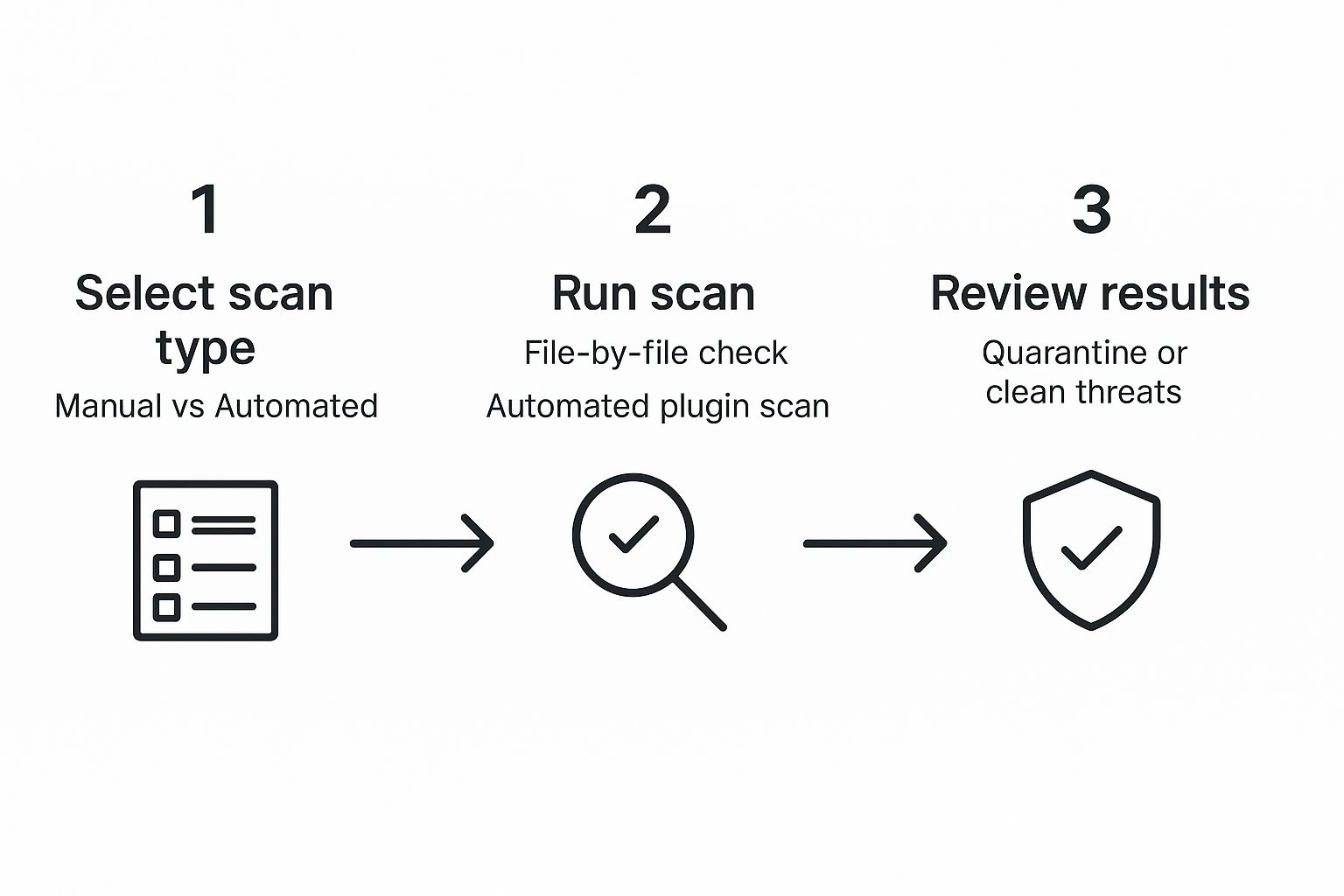
As you can see, it's a straightforward loop: choose your scan, run it, and then act on what you find.
Kicking Off the Scan and Watching It Work
Once you’ve got your settings dialed in, it’s time to go.
Find the main "Start New Scan" button on the plugin's dashboard and click it. The scanner will immediately get to work, and you'll see a live feed of its progress—which files it's checking, what it's looking for, and any issues it finds in real-time.
How long does it take? Well, that depends. A small site might be done in a few minutes. A massive e-commerce site with years of uploads could take over an hour, especially on a deep scan.
A Quick Tip from Experience: Always schedule your intensive, deep scans for off-peak hours. Running them late at night means you get a thorough check without slowing down the site for your visitors.
Whatever you do, don't navigate away or close the browser tab while the scan is in progress, as that can kill the process. Just let it do its thing.
When it's all done, you’ll get a summary report. This is your action plan. It will list every single issue, from critical malware to low-priority warnings. This report is where the real work begins—the cleanup.
How to Read Scan Results and Spot Real Threats
Okay, so you've run the scan, and now you’re staring at a report that looks like a foreign language. It's easy to get overwhelmed by a long list of file paths, technical jargon, and scary-looking warnings. The real skill is learning to cut through the noise and zero in on the genuine threats.
Don't panic if your report lights up like a Christmas tree. Many alerts are low-risk, but some are signs of serious trouble. Your first job is to understand what the scanner is trying to tell you so you can prioritize what to tackle first.
Decoding Common Threats in Your Scan Report
Most of the junk you'll find in a scan report falls into a few predictable categories. Once you learn to recognize them, the whole process becomes much less intimidating.
Here’s what you're likely to find:
- Modified Core Files: WordPress core files are sacred ground—they should never be touched. If the scanner flags changes in files like
wp-config.phpor anything inside thewp-includesfolder, that’s a massive red flag. It almost always means something is wrong. - Malicious Code Injections: This is a classic hack. Attackers sneak malicious PHP or JavaScript into your theme and plugin files. This code is what creates those spammy links, redirects your visitors to shady sites, or even steals their data.
- Hidden Backdoors: A backdoor is exactly what it sounds like—a secret way for an attacker to get back into your site, even after you've changed your passwords. I often find these disguised as innocent-looking files tucked away in the
wp-content/uploadsdirectory.
Remember that not every warning is a five-alarm fire. A good scanner might flag an outdated plugin as a "medium" risk. While not malware itself, it's a vulnerability waiting to be exploited. Addressing these is just as important as cleaning an active infection.
Differentiating Real Threats from False Positives
Let's be clear: scanners aren't perfect. Sometimes they flag a perfectly legitimate file as malicious—this is called a "false positive." It happens a lot with custom code or less common plugins. Before you go on a deleting spree, take a moment to review the flagged file and make sure it’s actually a threat.
When you're sifting through the results, keep the big picture in mind. Straight-up malware is the biggest issue, found in around 72.7% of infected WordPress sites. Right behind that, attackers plant backdoors in nearly 69.6% of compromised sites to make sure they can get back in later. SEO spam is another huge one, affecting about 47% of hacked sites. These are the heavy hitters you’re hunting for. If you want to dig deeper, you can read more about these WordPress security findings to get a better sense of the landscape.
Cleaning Your Site and Preventing Future Attacks
So, your scan found something nasty. What now? The first rule is: don't panic and start deleting files randomly. That’s a fast track to a broken website. Before you touch anything, the absolute safest first move is to ensure you have a recent, clean backup of your site.
If you have some technical chops and the scan gives you a clear report, you can carefully go in and remove the specific malicious files or database entries it flagged. But for a more widespread infection, this can get messy fast. Honestly, the most foolproof method to get back to a truly clean slate is to wipe the slate clean and restore from a known-good backup. If you need a hand with that process, we have a complete guide on how to safely restore WordPress from a backup.
Hardening Your WordPress Defenses
Getting your site clean is only half the battle. Now, you have to shift your focus to prevention. You need to figure out how the attackers got in and slam that door shut for good. This is where you move from being reactive to proactive.
Think of it like a security checklist for your digital property. Here’s where I always start:
- Enforce Strong Passwords: Seriously. No more "Password123!" for your admins. Mix it up with upper and lowercase letters, numbers, and symbols.
- Enable Two-Factor Authentication (2FA): This is one of the single best things you can do. It adds a massive layer of security right at your login page.
- Limit Login Attempts: This stops bots from relentlessly guessing your password in what's known as a brute-force attack.
- Keep Everything Updated: This is non-negotiable. Always update the WordPress core, all your plugins, and your theme as soon as updates are available. Most hacks exploit old, known vulnerabilities.
An attacker only needs to find one unlocked door. Your job is to make sure every door and window is bolted shut. This means treating security as an ongoing process, not a one-time fix.
Beyond just scanning for malware, think about your site's overall security posture. A big piece of that puzzle is implementing SSL. An SSL certificate encrypts the connection between your visitors and your server, protecting sensitive data. When you combine regular malware scans with these hardening techniques, you're not just cleaning up a mess—you're building a fortress.
Got Questions About WordPress Malware Scanning?

Even with a clear process, a few questions always come up when I talk to people about securing their sites. Let's get those sorted out so you can move forward with confidence.
How Often Should I Actually Scan My Site?
This is a great question, and the answer really depends on your site. For a standard blog or portfolio, running a full malware scan of your WordPress installation once a week is a perfectly reasonable starting point.
But if you’re running a busy e-commerce shop or a site that handles any kind of sensitive user data, you absolutely need to ramp that up. Daily scans are non-negotiable in that scenario. The good news is that most security tools worth their salt let you schedule these to run automatically.
Can I Just Remove the Malware Myself?
Technically, yes, but it comes with a big "if." If you're comfortable with code and know exactly what you're looking for, you might be able to handle a minor infection.
For anything more serious, or if you have even a shadow of a doubt, I always recommend calling in a professional. A botched cleanup can leave hidden backdoors that the hackers can use to get right back in. It’s just not worth the risk.
A quick heads-up: Scanners use server resources, so you might notice a little slowdown while one is running. It's totally normal. My pro tip is to always schedule your scans for off-peak hours—like the middle of the night—so your visitors never notice a thing.
For those of us managing a whole portfolio of client sites, running scans one by one is a nightmare. This is where a tool like WP Foundry becomes a lifesaver. It has a vulnerability scanner built right in, so you can check the WordPress core, plugins, and themes across your entire roster of sites—all from a single desktop app.
If you're looking to centralize your WordPress management and take back your time, it’s definitely worth a look.