

The dreaded WordPress White Screen of Death (WSoD). It’s one of the most common—and frankly, most unnerving—errors you can run into. One minute your site is fine, the next it's just… gone. Replaced by a blank white page with zero information. It’s frustrating because it locks everyone out, including you.
The good news? It’s almost always fixable. More often than not, the culprit is a simple plugin or theme conflict, or your server has simply run out of PHP memory.
What Causes the White Screen of Death in WordPress

When you see that blank white screen, it means WordPress has hit a fatal error behind the scenes. Something went so wrong that it couldn't even load the basic framework to display an error message, so it just gave up.
Think of it like a circuit breaker. When a faulty appliance overloads your home's electrical system, the breaker trips to prevent a fire. The WSoD is your website’s equivalent of that trip switch. A fatal PHP error or a script demanding too much memory has forced WordPress to halt everything to prevent further damage.
Common Culprits Behind the Blank Page
After years of troubleshooting WordPress sites, I can tell you the root causes are surprisingly consistent. Getting your site back online usually comes down to checking just a few usual suspects.
Here’s a quick summary of the most frequent triggers for the White Screen of Death.
Common WSoD Causes at a Glance
| Cause | Common Symptom | Quick Fix Approach |
|---|---|---|
| Plugin Conflict | Site goes down right after installing/updating a plugin. | Disable plugins one by one to find the faulty one. |
| Theme Conflict | WSoD appears after activating or updating a theme. | Temporarily switch to a default WordPress theme (e.g., Twenty Twenty-Four). |
| PHP Memory Exhaustion | The site was running slowly, or the error is intermittent. | Increase the PHP memory limit in your wp-config.php file. |
These three issues are responsible for the vast majority of cases. In fact, that familiar white screen of death WordPress error is one of the most common problems developers and site owners face. Studies often show that exhausted PHP memory and faulty plugins are the main drivers, with poorly coded or outdated plugins accounting for over 60% of incidents. You can dig into more data on common WordPress errors to see just how prevalent these issues are.
The most powerful tool you have against the WSoD isn't complex code; it's a methodical process of elimination. By systematically checking the most likely causes—plugins, themes, and memory—you can isolate the issue without wasting hours in frustration.
This guide will walk you through that exact process. We’ll start with the simplest diagnostic steps before diving into the hands-on fixes that will get your website back online fast.
Your First Diagnostic Steps to Isolate the Issue
Before you start tearing things apart, the first move is to play detective. The goal is to quickly figure out how widespread the problem is. A little triage here can save you hours of guesswork by pointing you straight to the likely culprit.
Start by asking a few key questions to narrow down the scope of the white screen of death wordpress issue. This initial check is the fastest way to an efficient diagnosis.
Check the Scope of the Outage
First thing's first: is the entire site down? Or is it just the homepage that's blank while your other posts and pages work fine?
Next, try to get into your WordPress admin dashboard. You can do this by going directly to yourdomain.com/wp-admin. If you can log in to the backend but the frontend of your site is a blank screen, that's a massive clue. It strongly suggests the problem is with your active theme or a plugin, not a total WordPress meltdown.
Pro Tip: Don't get fooled by your browser's cache. It might be showing you a saved, broken version of the page. Always check your site in an incognito or private browser window to see what a brand-new visitor would see.
Rule Out Local Issues
Sometimes, the problem isn't your website at all—it's you. A quick check on a different device or browser can confirm this. If the site loads perfectly on your phone using mobile data but not on your laptop connected to Wi-Fi, the problem is likely on your end.
These preliminary checks are vital. The white screen of death wordpress error is a massive headache for site owners; in fact, hosting industry data suggests that up to 12-15% of all WordPress support tickets are related to this exact problem. It’s incredibly common. You can read more about these common WordPress errors on kinsta.com.
Once you understand the scope—whether it's site-wide, just the frontend, or a simple caching glitch—you can move on to the targeted fixes that will actually solve the problem.
Finding and Fixing Plugin and Theme Conflicts
When the WordPress white screen of death appears, the usual suspects are almost always a faulty plugin or an incompatible theme. This is the first place every seasoned developer looks. The good news is that tracking down the troublemaker is a straightforward process of elimination that doesn't require any fancy coding skills.
The core idea is simple: turn everything off, and if the site comes back, turn things back on one by one until it breaks again. This classic method will pinpoint the exact source of the conflict.
The Plugin Deactivation Method
The quickest way to rule out a plugin issue is to disable all of them at once. If you can still get into your admin dashboard, this is easy. But since the WSoD usually locks you out completely, you'll probably need to access your site's files directly.
You can do this using an FTP client like FileZilla or the File Manager inside your hosting control panel (like cPanel).
- First, navigate to your site's root directory.
- Find the
wp-contentfolder and open it up. - Locate the
pluginsfolder. - Right-click on it and rename it to something like
plugins_old.
This one simple action deactivates every plugin on your site. Now, try reloading your website. If it pops back to life, you’ve confirmed a plugin is the culprit. Just rename the folder back to plugins to restore them. After that, you can log in to your dashboard and reactivate them one by one until the error returns. Our guide on how to install and manage a plugin on WordPress has a great refresher on handling plugins safely.
This graphic shows the standard troubleshooting workflow, starting with the most common cause—plugins.
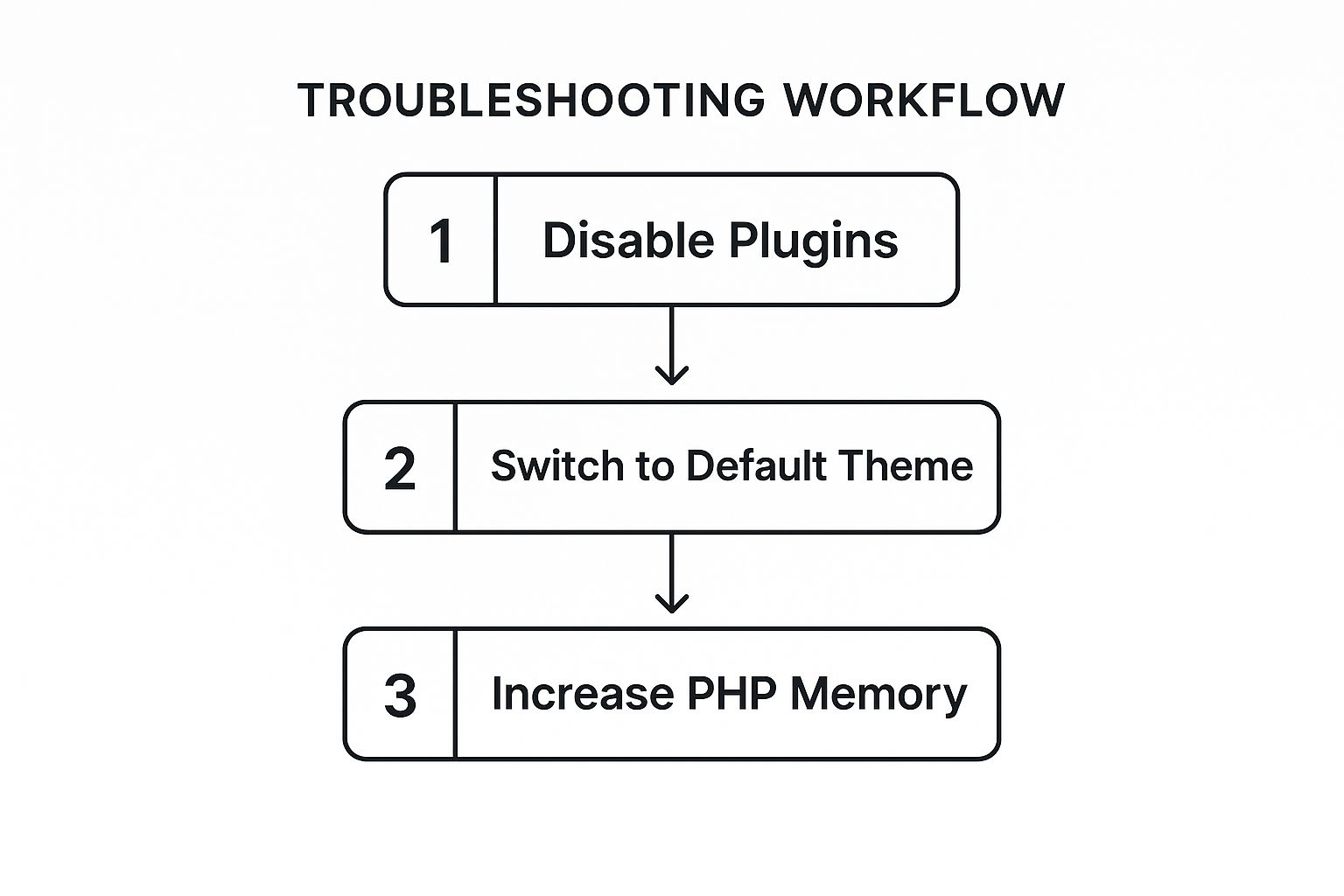
As the visual guide reinforces, systematically checking plugins, then themes, is the most efficient path to getting your site back online.
Ruling Out a Faulty Theme
If disabling all your plugins didn't solve the problem, your active theme is the next suspect in line. A poorly coded theme, a bad update, or a conflict with WordPress core can easily trigger a WSoD. The troubleshooting process is almost identical to the plugin method.
You'll need to force WordPress to fall back to a default theme, like "Twenty Twenty-Four."
Expert Tip: Always keep a default WordPress theme installed, even if you aren't using it. It serves as a reliable fallback for troubleshooting situations just like this, ensuring your site always has a stable theme to revert to when your main one fails.
Once again, using FTP or your File Manager:
- Head back into the
wp-contentfolder. - This time, find the
themesfolder. - Rename your currently active theme’s folder (e.g., from
my-custom-themetomy-custom-theme_old).
This action forces WordPress to deactivate your custom theme and automatically switch to a default one you have installed. If you don't have one, the official WordPress theme directory is the best place to find and install a default theme manually.
Refresh your site now. If the white screen is gone, you know your theme was the issue. At this point, you'll need to contact the theme developer for support or start looking for a replacement.
Using Debug Mode and Increasing Memory Limits
If disabling plugins and themes didn't bring your site back, it’s time to look deeper under the hood. The frustration of the white screen of death wordpress error is that it’s silent; it offers no clues about what went wrong.
We’re about to change that by forcing WordPress to talk.
By enabling the built-in debug mode, you can transform that blank page into a diagnostic tool that reveals the exact PHP error causing the crash. It's often the fastest way to get a direct answer.
Activating WordPress Debug Mode
To get started, you'll need to edit your wp-config.php file. This core file sits in your site's root directory. You can get to it using an FTP client or your hosting provider's File Manager.
Once you have the file open, find this line of code:
define( 'WP_DEBUG', false );
Just change false to true. If for some reason that line doesn't exist, you can add it yourself right above the /* That's all, stop editing! Happy publishing. */ comment. Save the file and reload your website.
Instead of a blank screen, you should now see an error message. This message is your golden ticket—it will typically point to a specific file and line number, telling you exactly where the problem lies. Our comprehensive guide on how to debug in WordPress offers more advanced tips for this process.
Don't forget to change
WP_DEBUGback tofalseonce you've solved the issue. Leaving it enabled on a live site can expose sensitive information and create a security risk.
Thankfully, newer versions of WordPress are making this even easier. Since WordPress 6.3, a "recovery mode" feature often kicks in automatically. This safe mode can disable the problematic plugin or theme for you, which really streamlines the diagnosis. These modern tools have been shown to cut down the average resolution time for WSoD incidents by about 40% compared to purely manual methods.
Increasing Your PHP Memory Limit
If debug mode doesn't reveal a specific error, the next likely culprit is memory exhaustion. Your site might be trying to run a script that requires more memory than your server allows, causing it to crash.
Think of it like trying to run a demanding piece of software on an old computer with very little RAM—it just freezes. Increasing the PHP memory limit gives WordPress more resources to work with.
You can often fix this by adding another line to your wp-config.php file, again, just before the "stop editing" comment:
define('WP_MEMORY_LIMIT', '256M');
This code attempts to set the memory limit to 256 megabytes, which is usually enough for most modern WordPress sites. If 256M doesn't work, you can try 512M, but be aware that some hosting plans impose a hard cap on this value.
If editing the wp-config.php file has no effect, it means your hosting provider has locked this setting at the server level. In that scenario, you will need to contact your host's support team and ask them to increase the PHP memory limit for you. This is a common request, and they can typically handle it quickly.
Advanced Fixes for Persistent White Screens
So you’ve tried the usual fixes and you’re still staring at a blank page. What now? When plugins and themes aren't the culprits, the white screen of death wordpress error usually hints at a deeper problem, something off in your site's core files or server setup.
These next steps get a bit more technical, but they're often what it takes to get things working again. We'll be looking at things like file permissions, corrupted WordPress core files, and tiny syntax errors that can bring everything grinding to a halt.
Checking and Correcting File Permissions
Every single file and folder in your WordPress installation has a set of permissions. These permissions tell the web server what it's allowed to do—can it read a file? Can it write to a folder? If these are set incorrectly, WordPress might be blocked from accessing essential files, leading straight to a white screen.
This isn't just about functionality; it's a huge security issue. Permissions that are too loose can leave your site vulnerable, while permissions that are too tight can break things like image uploads. The standard, recommended permissions are:
- 755 for all folders and sub-folders.
- 644 for all files.
You can check and fix these using an FTP client like FileZilla or your hosting provider's File Manager. Just right-click on a file or folder and look for an option like "File Permissions."
Here's what that typically looks like in an FTP client, based on an image from the official WordPress documentation:
You can either type the number directly or use the checkboxes to set the read, write, and execute permissions. Getting these right is a key step in both troubleshooting and routine site security. For a broader look at this, check out our guide on how to keep your WordPress site secure without a developer.
Repairing Corrupted Core Files
It happens. A WordPress auto-update hangs, times out, or just plain fails. You're left with a messy mix of old and new core files, and that's a perfect recipe for a white screen.
The fix is to manually replace the core files with a fresh set. It sounds scary, but it's pretty safe if you follow the steps.
First, download the latest version of WordPress from WordPress.org. Unzip the file on your computer. Before you do anything else, you absolutely must delete the wp-content folder and the wp-config-sample.php file from the files you just downloaded.
Once that's done, use FTP to upload all the remaining files and folders to your site, telling your FTP client to overwrite what's already there.
Don't worry, this won't touch your content. All your themes, plugins, and media uploads live safely inside the
wp-contentfolder (which you didn't upload). Your database details are also safe in your existingwp-config.phpfile on the server.
Hunting Down Syntax Errors
One typo. That’s all it takes. A single missing semicolon or an extra bracket in your theme's functions.php file or a plugin file can instantly take down your entire site. If the white screen appeared right after you were editing code, this is almost certainly the cause.
If you remember which file you touched, you can connect via FTP and simply fix the error. If you're not sure, this is where enabling debug mode (which we covered earlier) becomes a lifesaver. It will usually spit out a "parse error" message that tells you the exact file and line number causing the problem, making it incredibly easy to find and fix.
Frequently Asked Questions About WSoD
Once the adrenaline rush of fixing the white screen of death wordpress wears off, the questions start popping up. How do I keep this from happening again? Did my site's reputation take a hit? Let’s walk through a few of the most common concerns I hear from people after they’ve recovered their site.
Getting a handle on these points is how you shift from frantic, reactive fixes to a smart, proactive maintenance routine. That’s the real secret to keeping your website healthy for the long haul.
Can a Caching Plugin Cause the White Screen of Death?
You bet it can. Caching plugins are fantastic for site speed, but they can absolutely be the secret villain behind a WSoD. I've seen it happen when a cache gets corrupted or when a simple plugin update creates a conflict with old, stored cache files.
If you think a cache is the problem, the first thing to do is clear it. If you can still get into your WordPress dashboard, great. If not, most good hosting providers have a cache-clearing tool in their control panel. And if all else fails, you can always go in with FTP and manually delete the cache folder, which you'll usually find in the wp-content directory.
Key Takeaway: A bungled cache can throw up a white screen that looks just like a serious PHP error. Always make "clear the cache" one of the very first things you try—it's a simple check that can save you a mountain of troubleshooting time.
Will the WSoD Hurt My SEO Rankings?
This is the question that keeps site owners up at night. The short answer is: it all depends on how long your site was down.
If you managed to fix the white screen of death in a few hours, you're probably fine. Search engine bots are built to expect temporary hiccups and will usually just circle back later to crawl your site again. The SEO impact will be minimal, if any.
But if your site is down for days? That's a completely different situation. Extended downtime signals to search engines that your site is unreliable, which can definitely lead to a drop in your rankings. If the problem goes on for long enough, they might even start de-indexing your pages.
To keep the SEO damage to a minimum, you need a good defense:
- Regular Backups: Make sure you have a rock-solid backup system. It’s your get-out-of-jail-free card for quick restorations.
- Staging Environment: Never, ever push major updates (plugins, themes, or WordPress core) to a live site without testing them on a staging site first.
- Uptime Monitoring: Set up a service that pings you the second your site goes dark. The faster you know, the faster you can act.
At the end of the day, the goal is to resolve the white screen of death wordpress error as fast as humanly possible. A quick recovery shows search engines—and more importantly, your actual visitors—that your site is a reliable place to be.
Juggling plugins, themes, and backups for multiple websites is a grind, but it's your best defense against errors like the WSoD. WP Foundry pulls all those critical tasks into a single desktop app. You can run updates, trigger backups, and even scan for security issues across all your sites from one place. Stop putting out fires and start preventing them. See what WP Foundry can do for your workflow.