
That sinking feeling when you see a "500 Internal Server Error" message plastered across your WordPress site is something most of us have experienced. It’s alarming, but it’s also a very common and fixable problem.
This error is your server's generic way of saying something has gone wrong on its end, but it isn't sure exactly what. Think of it as a check engine light for your website. It doesn't tell you the specific problem, just that a critical issue—likely stemming from a plugin conflict, a corrupted file, or a memory limit—is preventing your site from loading.
What the WordPress 500 Error Really Means
When the "500 internal server error wordpress" message appears, your server hit an unexpected snag and couldn't complete the request to load your page. The vagueness is the frustrating part. It’s not a specific diagnosis but the start of a troubleshooting process.
The good news? The potential causes are a short, well-known list in the WordPress world. You don't have to guess. By methodically checking a few key areas, you can almost always isolate and resolve the issue quickly. Most of the time, it's a simple misconfiguration, not a catastrophic failure.
The Usual Suspects Behind the Error
Let’s get straight to it. A handful of common issues are responsible for the vast majority of 500 errors. Knowing what they are gives you a clear starting point.
- Plugin or Theme Conflicts: This is culprit number one. A newly installed or updated plugin or theme with bad code or an incompatibility with your setup can easily trigger a fatal PHP error and take your entire site down.
- A Corrupted .htaccess File: This critical server configuration file is powerful but fragile. A rogue plugin or even a small manual editing mistake can corrupt it, leading to an instant 500 error across your whole site.
- PHP Memory Limit Exhausted: Your server allocates a specific amount of memory to run your site's scripts. If a plugin or process needs more memory than is available (common limits on shared hosting are 64MB to 256MB), it will crash and burn.
In my experience, 30-40% of WordPress 500 errors are traced back to either .htaccess problems or conflicts between plugins and themes. This is precisely why these are the first places you should look.
When a 500 error pops up, don't panic. Treat it like a puzzle. You just need to systematically find the one piece that's out of place, and you can usually get your site back online in minutes.
Common Causes of the 500 Internal Server Error
Here's a quick reference table to help you diagnose the issue. It outlines the most frequent causes and tells you where to start looking first.
| Potential Cause | Common Trigger | First Diagnostic Step |
|---|---|---|
| Plugin Conflict | Installing/updating a plugin | Deactivate all plugins via FTP/File Manager |
| Theme Conflict | Activating/updating a theme | Switch to a default WordPress theme (e.g., Twenty Twenty-Four) |
| Corrupted .htaccess | Plugin actions or manual edits | Rename the .htaccess file to let WordPress regenerate it |
| PHP Memory Exhaustion | A resource-heavy plugin or script | Increase the WP_MEMORY_LIMIT in your wp-config.php file |
| Corrupted Core Files | A failed WordPress update | Re-upload fresh copies of the wp-admin and wp-includes folders |
This table should cover the root cause of the error in over 90% of cases. By working through these steps logically, you can quickly identify the source and apply the right fix.
For a more detailed walkthrough, check out our complete guide on how to fix a WordPress internal server error.
Investigating a Corrupted .htaccess File
When the 500 internal server error wordpress message pops up, the very first place I look is the .htaccess file. Think of this little file as the traffic cop for your server; it sets the rules of the road for your website. But with great power comes great potential for chaos. A single typo or a faulty rule added by a plugin can scramble its instructions, corrupting the file and taking your whole site offline.
This isn't a rare occurrence, either. It happens all the time. A new security plugin might add a rule that clashes with your server setup, or maybe a caching plugin messes up its instructions during an update. The server tries to follow the bad directions, gets confused, and throws its hands up with a 500 error.
The Quickest Diagnostic Trick
The fastest way to figure out if .htaccess is the problem is to just get it out of the way for a moment. You don't need to delete it—in fact, please don't. A much smarter move is to simply rename it.
To do this, you’ll need to connect to your site's server files. You can use an FTP client like FileZilla or the File Manager that comes with your hosting control panel. Once you're in, head to the root directory of your WordPress install, which is almost always the public_html folder.
You should see the .htaccess file sitting there. If you don't, you might need to find the "Show Hidden Files" setting in your file manager and switch it on.
- Find the File: Locate
.htaccessin your WordPress root folder. - Rename It: Right-click the file and change its name to something like
.htaccess_oldor.htaccess_backup.
That's it. This one action effectively deactivates the file. Now, go back to your browser and try loading your site again. If it springs back to life, you’ve found your culprit. This whole process takes less than a minute but can save you a mountain of headaches.
By renaming the file instead of deleting it, you keep a copy of the original. This is a lifesaver if you had custom rules in there that you'll need to add back into the fresh file later on.
Generating a Clean .htaccess File
Now that you know a busted .htaccess file was the issue, you need to generate a fresh, clean one. Luckily, WordPress makes this dead simple.
If you can get into your WordPress admin dashboard now, just follow these steps:
- Log in to your WordPress admin area.
- Go to Settings > Permalinks.
- You don't need to change a thing. Just scroll to the bottom and click the Save Changes button.
That's all it takes. WordPress will automatically create a brand new, default .htaccess file with the correct rules based on your permalink settings. Hop back over to your FTP client or File Manager and hit refresh; you'll see the new file appear.
If you still can't access your admin dashboard, you can create the file manually. Just make a new file, name it .htaccess, paste in the default WordPress code, and upload it to your server. Your site should be back up and running, and the 500 error will be gone.
Finding Plugin and Theme Conflicts
If the .htaccess file isn't the problem, my next move is always to check the plugins and theme. More often than not, a 500 internal server error wordpress message pops up right after an update. A plugin gets some new code that doesn't agree with another plugin—or even your version of WordPress—and boom, the whole site goes down with a fatal error.
This happens all the time on complex sites running dozens of plugins. Each one is its own little piece of software, and keeping them all working in harmony can feel like a full-time job. Luckily, there's a straightforward way to find the troublemaker without losing any of your settings.
This visual guide shows the typical workflow for diagnosing a 500 error, starting with the .htaccess file and moving on to plugins and themes.
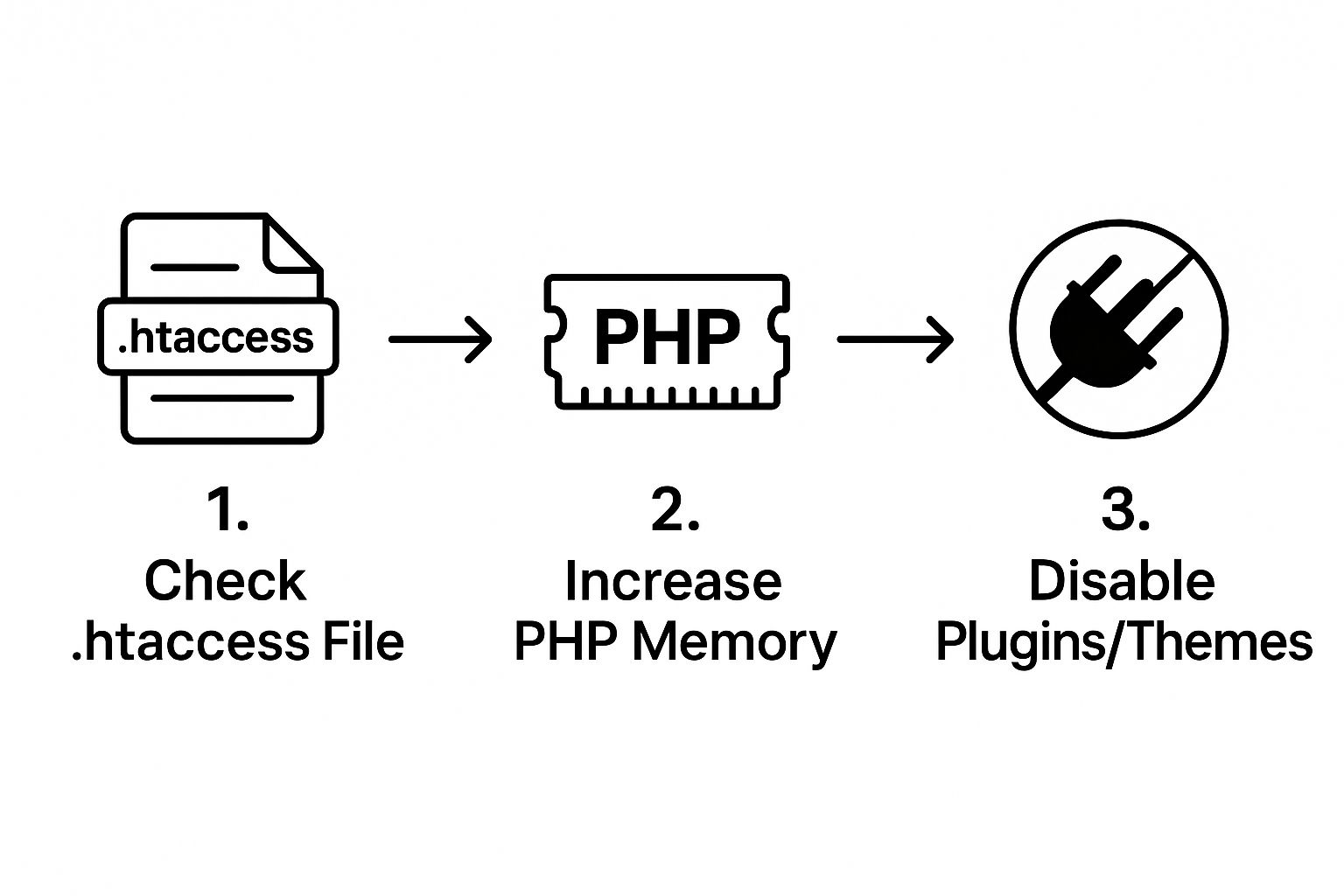
As the infographic shows, once you've checked server configurations like .htaccess and PHP memory, plugins and themes are the next logical suspects. A systematic approach like this will save you a ton of time.
How to Safely Deactivate All Plugins
When your site is offline, you can't just log into the WordPress dashboard and start turning off plugins. The fix is to handle it directly on the server using an FTP client like FileZilla or your host’s File Manager. Don't worry, this method is completely safe and easy to reverse.
- Connect to your server and go to the
wp-contentfolder. - Inside, you'll see a folder named
plugins. - Right-click this folder and rename it. I usually go with something like
plugins_oldorplugins_deactivated.
That's it. This one simple action forces WordPress to deactivate every single plugin on your site because it can't find the directory anymore.
Now, try reloading your website. If the 500 error is gone, you have 100% confirmed that a plugin is the culprit.
Don't worry—renaming the folder doesn't delete your plugins or touch their settings. Once you rename it back to
plugins, they will all reappear in your WordPress dashboard, waiting to be reactivated.
Pinpointing the Problem Plugin
Okay, so you've confirmed a plugin is the problem. Now it's time to play detective and find out which one.
First, head back into your FTP client and rename the plugins_old folder back to its original name: plugins. All your plugins are still deactivated at this point, but they're visible to WordPress again.
Next, log in to your WordPress admin dashboard (which should work now) and navigate to the "Plugins" page. From here, you'll reactivate each plugin one by one. After you activate a plugin, flip over to a new browser tab and refresh your homepage.
The moment that 500 error comes back, you've found your offender. It's the last plugin you just activated. From here, you can use FTP to delete that specific plugin's folder to get back into your site. Then you can decide if you want to find an alternative or reach out to the developer for a fix.
Ruling Out Your WordPress Theme
If disabling all your plugins didn't fix the 500 error, your theme is the next likely suspect. The process for checking this is pretty similar. We're just going to switch to a default WordPress theme, like Twenty Twenty-Four, to see if that clears the error.
If you have dashboard access, you can do this from the "Appearance" menu. If not, it's back to FTP or File Manager.
Go to the wp-content folder and find the themes directory. Inside, find your active theme's folder and just rename it. This forces WordPress to fall back to a default theme. If the site loads properly after that, you've found your problem: your theme's code is the issue.
How to Increase Your PHP Memory Limit
Sometimes, the dreaded 500 internal server error isn't about bad code at all. It's much simpler: your site has run out of gas.
Think of your website like a computer with a set amount of memory (RAM) to run everything. In the WordPress world, this is called the PHP memory limit. When a hungry plugin or a complex script needs more memory than your server is willing to give, it crashes. And that crash often looks like a 500 error.
This is a really common problem, especially on shared hosting plans where resources are tightly managed. You install a fancy new plugin, and suddenly your site is pushed over its default limit, which might be a pretty low 64MB or 128MB. The solution is to give WordPress a bit more breathing room by bumping up that limit.
Editing Your wp-config.php File Safely
The most direct way to increase the PHP memory limit is to add a single line of code to your wp-config.php file. This file is one of the pillars of your WordPress installation, sitting in the root directory. You can get to it using an FTP client like FileZilla or the File Manager in your hosting control panel.
Once you have the file open, you'll need to add this snippet:
define('WP_MEMORY_LIMIT', '256M');
Placement is key here. You need to paste this line just before the comment that says, /* That's all, stop editing! Happy publishing. */. This spot ensures WordPress reads the instruction correctly.
We're starting with 256M, which is a solid, modern baseline. If the error vanishes, fantastic! If not, you could try 512M, but it's rare that a well-built site needs more than that.
Save the file, upload it back to your server if needed, and then give your website a refresh. If the 500 error is gone, you've just solved a memory exhaustion issue.
Always, and I mean always, back up your
wp-config.phpfile before you touch it. A single misplaced comma in this file can bring your entire site down. Having a clean copy to restore is a non-negotiable safety net.
When You Need to Contact Your Host
What if you've added the code correctly and the 500 error is still there? You might be hitting a wall put up by your hosting provider.
On many shared and managed hosting plans, there's a hard, server-level memory cap that your wp-config.php file can't override. Hosts do this to prevent one power-hungry site from hogging all the server resources and slowing everyone else down.
If you suspect this is the case, your next step is to get in touch with their support team. Just drop them a ticket or hop on live chat, explain you're hitting a 500 error from PHP memory exhaustion, and ask them to increase the limit for your account. Any decent host will handle this for you pretty quickly and get your site back on its feet.
When you've exhausted the usual suspects like plugins, themes, and your .htaccess file, it's time to consider a less common culprit for the 500 internal server error wordpress message: corrupted core files.
This sounds scarier than it is. It usually happens when something goes wrong during a WordPress update, or maybe an FTP transfer gets cut off mid-stream. The result is damaged or incomplete files that are essential for WordPress to run. When the server tries to load them and can't, it throws up its hands and gives you the 500 error.
The fix is surprisingly simple: manually replace the core software with a fresh copy. Don't worry, this process won't touch your content, plugins, or theme. It’s like getting a new engine for your car while keeping your custom paint job and all your personal stuff inside.
Safely Overwriting the Core Folders
First things first, you need a clean copy of WordPress. Head over to the official WordPress.org download page and grab the latest .zip file.
Once it's downloaded, unzip the package on your computer. You'll find a folder called wordpress, which holds all the default files.
Now, you’ll need to connect to your site's server. You can use an FTP client like FileZilla or the File Manager in your hosting control panel. The goal here is to replace just two specific folders:
wp-admin: This runs your entire WordPress dashboard.wp-includes: This contains all the backend code that makes WordPress tick.
From the fresh download on your computer, drag these two folders over to your server's root directory (often called public_html). Your FTP client will pop up a message asking if you want to overwrite the existing files. Go ahead and say yes to all. This swaps out any potentially broken files with clean, working versions.
CRITICAL: Whatever you do, do not touch your
wp-contentfolder. This is where your themes, plugins, and media uploads live. Overwriting this folder would completely erase your site's design and functionality.
Finalizing the Refresh
After the upload finishes, you're done. You’ve successfully refreshed the core of your WordPress installation. The new wp-admin and wp-includes folders are now in place, and your vital wp-content folder and configuration files like wp-config.php are completely untouched.
This method gives the WordPress engine a clean slate without affecting any of your custom work.
Now for the moment of truth. Go back to your website and hit refresh. If a corrupted core file was the problem, this simple replacement should have fixed the 500 internal server error and brought your site straight back to life. It's a powerful final troubleshooting step to have in your back pocket.
Preventing Future Server Errors
It’s always a huge relief to get your site back online after staring down a 500 internal server error in WordPress. But the real win? Making sure it doesn't happen again. This is all about shifting your mindset from frantic, reactive fixes to calm, proactive site management. It's the bedrock of a stable and trustworthy website.
Just adopting a few solid habits can make all the difference.
First up, regular, automated backups are absolutely non-negotiable. Think of them as your ultimate undo button. If a plugin update goes sideways, you can restore a working version of your site in minutes instead of hours.
Another game-changer is using a staging site to test everything—plugin updates, theme changes, even major WordPress core updates—before you push them to your live environment. This gives you a safe sandbox to catch any conflicts or bugs without ever putting your live site's uptime at risk.
Maintain Site Health and SEO
Frequent downtime doesn't just annoy your visitors; it also sends some pretty bad signals to search engines.
Now, a brief outage of a few minutes while Google's crawler is visiting probably won't hurt you. But if the server errors drag on for several hours, Google might see it as a serious site-level problem. This could ding your rankings until you prove your site is stable again. If you want to dive deeper, Kinsta has a great analysis on how server errors impact SEO.
Proactive maintenance isn't just about dodging errors—it's about building a resilient digital asset. A well-maintained site is faster, more secure, and far less likely to suffer from the kind of unexpected downtime that sends potential customers running.
The best way to stay on top of all this is to follow a solid WordPress maintenance plan. It’s your checklist for ensuring updates are handled properly, backups are running like clockwork, and your site stays secure.
Tools like WP Foundry are built for this. They centralize all those tedious tasks, letting you run vulnerability checks and manage updates across your sites from one clean interface. Putting a system like this in place makes preventative care a whole lot more efficient. You'll end up spending far less time troubleshooting and more time actually growing your site.
Frequently Asked Questions
Even with a solid plan, hitting a 500 internal server error wordpress message can still cause a bit of panic. Let's tackle some of the most common worries that pop up when you're in the thick of troubleshooting.
Is My Website Content Gone Forever?
Let me put your mind at ease: almost certainly not. A 500 internal server error rarely, if ever, means your content, pages, or media files have vanished.
Think of it this way: the error is a problem with the engine (the server-side code), not the passengers (your content). Your database and wp-content folder are almost always safe and sound. They're just temporarily out of reach because the server can't figure out how to display them. Once you fix the underlying issue, everything will pop right back into place.
When Should I Just Contact My Host?
This is a great question, and knowing when to call for backup is key. My rule of thumb is to contact your hosting provider after you've exhausted the usual suspects yourself.
If you’ve already checked for a corrupted .htaccess file, methodically ruled out plugin and theme conflicts, and tried to increase the PHP memory limit without any luck, it's time to get them involved. Your host has a backstage pass to detailed server logs that can spot problems you can't see, like specific server misconfigurations or resource caps on their end.
Pro Tip: When you open a support ticket, be specific. Tell them exactly what troubleshooting steps you’ve already taken. This helps their team zero in on the real problem much faster and saves you from the frustration of being asked to do things you've already done.
How Can I See More Specific Error Details?
The generic "Internal Server Error" screen isn't very helpful, is it? To get a more useful clue, you can switch on WordPress's built-in debugging mode.
All you have to do is add this single line to your wp-config.php file: define('WP_DEBUG', true);. This tells WordPress to stop hiding the messy details and show you any specific PHP errors right on the screen. A vague 500 error can instantly become a clear message, often pointing to the exact file and line of code causing the trouble. It’s an invaluable tool for a quick fix and a core part of any good WordPress website maintenance routine.
And for a more streamlined way to handle updates, security scans, and backups across all your sites, check out WP Foundry. It gives you a central dashboard to keep your WordPress portfolio in check, helping you prevent these kinds of errors from happening in the first place. You can learn more and get started at https://wpfoundry.app.