

Think of a WordPress backup as your site's non-negotiable insurance policy. It’s a complete copy of every file and your entire database, giving you the power to restore everything after a crash, a hack, or even a simple user error. This copy is your ultimate safety net when things go wrong.
Why a Solid Backup Is Your Ultimate Safety Net
Before we jump into the how, it’s critical to understand the why. A reliable backup isn’t just another technical task on your to-do list; it's the foundation of your business continuity plan. It’s the one thing that stands between a minor hiccup and a catastrophic failure that could wipe out years of your hard work.
Imagine a simple plugin update goes haywire, and your site suddenly greets visitors with the dreaded "white screen of death." Or maybe an employee accidentally deletes a critical product page right before a huge sale. These aren't just hypotheticals—they happen all the time.
The Most Common Website Disasters
Without a recent backup, your options are grim and often expensive. You could spend days, or even weeks, trying to rebuild from scratch, losing revenue and customer trust with every passing hour. A backup, however, transforms these potential disasters into manageable issues.
Here are just a few real-world situations where a backup is a lifesaver:
- Failed Updates: A conflicting plugin or theme update breaks your site's functionality.
- Human Error: Accidental deletion of important files, pages, or user data.
- Malware or Hacks: A security breach compromises your files and injects malicious code.
- Server Crashes: Hosting provider issues can take your site offline without warning.
A backup isn't a chore to be completed; it's an asset that protects your revenue, reputation, and peace of mind. It’s the difference between a quick recovery and a complete do-over.
The Sobering Reality of WordPress Security
The need for consistent backups is made even more urgent by the platform's sheer popularity. A staggering 90% of all CMS-based website attacks target WordPress, with tens of thousands of sites compromised every single day.
A huge portion of these vulnerabilities stems from outdated plugins, which account for 77% of security weaknesses. With a solid backup and a clear plan for your WordPress site recovery, you can effectively counter these risks.
Ultimately, backing up your WordPress site is about maintaining control. It ensures that no matter what happens—be it a technical glitch, a security threat, or a simple mistake—you have the power to restore your digital presence quickly and get right back to business.
Choosing the Right Backup Method for You
Picking the right way to back up your WordPress site isn't a one-size-fits-all deal. The best approach really boils down to your own comfort level with tech, what your budget looks like, and how often your site changes. It’s like picking a tool from the toolbox—what works for a simple portfolio site probably won't cut it for a bustling online store.
You've got three main paths to consider, and each one comes with its own pros and cons. You can put things on autopilot with a plugin, let your web host handle it, or roll up your sleeves and take full control with a manual backup.
- Backup Plugins: There's a reason these are the go-to choice for most people. They handle scheduled backups automatically, connect easily to off-site storage, and make restoring your site pretty straightforward. For the average user, this is usually the best bet.
- Hosting Backups: A lot of web hosts include automatic backups in their plans. It’s a super convenient, set-it-and-forget-it option, but you usually get less say over how often backups happen and where they're stored.
- Manual Backups: If you're comfortable getting your hands dirty, a manual backup gives you the ultimate control. You’re the one handling the files and the database, so you know exactly what’s being saved and where it's going.
This handy decision tree can point you in the right direction if you're not sure where to start.
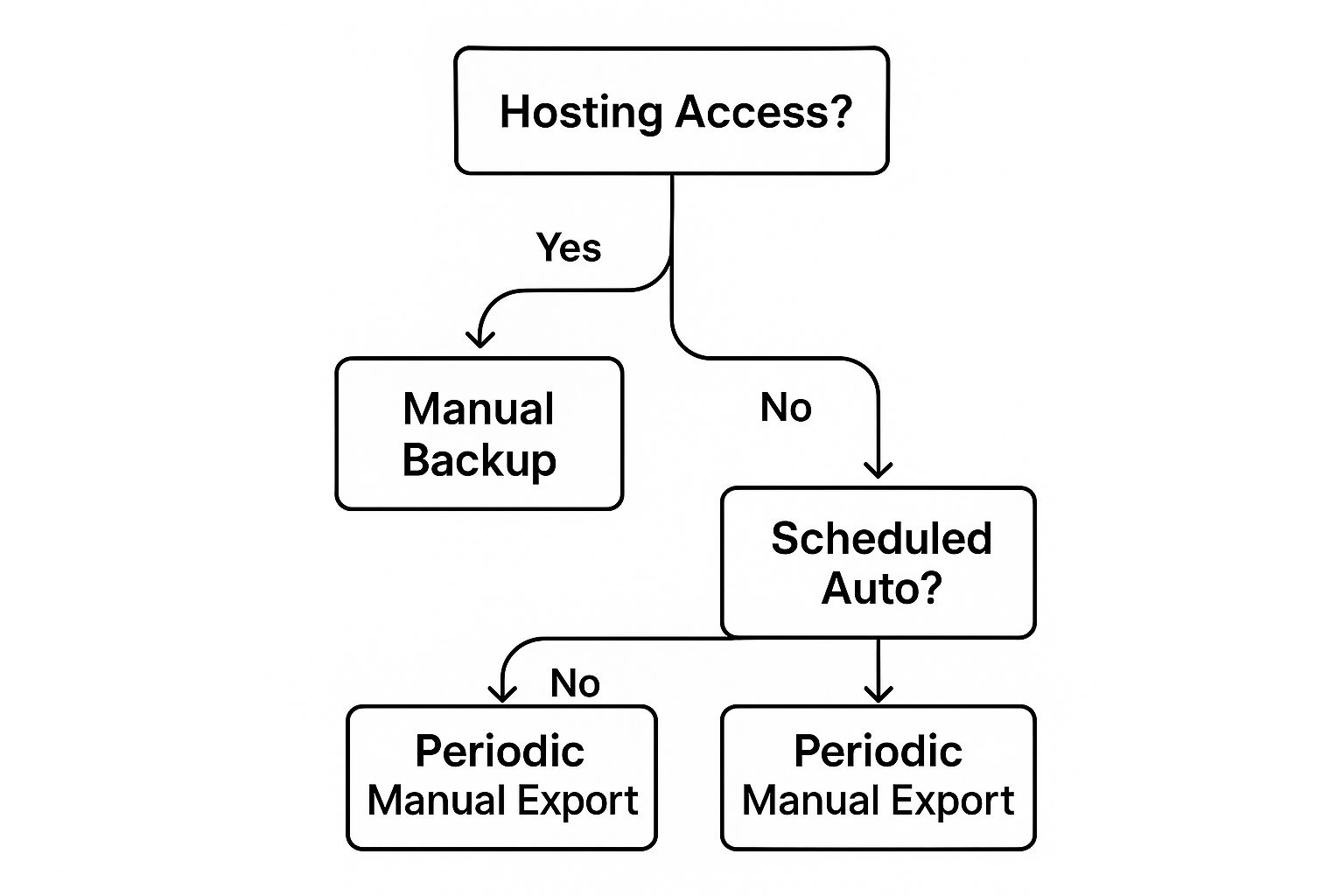
As you can see, it really comes down to your server access and how much you want to automate the process.
WordPress Backup Method Comparison
To make it even clearer, here's a quick comparison of the main backup methods to help you decide which one fits your needs.
| Method | Best For | Pros | Cons |
|---|---|---|---|
| Plugins | Most users, from beginners to pros, who want automated, flexible backups. | Easy to set up, automated scheduling, simple restoration, off-site storage options. | Quality plugins can have a cost, and poorly coded ones can slow down your site. |
| Hosting | Users looking for a simple, hands-off solution included with their hosting plan. | Extremely convenient, often runs automatically in the background, no extra software needed. | Less control over schedule/storage, restores can be complex, backups stored on the same server. |
| Manual | Developers and tech-savvy users who demand complete control over the process. | Full control over every aspect, no reliance on third-party tools, completely free. | Time-consuming, high risk of human error, requires technical knowledge (FTP, phpMyAdmin). |
Each method has its place. The key is picking the one that aligns with your workflow and gives you peace of mind.
Aligning Backup Frequency with Your Site's Needs
How you back up is only half the battle; how often you do it is just as critical. A high-traffic eCommerce site and a personal blog have completely different needs.
A solid rule of thumb is the 3-2-1 strategy: keep three copies of your data on two different types of media, with at least one copy stored off-site.
For sites with a lot of activity—think membership portals, news sites, or online stores—daily backups are a must. Losing even a day's worth of orders or user sign-ups can be a disaster. On the flip side, smaller business sites or portfolios that don't change much can usually get by with weekly backups. It’s a good balance between safety and managing storage space.
A good question to ask yourself is, "How much work am I willing to do over again?" Your answer will tell you exactly how often you should be backing up.
In the real world, the strongest strategy is often a hybrid one. You might rely on your host's daily snapshots for quick, recent restores while also running a weekly plugin-based backup to a separate cloud service like Dropbox or Google Drive. This layered approach creates multiple recovery points.
You can also use a tool like WP Foundry to manage remote server backups, giving you another layer of protection and direct control over your assets.
A Practical Guide to Manual WordPress Backups
If you like being in complete control, doing a manual backup is the most direct route you can take. While plugins are great for automation, this hands-on method means you know exactly what's being saved and where it's going.
The whole thing boils down to two key parts: grabbing a copy of your site's files and exporting a copy of its database.
This might sound a bit intimidating, but it's pretty straightforward once you get the hang of it. Think of your files—themes, plugins, images—as the skeleton of your site. The database is the brain, holding all your content, settings, and user info. To bring your site back from the dead, you absolutely need both.
Downloading Your WordPress Files with an FTP Client
First up, you need to connect to your server and download every file in your WordPress installation. The best tool for this job is a File Transfer Protocol (FTP) client. A great free and reliable option is FileZilla, which works on just about any operating system.
To get going, you'll need your FTP credentials, which you can get from your hosting provider. This usually includes:
- Host: Your domain name or a server address.
- Username: Your specific FTP username.
- Password: The password that goes with the username.
- Port: Typically 21 for FTP, but you might use 22 for the more secure SFTP.
Once you're connected, FileZilla shows your computer's files on the left and your website's files on the right. You'll need to find your site's root directory on the server—this is often called public_html or is named after your domain.
This is what the FileZilla interface looks like, with the remote server files shown on the right.
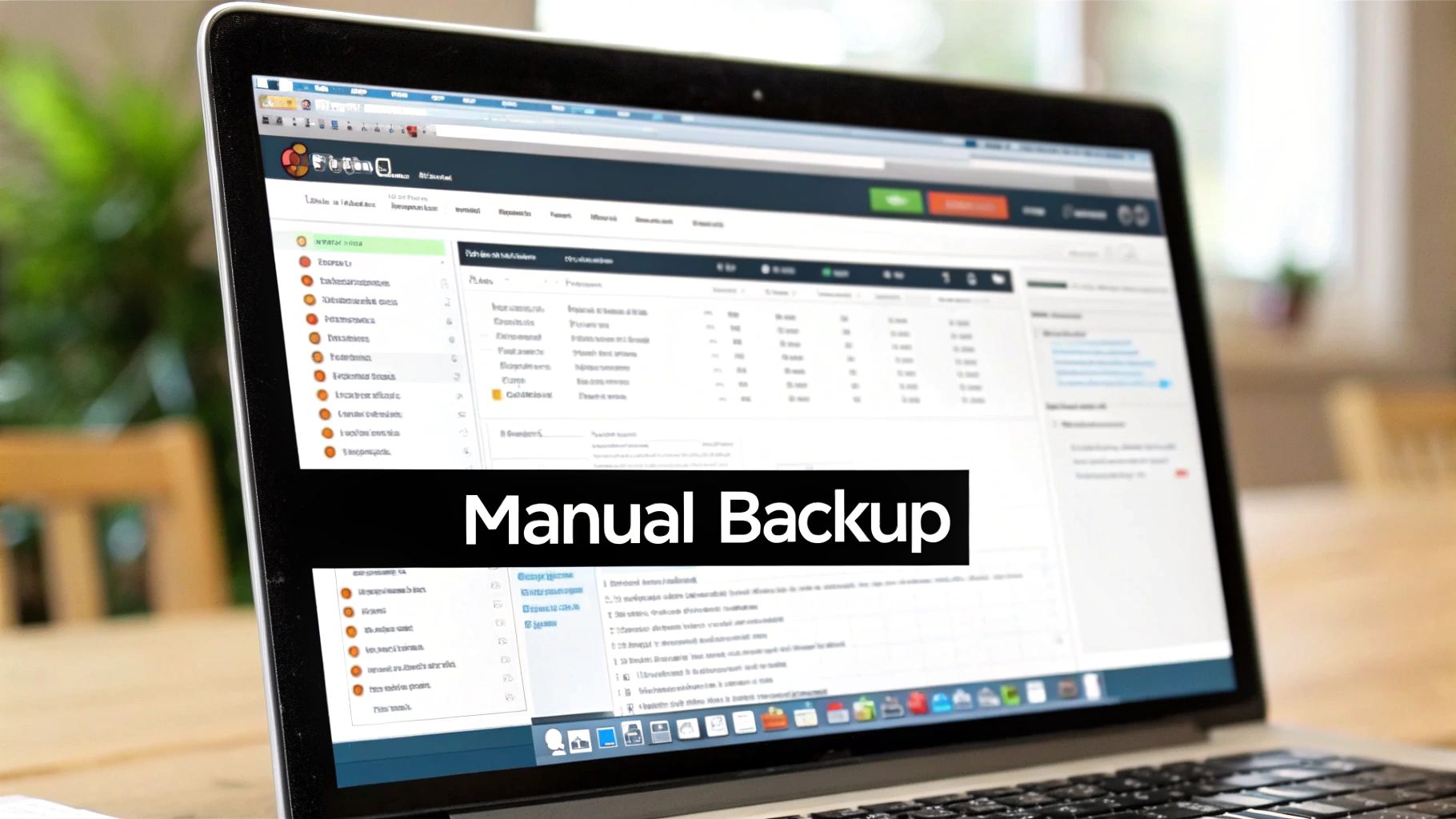
You can see the core WordPress folders you need to grab, like wp-admin, wp-content, and wp-includes.
Just select all the files and folders in that root directory, right-click, and hit "Download." This might take a while, depending on how big your site is and the speed of your internet connection.
Pro Tip: Before you start downloading, pop into your hosting control panel. Look for a "File Manager" that has a "Compress" or "Zip" option. Compressing your entire
public_htmlfolder into a single file on the server and then downloading that one.zipfile is way faster than downloading thousands of tiny files one by one.
Exporting Your Database with phpMyAdmin
With your files saved locally, it's time to tackle the database. The go-to tool for this is phpMyAdmin, which you can almost always find in your hosting account's control panel (like cPanel or a custom dashboard).
Once you open phpMyAdmin, you’ll see a list of your databases on the left. Just click on the one for your WordPress site. If you're not sure which it is, you can find the database name inside your wp-config.php file.
After selecting your database, look for the "Export" tab at the top. The default settings here are usually exactly what you need.
- Export Method: "Quick" is fine, as it grabs everything.
- Format: Make sure "SQL" is selected.
Click the "Export" button, and a single .sql file will download to your computer. This file is a complete snapshot of every post, page, comment, and setting on your site.
Now you have a folder with all your website files and the .sql database export. Date that folder, and you’ve got a complete manual backup. Make sure to store this somewhere safe and off-site, like a cloud drive or an external hard drive.
Automating Backups with WordPress Plugins
For most people, digging around in FTP clients and messing with databases is not a good use of time. This is exactly where backup plugins come in, offering a killer combination of automation, simplicity, and powerful features. They turn backing up your WordPress site from a chore into a smart, set-it-and-forget-it strategy.
Think of a plugin as a bridge. It connects your website to a secure storage spot and runs the whole backup process on a schedule you decide. This automated approach is the best way to keep consistent, reliable copies of your site without having to do it by hand every time. It’s the simplest path to peace of mind.
Setting Up Your First Automated Backup
Let's walk through setting up a popular and reliable plugin, UpdraftPlus. The goal here is to build a system that automatically backs up your site, sends the files to a safe off-site location, and cleans up old copies so you don’t fill up your storage.
First, you’ll install and activate the plugin right from your WordPress dashboard. Once it's active, head over to its settings page. This is your central control panel for your entire backup plan, where you tell the plugin what to do and when.
The interface for UpdraftPlus gives you a clean overview of your scheduling and remote storage options.
This dashboard is built to be straightforward, letting you quickly set your backup frequency and connect to cloud services.
You’ll want to focus on two key areas: scheduling and remote storage. For a standard business blog or portfolio site, a weekly file backup is usually fine, but I’d recommend a daily backup for the database—that's where all your precious content is stored. If you're running an e-commerce or membership site, daily backups for both files and the database are an absolute must.
Connecting to Off-Site Cloud Storage
The next critical step is linking the plugin to an off-site storage service. Just storing backups on the same server as your live site is a huge mistake. If that server goes down, you lose everything—your site and your backups.
Connecting to a third-party cloud service like Google Drive, Dropbox, or Amazon S3 is the most important step in creating a resilient backup plan. This ensures your data is safe and accessible even if your web host experiences a catastrophic failure.
Most plugins make this really easy. You just pick your favorite service, and the plugin walks you through a quick authorization process to let it save files to your account. This one-time setup creates a secure pipeline for all your future backups.
Finally, you need to set a retention schedule. This simply tells the plugin how many recent backups to hang onto. A good starting point is keeping the last four weekly backups. This gives you a full month of recovery points without eating up all your storage space.
The need for a solid backup plan becomes obvious when you look at WordPress's sheer scale. As of 2025, WordPress powers over 43.6% of all websites, which is more than 810 million sites around the world. With plugins and themes causing roughly 75% of reported vulnerabilities, having a reliable, automated backup system isn't just a good idea—it's essential for protecting your work. You can read more about these WordPress statistics and what they mean on the Invedus blog.
For a deeper look at choosing the right tools, you might find our guide on the best WordPress backup plugin options helpful.
Backup Mistakes to Avoid and Best Practices to Follow

Simply having a backup isn’t enough. The real peace of mind comes from having a smart, resilient strategy that you know will work when disaster strikes. I've seen too many site owners make critical errors that render their backups totally useless right when they're needed most.
One of the biggest mistakes is storing backups on the same server as the live website. It feels convenient, but it's incredibly risky. If that server crashes, gets hacked, or otherwise fails, you lose both your site and every single backup in one fell swoop.
Another common oversight is forgetting the database. Some people meticulously back up their wp-content folder but neglect the SQL file. That file contains all your posts, user data, and settings. A file-only backup is an incomplete puzzle; you need both pieces for a successful restoration.
Adopting the 3-2-1 Backup Rule
To build a truly bulletproof strategy, you can lean on a time-tested industry principle: the 3-2-1 rule. This simple framework dramatically increases your chances of a successful recovery.
The rule is straightforward:
- Have three total copies of your data.
- Store them on two different types of storage media.
- Keep at least one copy stored completely off-site.
So what does this look like in practice? Your live site is your first copy. Your second could be a backup file on an external hard drive (a different medium). Your third copy should be stored in a separate physical location, like with a cloud provider such as Google Drive or Dropbox. This redundancy protects you from almost any single point of failure.
A backup you haven’t tested is not a backup; it’s a guess. Regularly restoring your backup to a staging environment is the only way to confirm it works and that you know how to perform the recovery process under pressure.
Key Practices for a Reliable System
Beyond the 3-2-1 rule, a few other habits separate a fragile setup from a robust one. First and foremost, always test your backups. Create a staging site and practice restoring your files. This is the only way to find any issues with the backup's integrity and get comfortable with the restore process before you’re in an emergency.
Also, don’t rely on a single backup method. A hybrid approach provides the best protection. For example, you might use your web host’s automatic daily snapshots for minor, recent rollbacks while also running your own weekly plugin-based backup to a separate cloud service. This gives you multiple, independent recovery options.
By avoiding these common pitfalls and embracing these best practices, you move from just having backups to having a reliable recovery plan you can actually count on.
A Few Common Questions About WordPress Backups
When it comes to backing up a WordPress site, a few questions pop up time and time again. Let’s clear the air and get you set up with a solid backup plan.
How Often Should I Back Up My Site?
Honestly, this all comes down to how often your site changes. If you’re running an e-commerce store with orders flying in and inventory shifting constantly, you absolutely need daily backups. No question.
But for a business blog that posts a new article once a week? A weekly backup is probably perfectly fine. And for a portfolio site that’s mostly static, you could easily get away with a monthly backup.
The golden rule is this: don't risk losing more work than you're willing to do all over again. Your backup schedule should mirror how often you create content. It’s that simple.
What's the Difference Between Files and the Database?
Think of your WordPress site as having two essential parts: the files and the database. They’re two sides of the same coin.
Your files are the structural components—your theme, your plugins, and all your media uploads like images and videos. The database is where the actual content lives. This includes all your posts, pages, user comments, account info, and site settings.
Here's an easy analogy: the files are the physical structure of a house. The database is everything inside—the furniture, the art on the walls, and the people living there. One is pretty useless without the other if you ever need to do a full restore. You need to back up both, always.
Can I Just Rely on My Web Host's Backups?
Relying only on your hosting provider for backups is a gamble. While having them is a great fallback, it’s not something you should depend on entirely. You have very little say over their backup schedule, how long they keep copies, or even where they're stored.
Even more importantly, if your hosting company has a major server meltdown, your backups could disappear right along with your live site. That’s a nightmare scenario.
This is why you always need to keep your own independent, off-site backups. It puts you in the driver's seat and guarantees you have a clean copy, no matter what happens on your host's end.
Ready to take full control over your WordPress backups and management? With WP Foundry, you can handle everything from a single, powerful desktop app. Generate database backups, manage all your plugins and themes across multiple sites, and even scan for security issues from one place. Simplify your workflow and secure your sites by trying it today at https://wpfoundry.app.